Convert Excel Worksheet to XML using Tkinter and Pandas
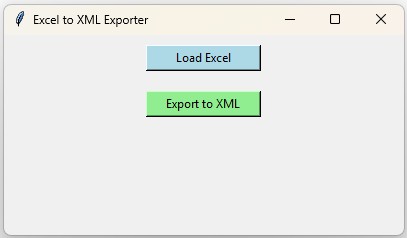
This project uses Tkinter and Pandas to convert a worksheet from an Excel workbook into XML.
The user selects an Excel file through a Tkinter file browser. The application reads the available worksheet names, lets the user select one, creates a DataFrame with read_excel() and exports the selected worksheet using to_xml().
Excel workbook
      |
      v
Worksheet names
      |
      v
Select worksheet
      |
      v
pd.read_excel()
      |
      v
Pandas DataFrame
      |
      v
XML-safe columns
      |
      v
df.to_xml()
      |
      v
XML file- Select an Excel Workbook
- Read Worksheet Names
- Create the DataFrame
- Create Valid XML Element Names
- Map Excel Headers to XML Tags
- Choose Root and Row Elements
- Preview XML
- Export the Complete Worksheet
- Missing Excel Values
- XML Special Characters
- Complete Excel to XML Program
- Excel to XML without Tkinter
- Use Other Data Sources
- Continue the Conversion Projects
- FAQs
Select an Excel Workbook Top ↑
Use the Tkinter file browser to select an Excel workbook:
file_path=filedialog.askopenfilename(
    title='Select Excel workbook',
    filetypes=[
        ('Excel files','*.xlsx *.xls'),
        ('All files','*.*')
    ]
)
If the dialog is cancelled, the existing workbook and DataFrame are left unchanged.
Read Worksheet Names from the Workbook Top ↑
An Excel workbook can contain several worksheets. Instead of automatically loading only the first one, create a Pandas ExcelFile:
excel_file=pd.ExcelFile(
    file_path
)

sheet_names=excel_file.sheet_names
For example:
Sales
Customers
Products
Summary
The names are displayed in a readonly Combobox.
sheet_combo['values']=sheet_namesThe first worksheet can be selected initially:
sheet_var.set(
    sheet_names[0]
)
Create a DataFrame from the Selected Worksheet Top ↑
After the worksheet is selected:
df=pd.read_excel(
    workbook_path,
    sheet_name=sheet_name
)
The application displays:
- workbook filename;
- selected worksheet;
- number of rows;
- number of columns;
- first five worksheet rows;
- Excel heading to XML element mapping.
Create Valid XML Element Names Top ↑
Excel headings can contain almost any text:
Employee Name
Joining Date
2nd Address
Salary ($)
Before XML export, normalize the headings:
def xml_name(name,prefix='field'):
    name=re.sub(
        r'[^A-Za-z0-9_.-]+',
        '_',
        str(name).strip()
    )

    if not name:
        name=prefix

    if not re.match(
        r'[A-Za-z_]',
        name
    ):
        name=prefix+'_'+name

    return name
Examples:
Employee Name  -> Employee_Name
Joining Date   -> Joining_Date
2nd Address    -> field_2nd_Address
Salary ($)     -> Salary_
Keep XML Column Names Unique Top ↑
Different Excel headings can normalize to the same XML element name.
The program checks every generated tag and adds a numeric suffix when required:
Amount_
Amount__2
Amount__3
A separate DataFrame is used:
df
xml_df
df retains the original Excel headings. xml_df contains XML-safe column names.
Choose XML Root and Row Element Names Top ↑
The user can enter names such as:
Root element: employees
Row element:  employee
The generated XML then has this structure:
<employees>
  <employee>
    ...
  </employee>
  <employee>
    ...
  </employee>
</employees>
The root and row names are validated before creating the XML.
Preview XML before Exporting Top ↑
The first five worksheet records are converted to XML for preview:
preview=xml_df.head(
    5
).to_xml(
    index=False,
    root_name=root_name,
    row_name=row_name,
    encoding='utf-8',
    xml_declaration=True,
    pretty_print=True,
    parser='etree'
)
This confirms the XML structure without creating a potentially large preview from the complete worksheet.
Export the Complete DataFrame with to_xml() Top ↑
The user chooses the destination through a Tkinter Save As dialog.
xml_df.to_xml(
    save_path,
    index=False,
    root_name=root_name,
    row_name=row_name,
    encoding='utf-8',
    xml_declaration=True,
    pretty_print=True,
    parser='etree'
)
index=False prevents the Pandas DataFrame index from appearing as another XML element.
Missing Excel Values in XML Top ↑
A worksheet can contain blank cells:
Name  | Mark
John  | 75
Max   |
Arnold| 55
Pandas represents the blank value as missing data. XML export can represent this as an empty element.
<Mark />If another value is required, clean the DataFrame before export. See Tkinter Pandas data cleaning.
XML Special Characters Are Escaped Automatically Top ↑
Suppose an Excel cell contains:
Research & Developmentthe XML serializer creates valid XML text:
Research & DevelopmentDo not manually replace ampersands or angle brackets before calling to_xml().
Complete Tkinter Excel to XML Converter Top ↑
Why Select the Worksheet Explicitly? Top ↑
The earlier version used:
pd.read_excel(file_path)which reads the default worksheet.
A workbook such as:
sales.xlsx

Sheet: January
Sheet: February
Sheet: March
Sheet: Summary
should allow the user to choose which worksheet is converted.
The revised application first discovers:
excel_file.sheet_namesand then passes the selected worksheet to:
pd.read_excel(
    workbook_path,
    sheet_name=sheet_name
)
Why Keep df and xml_df Separately? Top ↑
The original Excel DataFrame may contain headings such as:
Employee Name
Joining Date
Salary ($)
These are useful DataFrame labels, so there is no need to permanently alter them.
df
 |
 +--> original Excel headings

xml_df
 |
 +--> Employee_Name
 +--> Joining_Date
 +--> Salary_
Only the XML-specific DataFrame receives normalized element names.
Excel to XML without Tkinter Top ↑
If a GUI and worksheet selector are not required:
import pandas as pd

df=pd.read_excel(
    'students.xlsx',
    sheet_name='Sheet1'
)

df.to_xml(
    'students.xml',
    index=False,
    root_name='students',
    row_name='student',
    parser='etree'
)Use Other Data Sources with the Same Pattern Top ↑
The important pattern is:
Data source
    |
    v
Pandas DataFrame
    |
    v
to_xml()
The DataFrame can come from several Plus2net project workflows.
CSV to XML Top ↑
Use CSV to XML with Tkinter and Pandas when the source data is a CSV file.
CSV to JSON or XML Top ↑
Use CSV to JSON/XML converter when the user should choose the destination format.
SQLite to DataFrame Top ↑
Use the SQLite to Pandas DataFrame project as a starting point when the source data comes from an SQLite table.
Once the records are stored in a DataFrame, the same XML export concepts can be applied.
Continue the Tkinter Pandas Conversion Projects Top ↑
Convert CSV directly to XML:
CSV to XMLChoose between JSON and XML output:
CSV to JSON or XMLExport SQLite records to CSV:
SQLite to CSVFrequently Asked Questions Top ↑
Use pd.read_excel() to create a DataFrame from the worksheet and then use DataFrame.to_xml() to create the XML file.
Yes. pd.ExcelFile().sheet_names returns the available worksheet names, which can be displayed in a Tkinter Combobox.
Excel headings can contain spaces, punctuation and leading digits, while XML element names must follow XML naming rules.
The application checks each normalized name and adds a numeric suffix when another generated XML name is already in use.
Missing DataFrame values can be represented by empty XML elements. The DataFrame can also be cleaned before export if another value is required.
Yes. The XML serializer handles characters such as ampersands and angle brackets when the document is generated.
No. The Excel file is only read. The application creates a separate XML output file.
CSV to JSON/XML Directory Browser
Tkinter Projects Tkinter Pandas Projects

Subhendu Mohapatra
Author & Instructor at plus2net
I write and maintain practical tutorials on Python, PHP, SQL, JavaScript, HTML, jQuery, and web development at plus2net. The tutorials focus on clear explanations, working examples, and code that readers can test and adapt while learning.


Subscribe to our YouTube Channel here

 Python Video Tutorials