Clean CSV Data with Tkinter and Pandas before Saving to SQLite
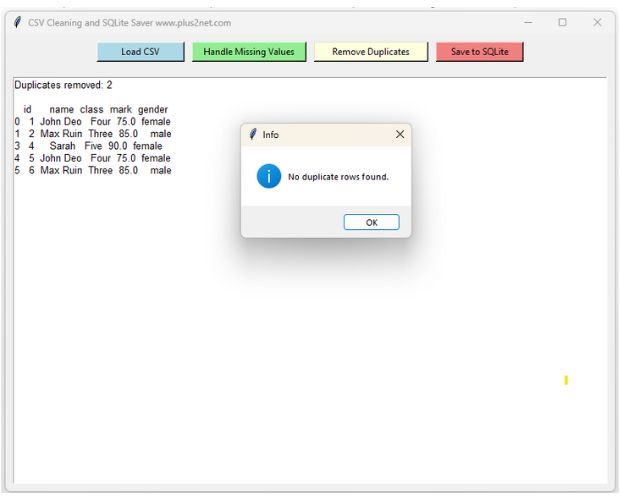
This project combines Tkinter, Pandas and SQLite to create an interactive CSV data-cleaning application.
The user selects a CSV file with the Tkinter file browser. Pandas read_csv() creates a DataFrame, and the interface can then handle missing values, remove duplicate records and save the cleaned DataFrame to SQLite.
CSV file
    |
    v
Pandas DataFrame
    |
    +--> inspect missing values
    |
    +--> fill or drop missing values
    |
    +--> remove duplicates
    |
    +--> preview cleaned data
    |
    v
Cleaned DataFrame
    |
    v
SQLite tableShow Table of Contents
- Recommended Cleaning Workflow
- Load CSV Data
- Inspect the DataFrame
- Handle Missing Values
- Fill Numeric Missing Values
- Fill Text Missing Values
- Drop Rows with Missing Values
- Remove Duplicate Rows
- Reset Cleaning Changes
- Save Cleaned Data to SQLite
- Complete Cleaning Application
- Video Tutorial
- Why Cleaning Order Matters
- Continue the Project
- FAQs
Recommended CSV Cleaning Workflow Top ↑
Data cleaning should normally begin with inspection rather than immediately changing values.
Load
  |
  v
Inspect rows and columns
  |
  v
Count missing values
  |
  v
Choose a missing-value strategy
  |
  v
Check duplicates
  |
  v
Remove duplicates
  |
  v
Review cleaned result
  |
  v
Save
The application therefore shows a summary after each cleaning operation:
- number of rows;
- number of columns;
- total missing cells;
- number of duplicate rows;
- missing values in each column;
- first ten DataFrame rows.
Load CSV Data into a Pandas DataFrame Top ↑
Select the CSV file through a Tkinter file dialog:
file_path=filedialog.askopenfilename(
    title='Select CSV file',
    filetypes=[
        ('CSV files','*.csv'),
        ('All files','*.*')
    ]
)
Create the DataFrame:
new_df=pd.read_csv(
    file_path
)
Two copies are maintained:
original_df=new_df.copy()
df=new_df.copy()
original_df remains unchanged while df is cleaned. This lets the user reset the application without reopening the CSV file.
Inspect Missing Values and Duplicate Rows Top ↑
The total number of missing cells is:
missing_count=int(
    df.isna().sum().sum()
)
Count duplicate rows using duplicated():
duplicate_count=int(
    df.duplicated().sum()
)
Missing values for individual columns can be inspected with:
df.isna().sum()A useful summary can therefore look like:
Rows: 35
Columns: 5
Missing cells: 4
Duplicate rows: 2

MISSING VALUES BY COLUMN

id        0
name      1
class     1
mark      2
gender    0
Choose How to Handle Missing Values Top ↑
The original application offered only two choices:
Fill every missing value with 0
or
Drop every row containing a missing value
A single replacement value is not always appropriate for different DataFrame columns. The revised interface uses a read-only Combobox with three strategies:
Fill numeric missing values with 0
Fill text missing values with Unknown
Drop rows containing missing values
The selected strategy is applied only when the user clicks Apply Missing Values.
Fill Missing Numeric Values with 0 Top ↑
First select only numeric columns:
numeric_columns=df.select_dtypes(
    include='number'
).columns
Then use fillna() only on those columns:
df[numeric_columns]=df[
    numeric_columns
].fillna(
    0
)
For example:
mark

75
NaN
82
NaN
becomes:
mark

75
0
82
0Fill Missing Text Values with Unknown Top ↑
Non-numeric columns can be handled separately:
text_columns=df.select_dtypes(
    exclude='number'
).columns
Each selected column can replace missing values with descriptive text:
for column in text_columns:
    df[column]=df[column].astype(
        'object'
    ).fillna(
        'Unknown'
    )
For example:
class

Four
NaN
Three
becomes:
class

Four
Unknown
Three
Drop Rows Containing Missing Values Top ↑
Another option is to remove every row containing at least one missing value:
df=df.dropna().reset_index(
    drop=True
)
If the DataFrame contains 35 rows before the operation and 4 rows contain missing values, the result may contain 31 rows.
Find and Remove Duplicate Rows Top ↑
Count duplicate rows:
duplicates=int(
    df.duplicated().sum()
)
Remove exact duplicate rows using drop_duplicates():
df=df.drop_duplicates().reset_index(
    drop=True
)
The application reports the number removed:
Removed 3 duplicate row(s).What Counts as a Duplicate? Top ↑
With no subset argument, Pandas compares all columns.
These rows are duplicates:
1,John,Four,75
1,John,Four,75
These are not exact duplicates:
1,John,Four,75
1,John,Four,80
Even though the same student ID appears, one value differs.
Reset All Cleaning Changes Top ↑
Because the originally loaded DataFrame is preserved:
original_dfall cleaning operations can be reversed during the current session:
df=original_df.copy()This is useful while experimenting with different cleaning strategies.
Save the Cleaned DataFrame to SQLite Top ↑
After reviewing the cleaned DataFrame, the user can choose an SQLite database and table name.
The table name is validated before use:
def valid_table_name(table_name):
    return bool(
        re.fullmatch(
            r'[A-Za-z_][A-Za-z0-9_]*',
            table_name
        )
    )
A SQLAlchemy Engine is created:
engine=create_engine(
    'sqlite:///'+db_path
)
If the requested table already exists, the application asks before replacing it.
The cleaned DataFrame is then saved with:
df.to_sql(
    name=table_name,
    con=engine,
    if_exists=mode,
    index=False
)
See our Pandas to_sql() examples for more on transferring DataFrame records to databases.
Complete Tkinter Pandas Data Cleaning Application Top ↑
Video: CSV Cleaning with Tkinter, Pandas and SQLite Top ↑
Why the Order of Data Cleaning Operations Matters Top ↑
The final result can depend on which cleaning operation is performed first.
Consider:
name | mark
John | NaN
John | NaN
Initially these rows are duplicates.
If we first remove duplicates:
John | NaNand then fill the missing mark:
John | 0we retain one row.
A practical sequence is usually:
Inspect
   |
   v
Handle missing values
   |
   v
Normalize / validate values
   |
   v
Remove duplicates
   |
   v
Review
   |
   v
Save
However, the correct sequence depends on what the dataset represents.
Why Keep original_df and df Separately? Top ↑
The application uses:
original_df
df
original_df represents the CSV immediately after loading. df is the working copy.
CSV
 |
 v
original_df
 |
 +------------------+
 |                  |
 v                  |
df --> cleaning     |
 |                  |
 +--> Reset --------+
This is safer for an interactive cleaning application because the user can try different strategies without reopening the file.
Why Filling Every Column with 0 Can Be Misleading Top ↑
The original example used:
df.fillna(0)Suppose the DataFrame contains:
name   class   mark
John   Four     75
NaN    Three    80
Max    NaN      NaN
filling everything with zero can create:
name   class   mark
John   Four     75
0      Three    80
Max    0         0
The numeric replacement may be meaningful for some columns, but name=0 and class=0 usually have a different meaning.
The revised application therefore separates numeric and non-numeric handling.
Cleaning Is Not the Same as Validation Top ↑
This project handles two common cleaning tasks:
- missing values;
- duplicate rows.
A real dataset may also need validation such as:
- checking acceptable numeric ranges;
- standardizing text capitalization;
- converting columns to intended data types;
- validating dates;
- checking required fields;
- detecting invalid category values.
These rules depend on the meaning of the dataset, so they should not be applied automatically without knowing the data requirements.
Continue the Tkinter Pandas Data Workflow Top ↑
Create SQLite columns dynamically from CSV structure:
CSV to SQLite Dynamic SchemaImport large files with progress tracking:
CSV to SQLite with ProgressbarExport stored SQLite records back to CSV:
SQLite to CSV using PandasThe next project moves from cleaning into data analysis:
Pandas Data Analysis with TkinterFrequently Asked Questions Top ↑
Use df.isna() to identify missing cells and combine it with sum() to count them by column or across the complete DataFrame.
No. Zero can be appropriate for some numeric columns, but text, category, date and other fields may require a different replacement or should remain missing.
Use duplicated() to count duplicate rows and drop_duplicates() to remove them.
No. Cleaning is applied to an in-memory working DataFrame. The source CSV remains unchanged.
It replaces the current working DataFrame with a fresh copy of the DataFrame created when the CSV was loaded.
The application asks for confirmation before replacing the existing table and its records.
No. Other datasets may require type conversion, range validation, text normalization, date validation, category checks and other domain-specific rules.
Dynamic SQLite Schema Data Analysis
Tkinter Projects Tkinter Pandas Projects

Subhendu Mohapatra
Author & Instructor at plus2net
I write and maintain practical tutorials on Python, PHP, SQL, JavaScript, HTML, jQuery, and web development at plus2net. The tutorials focus on clear explanations, working examples, and code that readers can test and adapt while learning.


Subscribe to our YouTube Channel here

 Python Video Tutorials