Python Tkinter Combobox (ttk.Combobox): Values, get(), set(), current() and Events
A Tkinter ttk.Combobox combines an Entry field with a drop-down list. The user can select one of the predefined values and, in the default normal state, can also type a value that is not in the list.
| Task / Feature | ttk.Combobox Syntax | Description | Jump to Section |
|---|---|---|---|
| Create Combobox | combo = ttk.Combobox(root, values=my_list) |
Initializes dropdown list from tkinter.ttk. |
Basic Setup ↓ |
| Read Selected Value | val = combo.get() |
Returns currently selected or typed string. | get() & current() ↓ |
| Set Default / Value | combo.set('Apr') or combo.current(3) |
Sets displayed text directly or by 0-based index. | Default Value ↓ |
| Lock Typing | combo.configure(state='readonly') |
Restricts user to selecting only listed dropdown items. | Readonly Mode ↓ |
| Selection Event | combo.bind('<<ComboboxSelected>>', func) |
Triggers callback immediately when user picks an option. | Event Binding ↓ |
| Key-Value Lookup | values=list(my_dict.values()) |
Displays friendly names while returning database IDs/keys. | Dictionary Map ↓ |

ttk.Combobox(), not tk.Combobox().- Create a Combobox
- values Option
- Set a Default Value
- get(), set() and current()
- readonly vs normal
- ComboboxSelected Event
- StringVar and trace_add()
- Update a Label from Selection
- Clear the Selection
- Add Options Dynamically
- Prevent Duplicate Options
- Remove an Option
- User-Typed Values
- Dictionary Key and Value
- Dictionary with String Keys
- Product Details from Dictionary
- Enable, Disable and Readonly
- Refresh Values Before Opening
- Style a ttk.Combobox
- Combobox Options
- Google Sheets and Database Values
- Common Mistakes
- Common Questions
- Summary
- Practice Questions
Create a Tkinter Combobox 🔝
Combobox belongs to the tkinter.ttk module.
import tkinter as tk
from tkinter import ttk

root=tk.Tk()
root.geometry('300x150')
root.title('plus2net.com')

# List of dropdown options
months=['Jan', 'Feb', 'Mar', 'Apr', 'May', 'Jun']

combo=ttk.Combobox(root, values=months, width=10)
combo.grid(row=0, column=0, padx=20, pady=30)

root.mainloop()
Trying to create:
tk.Combobox()raises an error because Combobox is not part of the classic tkinter widget set.
AttributeError: module 'tkinter' has no attribute 'Combobox'Add Options with the values Parameter 🔝
The values option contains the choices displayed in the drop-down list using a Python list or tuple.
languages=['Python', 'PHP', 'JavaScript', 'SQL']

combo=ttk.Combobox(root, values=languages)
A tuple can also be used:
languages=('Python', 'PHP', 'JavaScript', 'SQL')Read the Configured Values
print(combo['values'])The returned collection represents the options currently assigned to the Combobox.
Set a Default Combobox Value 🔝
There are two common ways to set the initial selection.
Use set()
combo.set('Apr')Use current(index)
combo.current(3)Combobox indexes start at zero, so index 3 represents the fourth item.
0  Jan
1  Feb
2  Mar
3  Apr
set() works with the value itself. current(index) selects a value by its position in the configured values list.Combobox get(), set() and current() 🔝

| Method | Purpose |
|---|---|
get() | Returns the text currently displayed by the Combobox. |
set(value) | Sets the displayed Combobox value. |
current(index) | Selects the value at the specified index. |
current() | Returns the index of the current value, or -1 when the current value is not in values. |
Read Selected Value and Index
import tkinter as tk
from tkinter import ttk

def show_value():
    result.config(text=f'{combo.get()} : index {combo.current()}')

root=tk.Tk()
root.geometry('380x150')

months=['Jan', 'Feb', 'Mar', 'Apr', 'May', 'Jun']

combo=ttk.Combobox(root, values=months, width=8)
combo.grid(row=0, column=0, padx=10, pady=25)
combo.current(3)

tk.Button(root, text='Read', command=show_value).grid(row=0, column=1)

result=tk.Label(root, text='')
result.grid(row=0, column=2, padx=10)

root.mainloop()
If April is selected:
Apr : index 3normal vs readonly Combobox 🔝
The default state is normal. In this state, the user can either choose a listed value or type another value manually.
combo=ttk.Combobox(root, values=months, state='normal')Use readonly when the user must select only one of the predefined values.
combo=ttk.Combobox(root, values=months, state='readonly')state='readonly' when free-form user input is not valid. It prevents spelling differences and unexpected values while still allowing selection from the dropdown.Handle Selection with <<ComboboxSelected>> 🔝
A Combobox generates the virtual event <<ComboboxSelected>> when the user selects an item from its dropdown list.
import tkinter as tk
from tkinter import ttk

def selected(event):
    label.config(text=f'Selected: {combo.get()}')

root=tk.Tk()

months=['Jan', 'Feb', 'Mar', 'Apr']

combo=ttk.Combobox(root, values=months, state='readonly')
combo.pack(padx=20, pady=20)
combo.bind('<<ComboboxSelected>>', selected)

label=tk.Label(root, text='Select a month')
label.pack(pady=10)

root.mainloop()
The callback receives an event object because it is called through bind().
<<ComboboxSelected>> specifically represents a user selecting an item from the dropdown list.Combobox with StringVar and trace_add() 🔝
A StringVar can be connected through textvariable.
import tkinter as tk
from tkinter import ttk

def changed(*args):
    label.config(text=value.get())

root=tk.Tk()

value=tk.StringVar()

combo=ttk.Combobox(root, values=['Jan', 'Feb', 'Mar'], textvariable=value)
combo.pack(pady=15)

label=tk.Label(root, text='')
label.pack()

value.trace_add('write', changed)

root.mainloop()
trace_add() vs ComboboxSelected
| Technique | When It Runs |
|---|---|
<<ComboboxSelected>> | When the user selects an item from the dropdown. |
StringVar.trace_add('write', ...) | Whenever the associated variable is written, including programmatic changes. |
For most dropdown-selection logic, <<ComboboxSelected>> communicates the intention more clearly. Use trace_add() when other changes to the associated variable must also be observed.
Change Label Color from Combobox Selection 🔝
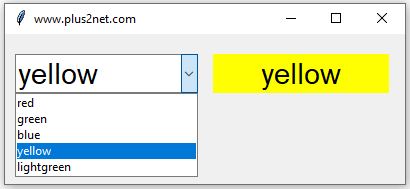
You can populate the dropdown with valid Tkinter color names and update a Label background dynamically.
import tkinter as tk
from tkinter import ttk

def update_color(event):
    color=combo.get()
    label.config(text=color, bg=color)

root=tk.Tk()
root.geometry('400x150')

colors=['red', 'green', 'blue', 'yellow', 'lightgreen']

combo=ttk.Combobox(root, values=colors, width=10, state='readonly')
combo.grid(row=0, column=0, padx=10, pady=30)
combo.bind('<<ComboboxSelected>>', update_color)

label=tk.Label(root, text='Select a color', width=15)
label.grid(row=0, column=1, padx=10)

root.mainloop()Clear a Combobox Selection 🔝
The clearest way to remove the displayed value is:
combo.set('')Because a Combobox inherits Entry behaviour, the editable text can also be deleted with Entry methods in suitable states:
combo.delete(0, tk.END)For normal application code, set('') more clearly expresses the intention of clearing the Combobox value.
Add Combobox Options Dynamically 🔝

The current values can be copied to a list, updated using append(), and assigned back to the Combobox.
def add_option():
    new_value=entry.get().strip()

    if new_value:
        values=list(combo['values'])
        values.append(new_value)
        combo['values']=values
        combo.set(new_value)
        entry.delete(0, tk.END)
Complete Example
import tkinter as tk
from tkinter import ttk

def add_option():
    new_value=entry.get().strip()

    if new_value:
        values=list(combo['values'])
        values.append(new_value)
        combo['values']=values
        combo.set(new_value)
        entry.delete(0, tk.END)

root=tk.Tk()
root.geometry('450x180')

combo=ttk.Combobox(root, values=['Jan', 'Feb', 'Mar'], width=10)
combo.grid(row=0, column=0, padx=10, pady=30)

entry=tk.Entry(root, width=12)
entry.grid(row=0, column=1)

tk.Button(root, text='Add', command=add_option).grid(row=0, column=2, padx=10)

root.mainloop()
Prevent Duplicate Combobox Options 🔝
Check the existing values before appending a new option.
def add_option():
    new_value=entry.get().strip()
    values=list(combo['values'])

    if new_value and new_value not in values:
        values.append(new_value)
        combo['values']=values
        combo.set(new_value)

    entry.delete(0, tk.END)
Case-Insensitive Duplicate Check
If Python and python should be considered duplicates, use Python's casefold() method:
def add_option():
    new_value=entry.get().strip()
    values=list(combo['values'])
    existing={value.casefold() for value in values}

    if new_value and new_value.casefold() not in existing:
        values.append(new_value)
        combo['values']=values
Remove the Selected Combobox Option 🔝

Removing the displayed text is different from removing an option from the values list. To prevent an option from appearing again, update values using remove().
def remove_selected():
    selected=combo.get()
    values=list(combo['values'])

    if selected in values:
        values.remove(selected)
        combo['values']=values

combo.set('')Allow Values Outside the Combobox List 🔝

In the default normal state, the Combobox text field is editable. The user can type a value that is not in values.
import tkinter as tk
from tkinter import ttk

def read_value():
    label.config(text=f'Value: {combo.get()} | Index: {combo.current()}')

root=tk.Tk()

months=['Jan', 'Feb', 'Mar']

combo=ttk.Combobox(root, values=months, state='normal')
combo.grid(row=0, column=0, padx=10, pady=20)

tk.Button(root, text='Read', command=read_value).grid(row=0, column=1)

label=tk.Label(root, text='')
label.grid(row=1, column=0, columnspan=2)

root.mainloop()
If the user types:
Novand Nov is not in the configured values:
combo.get()      # 'Nov'
combo.current() # -1current() == -1 does not necessarily mean the Combobox is empty. It means the current displayed value does not match an item in its configured values.Display Dictionary Values and Return Numeric Keys 🔝

A Python dictionary can store an internal numeric key (such as a database primary key) while the Combobox displays readable names.
import tkinter as tk
from tkinter import ttk

months={
    1: 'Jan',
    2: 'Feb',
    3: 'March',
    4: 'April',
    5: 'May'
}

key_by_name={name:key for key, name in months.items()}

def selected(event):
    name=combo.get()
    month_name.config(text=name)
    month_number.config(text=key_by_name[name])

root=tk.Tk()

combo=ttk.Combobox(root, values=list(months.values()), state='readonly', width=10)
combo.grid(row=0, column=0, padx=10, pady=20)
combo.bind('<<ComboboxSelected>>', selected)

month_name=tk.Label(root, text='Month')
month_name.grid(row=0, column=1, padx=10)

month_number=tk.Label(root, text='Number')
month_number.grid(row=0, column=2, padx=10)

root.mainloop()This reverse dictionary approach is efficient when each displayed value is unique.
Combobox with String Dictionary Keys 🔝

If the dictionary keys are the values shown to the user, the selected key can be used directly.
import tkinter as tk
from tkinter import ttk

grades={'A':5, 'B':4, 'C':3, 'D':2, 'E':1, 'F':0}

def selected(event):
    grade=combo.get()
    result.config(text=f'Grade {grade} = {grades[grade]}')

root=tk.Tk()

combo=ttk.Combobox(root, values=list(grades.keys()), state='readonly', width=6)
combo.grid(row=0, column=0, padx=15, pady=20)
combo.bind('<<ComboboxSelected>>', selected)

result=tk.Label(root, text='Select a grade')
result.grid(row=0, column=1)

root.mainloop()
Display Product Details from a Dictionary 🔝

import tkinter as tk
from tkinter import ttk

products={
    'item 1': ['I-1', 'Medium', 40],
    'item 2': ['I-2', 'High', 60],
    'item 3': ['I-3', 'Low', 20],
    'item 4': ['I-4', 'Best', 70]
}

def selected(event):
    product=combo.get()
    details=', '.join(map(str, products[product]))
    product_label.config(text=product)
    details_label.config(text=details)

root=tk.Tk()
root.geometry('500x150')

combo=ttk.Combobox(root, values=list(products), state='readonly', width=10)
combo.grid(row=0, column=0, padx=10, pady=25)
combo.bind('<<ComboboxSelected>>', selected)

product_label=tk.Label(root, text='Product')
product_label.grid(row=0, column=1, padx=10)

details_label=tk.Label(root, text='Details')
details_label.grid(row=0, column=2, padx=10)

root.mainloop()
Enable, Disable or Make the Combobox Readonly 🔝

The Combobox state configuration option supports these three values:
| State | Behaviour |
|---|---|
normal | User can select a listed option or type another value. |
readonly | User can select from the dropdown but cannot type arbitrary text. |
disabled | User interaction is disabled. |
Change the State
combo.configure(state='disabled')
combo.configure(state='normal')
combo.configure(state='readonly')
Enable or Disable with Radiobuttons
Here we use a BooleanVar and Radiobuttons to toggle the Combobox state:
import tkinter as tk
from tkinter import ttk

def change_state():
    if enabled.get():
        combo.configure(state='readonly')
    else:
        combo.configure(state='disabled')

root=tk.Tk()

enabled=tk.BooleanVar(value=True)
months=['Jan', 'Feb', 'Mar']

combo=ttk.Combobox(root, values=months, state='readonly')
combo.grid(row=0, column=0, padx=10, pady=20)

tk.Radiobutton(root, text='Enable', variable=enabled, value=True, command=change_state).grid(row=0, column=1)
tk.Radiobutton(root, text='Disable', variable=enabled, value=False, command=change_state).grid(row=0, column=2)

root.mainloop()state='active'. active exists as a general ttk widget state flag, but the Combobox state configuration option accepts normal, readonly or disabled.Refresh Values with postcommand 🔝
The postcommand callback runs immediately before the dropdown list is displayed. This is useful when the available options may have changed.
import tkinter as tk
from tkinter import ttk

languages=['Python', 'PHP']

def refresh_values():
    combo['values']=languages

def add_language():
    languages.append('SQL')

root=tk.Tk()

combo=ttk.Combobox(root, values=languages, postcommand=refresh_values)
combo.pack(pady=20)

tk.Button(root, text='Add SQL', command=add_language).pack()

root.mainloop()
After SQL is added, opening the dropdown calls refresh_values() and displays the latest values.
Style a ttk.Combobox 🔝
A Combobox is a themed ttk widget, so appearance should normally be controlled with ttk.Style (or modern themes via ttkbootstrap) rather than classic Tk options such as bg.
import tkinter as tk
from tkinter import ttk

root=tk.Tk()

style=ttk.Style()
style.configure('My.TCombobox', font=('Arial', 14), padding=5)

combo=ttk.Combobox(root, values=['Python', 'PHP', 'SQL'], style='My.TCombobox')
combo.pack(padx=20, pady=20)

root.mainloop()
The exact appearance of ttk widgets depends on the active operating-system/theme combination. Some colors are controlled by the selected ttk theme and may not respond identically on every platform.
Check Available Themes
print(style.theme_names())Important ttk.Combobox Options 🔝
| Option | Purpose |
|---|---|
values | Values displayed in the dropdown list. |
textvariable | Variable linked to the current Combobox value. |
state | normal, readonly or disabled. |
width | Desired width of the entry field in average-size characters. |
height | Height of the dropdown list in rows. |
postcommand | Callback executed immediately before the dropdown is displayed. |
justify | Text alignment: left, center or right. |
exportselection | Controls whether the text selection is linked to the X selection mechanism. |
validate | Controls Entry-style validation in editable mode. |
validatecommand | Callback used to validate editable content. |
invalidcommand | Callback used when validation fails. |
show | Character used to mask text in the Entry portion. |
xscrollcommand | Connects horizontal scrolling behaviour. |
style | Name of the ttk style used to render the widget. |
cursor | Cursor shown while the pointer is over the widget. |
takefocus | Controls participation in keyboard focus traversal. |
Display the Current Configuration
for option in combo.configure():
    print(option, ':', combo.cget(option))
Use External Data as Combobox Options 🔝
The values list does not have to be written directly in the program. It can be generated from a database (using a SQL SELECT query or SQL DISTINCT), CSV file, JSON data, Google Sheet or another data source.

Google Sheets data can be read with the existing Plus2net pygsheets tutorial and then assigned to the Combobox values option.
Combobox Options from MySQL, SQLite, CSV and JSON Database Table Names as Combobox Options
Common Tkinter Combobox Mistakes 🔝
1. Using tk.Combobox()
Incorrect:
combo=tk.Combobox(root)Correct:
from tkinter import ttk

combo=ttk.Combobox(root)
2. Assuming current() Always Returns a Valid Index
A typed value may not be in the configured values.
index=combo.current()

if index == -1:
    print('Current value is not in the dropdown list.')
3. Allowing Arbitrary Input When Only Listed Values Are Valid
Use:
state='readonly'for controlled selections.
4. Using active as the Combobox state Option
Use only:
'normal'
'readonly'
'disabled'
for the Combobox state configuration option.
5. Using trace_add() When Only User Dropdown Selection Matters
Use:
combo.bind('<<ComboboxSelected>>', callback)when the code should run specifically after the user chooses an item.
6. Clearing the Text but Not Removing the Option
This:
combo.set('')only clears the current value. It does not remove anything from combo['values'].
7. Removing Values from the Returned Collection Directly
Create a mutable list first:
values=list(combo['values'])
values.remove(selected)
combo['values']=values
8. Styling ttk.Combobox Like a Classic Tk Widget
Prefer ttk.Style. Ttk appearance is theme-aware, so classic options such as arbitrary widget background colors do not behave the same way.
9. Assuming the Selection Event Fires after set()
<<ComboboxSelected>> represents user selection from the dropdown. A programmatic call such as:
combo.set('Apr')should not be relied on to generate that user-selection event. If programmatic changes also need monitoring, a linked StringVar with trace_add() is more suitable.
Common Questions about Tkinter Combobox 🔝
How do I get the selected Combobox value?
value=combo.get()How do I get the selected index?
index=combo.current()The result is -1 if the current text is not one of the listed values.
How do I select an item by index?
combo.current(2)How do I set a value directly?
combo.set('Python')How do I prevent the user from typing another value?
combo.configure(state='readonly')How do I detect a user selection?
combo.bind('<<ComboboxSelected>>', selected)How do I add another dropdown option?
values=list(combo['values'])
values.append('New Value')
combo['values']=values
How do I clear the current selection?
combo.set('')Summary of Tkinter ttk.Combobox 🔝
ttk.Comboboxcombines an Entry field with a dropdown list.- Import it from
tkinter.ttk. - Use
valuesto provide dropdown choices. - Use
get()to read the current displayed value. - Use
set(value)to assign a value programmatically. - Use
current(index)to select an option by index. - Use
current()to read the current option index. current()returns-1when the current value is not invalues.- The default
normalstate lets users type values outside the list. - Use
readonlywhen users should select only predefined options. - Use
disabledto prevent interaction. - The Combobox
stateoption usesnormal,readonlyordisabled. - Use
<<ComboboxSelected>>to detect user dropdown selection. - Use
StringVar.trace_add()when programmatic variable changes must also be detected. - Use
set('')to clear the current value. - Changing the displayed value does not automatically remove an item from
values. - Convert existing values to a list before dynamically adding or removing options.
postcommandcan refresh dropdown values immediately before the list opens.- Dictionaries are useful for displaying readable labels while retaining IDs or related data.
- Use
ttk.Stylefor theme-aware Combobox styling. - Combobox values can come from databases, CSV, JSON, Google Sheets or other data sources.
Practice Questions 🔝
- Why does
tk.Combobox(root)raise anAttributeError, and how do you import it properly? - What is the difference between
combo.set('Mar')andcombo.current(2)? - When does
combo.current()return-1? - How does binding
<<ComboboxSelected>>differ from usingStringVar.trace_add('write', callback)? - Why must you convert
combo['values']to alistbefore callingappend()orremove()? - How can you use
postcommandto refresh Combobox options dynamically before the dropdown opens?

Subhendu Mohapatra
Author & Instructor at plus2net
I write and maintain practical tutorials on Python, PHP, SQL, JavaScript, HTML, jQuery, and web development at plus2net. The tutorials focus on clear explanations, working examples, and code that readers can test and adapt while learning.


Subscribe to our YouTube Channel here

29-07-2022 | |
| Dear Sir, Thank you for your good instructions. I learn a lot from your videos. One question: how to delete the combobox option dynamicly? i was unable to use cb1['values'] -=(e1.get(),) to delete the option. please kindly teach me how to do it. Thank you very much. I subcribed your yourtube already. ST | |
05-08-2022 | |
| You can't delete by using cb1['values'] -=(e1.get(),) as it is a tuple. Create a new tuple with all the options except the one you want to delete. Then assign the new tuple to cb1. This part is added to this page. Here is the video again. https://youtu.be/PICzrYI6O9A | |
22-11-2022 | |
| In one of the programs which i am working , the combo box freezes when i click on dropdown and then the application stops and crashes. Please advise | |
08-01-2023 | |
| Are you using any onclick event and triggering any function? Just remove the function and see how it is working. Then check the code inside the function. | |
 Python Video Tutorials