Tkinter SQLite to CSV using Pandas DataFrame
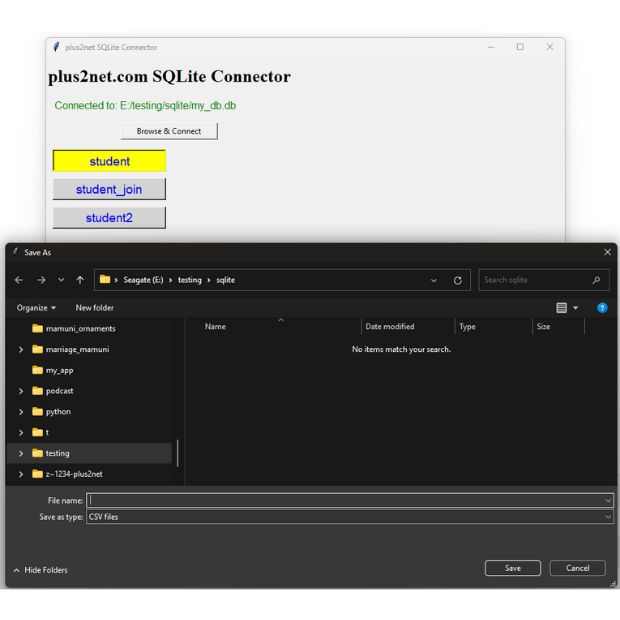
This project performs the reverse operation of our CSV to SQLite tutorial. The user selects an SQLite database, chooses one of its tables and creates a Pandas DataFrame from that table.
A Tkinter Save As dialog then lets the user choose where the DataFrame should be exported as a CSV file using Pandas to_csv().
SQLite database
       |
       v
Read table names
       |
       v
Select table
       |
       v
Pandas DataFrame
       |
       v
Save As dialog
       |
       v
CSV file- Import Required Libraries
- Select an SQLite Database
- Read Available Table Names
- Select a Table with Combobox
- Create the Pandas DataFrame
- Export the DataFrame to CSV
- Handle Errors and Cancelled Dialogs
- Complete SQLite to CSV Program
- Video Tutorial
- Why Combobox Instead of Radio Buttons?
- Next Projects
- FAQs
Import Required Libraries Top ↑
import os
import tkinter as tk
from tkinter import filedialog,ttk

import pandas as pd

from sqlalchemy import create_engine,inspect
from sqlalchemy.exc import SQLAlchemyError- Tkinter creates the GUI and file dialogs.
- Pandas reads the selected database table and creates the CSV file.
- SQLAlchemy creates the SQLite Engine and inspects the database structure.
Select an SQLite Database Top ↑
The application uses the Tkinter file browser to select an existing SQLite database.
db_path=filedialog.askopenfilename(
    title='Select SQLite database',
    filetypes=[
        ('SQLite database','*.db'),
        ('SQLite files','*.sqlite *.sqlite3'),
        ('All files','*.*')
    ]
)
If the user closes the dialog without selecting a file, the program simply returns.
if not db_path:
    status_var.set(
        'No database selected.'
    )
    return
Read Available SQLite Table Names Top ↑
The older version queried sqlite_master manually. SQLAlchemy can inspect the connected database directly.
inspector=inspect(
    engine
)

table_names=inspector.get_table_names()
System-style SQLite names can be excluded:
table_names=[
    name
    for name in table_names
    if not name.startswith(
        'sqlite_'
    )
]
The names are sorted before being displayed:
table_names.sort()Select a Table with Combobox Top ↑
The original version dynamically created a Radiobutton for every table in the database.
That works for a small database, but a database containing many tables can create a very tall interface. A read-only Combobox keeps the selection area compact.
table_combo=ttk.Combobox(
    root,
    textvariable=table_var,
    state='readonly'
)

table_combo['values']=table_names
The first available table can be selected automatically:
if table_names:
    table_var.set(
        table_names[0]
    )
Create a Pandas DataFrame from the Selected Table Top ↑
Instead of building a query such as:
f'SELECT * FROM {selected_table}'the revised example uses Pandas read_sql_table():
df=pd.read_sql_table(
    selected_table,
    con=engine
)
This directly reads the selected database table into a DataFrame.
After loading, its dimensions can be displayed:
info_var.set(
    f'Rows: {df.shape[0]}   Columns: {df.shape[1]}'
)
Export the DataFrame to CSV Top ↑
After the DataFrame is created, open the Save As dialog:
csv_path=filedialog.asksaveasfilename(
    title='Save table as CSV',
    defaultextension='.csv',
    filetypes=[
        ('CSV files','*.csv'),
        ('All files','*.*')
    ]
)
The DataFrame is exported using:
df.to_csv(
    csv_path,
    index=False
)
index=False prevents Pandas from writing the DataFrame index as an additional CSV column.
Handle Errors and Cancelled Dialogs Top ↑
Several operations can be cancelled or fail:
- the user can cancel database selection;
- the database may contain no tables;
- the selected table may fail to load;
- the Save As dialog may be cancelled;
- the selected destination may not be writable.
Database errors are handled with:
except SQLAlchemyError as e:
    original=getattr(
        e,
        'orig',
        e
    )
CSV-writing errors such as permission problems are also caught separately.
Complete Tkinter SQLite to CSV Program Top ↑
Video: Export an SQLite Table to CSV Top ↑
Why Use Combobox Instead of Dynamic Radio Buttons? Top ↑
The earlier program created one Radiobutton for every table found in the SQLite database.
For example:
students
orders
products
customers
sales
...
This works when the database contains only a few tables. However, a database containing dozens of tables can make the window unnecessarily large.
A read-only Combobox keeps the table-selection interface compact:
table_combo=ttk.Combobox(
    controls,
    textvariable=table_var,
    state='readonly'
)
Another UX improvement is that selecting the table no longer immediately opens the Save dialog. The user selects the table first and then clicks Export Selected Table.
Why read_sql_table() Is Used Top ↑
The older application created SQL dynamically:
query=f"SELECT * FROM {selected_table}"The revised version already knows that the selected name came from SQLAlchemy's table inspection, so Pandas can read the table directly:
df=pd.read_sql_table(
    selected_table,
    con=engine
)
This keeps the purpose of the code clearer: we are reading a database table, not asking the user to construct an SQL query.
Why Dispose the Previous Engine? Top ↑
The application lets the user select another SQLite database without restarting Tkinter.
Before replacing the current Engine:
if engine is not None:
    engine.dispose()
This releases pooled database resources associated with the previously selected file.
Continue the Tkinter and Pandas Workflow Top ↑
The two related projects now demonstrate both directions:
CSV
 |
 v
DataFrame
 |
 v
SQLite
and:
SQLite
 |
 v
DataFrame
 |
 v
CSVThe next step is to display and sort imported data through a Tkinter Treeview:
Excel DataFrame in Treeview with Column Sorting SQLite DataFrame with Sorting and CSV ExportFrequently Asked Questions Top ↑
SQLAlchemy inspect(engine).get_table_names() returns the available table names.
The application needs the complete selected table, so read_sql_table() directly expresses that operation and avoids manually inserting the table name into an SQL string.
Pandas first creates a DataFrame from the table. The DataFrame to_csv() method then writes the records to the selected CSV file.
It prevents the Pandas DataFrame index from being written as an additional column in the exported CSV file.
The export Button remains disabled and the application displays a message that no user tables were found.
Yes. The current SQLAlchemy Engine is disposed and a new Engine is created for the newly selected database.
A Combobox remains compact even when the database contains many tables, while one Radio button per table can make the interface very tall.
CSV to SQLite Treeview Sorting SQLite Sorting and Export
Tkinter Projects Tkinter Pandas Projects

Subhendu Mohapatra
Author & Instructor at plus2net
I write and maintain practical tutorials on Python, PHP, SQL, JavaScript, HTML, jQuery, and web development at plus2net. The tutorials focus on clear explanations, working examples, and code that readers can test and adapt while learning.


Subscribe to our YouTube Channel here

 Python Video Tutorials