Tkinter CSV to SQLite Loader with Progress Bar
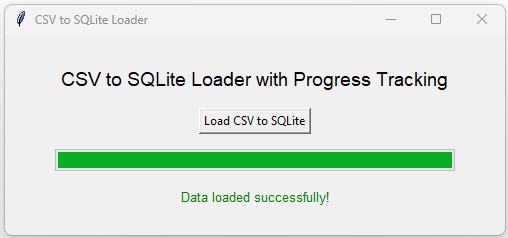
This project extends our CSV to SQLite application for larger files. Instead of loading the complete CSV into memory, Pandas read_csv() reads the file in chunks and writes each chunk to an SQLite table.
A Tkinter Progressbar shows how many rows have been transferred. The import work runs in a background thread while the Tkinter main thread continues to update the interface.
CSV / XLSX file
       |
       v
Read in chunks
       |
       v
Worker thread
       |
       +--> SQLite
       |
       +--> Queue
              |
              v
       Tkinter main thread
              |
              +--> Progressbar
+--> Statusif_exists='replace' and later chunks use append. An existing table with the same name is therefore replaced when a new import starts.Why Process Large Files in Chunks? Top ↑
A normal Pandas import reads the complete CSV into one DataFrame:
df=pd.read_csv(file_path)For large files, we can use the chunksize option:
chunks=pd.read_csv(
    file_path,
    chunksize=1000,
    encoding='utf-8-sig'
)
Pandas now returns one DataFrame chunk at a time.
Rows 1 - 1000
Rows 1001 - 2000
Rows 2001 - 3000
...
Only the current chunk needs to be processed before moving to the next one.
Keep the Tkinter GUI Responsive Top ↑
The older application performed CSV reading and SQLite writes directly inside the Tkinter Button callback.
Calling:
progress_bar.update_idletasks()can repaint the Progressbar, but the long-running import is still executing on Tkinter's main thread.
The revised program starts a background worker:
worker=threading.Thread(
    target=import_worker,
    args=(file_path,db_path,table_name),
    daemon=True
)

worker.start()
The worker handles file reading and SQLite writes. It does not update Tkinter widgets directly.
Why the Worker Does Not Update the Progressbar
Tkinter GUI updates should remain on the Tkinter main thread. The worker sends messages through a thread-safe Queue:
message_queue.put(
    (
        'progress',
        processed_rows,
        total_rows
    )
)
Tkinter checks that Queue using after().
Count CSV Rows for Determinate Progress Top ↑
A determinate Progressbar needs a maximum value. Before importing, the worker counts the CSV records.
def count_csv_rows(file_path):
    with open(
        file_path,
        'r',
        encoding='utf-8-sig',
        newline=''
    ) as file:
        reader=csv.reader(file)
        try:
            next(reader)
        except StopIteration:
            return 0
        return sum(
            1 for _ in reader
        )
Using Python's CSV reader is preferable to simply counting physical lines because quoted CSV fields can contain line breaks.
Read the CSV File in Chunks Top ↑
for chunk in pd.read_csv(
    file_path,
    chunksize=CHUNK_SIZE,
    encoding='utf-8-sig'
):
    ...
With:
CHUNK_SIZE=1000a 10,000-row file is normally processed in about ten DataFrame chunks.
CHUNK_SIZE is not a required fixed value. It can be increased or decreased depending on row width, available memory and application requirements.
Write Each Chunk to SQLite Top ↑

The SQLite connection is created inside the worker thread:
conn=sqlite3.connect(
    db_path
)
The first DataFrame chunk creates or replaces the destination table:
mode='replace' if first_chunk else 'append'

chunk.to_sql(
    table_name,
    conn,
    if_exists=mode,
    index=False
)
The workflow becomes:
Chunk 1 --> replace/create table
Chunk 2 --> append
Chunk 3 --> append
Chunk 4 --> append
...
This avoids accidentally duplicating all earlier records simply because the same table was used for another import.
Update the Progressbar from Queue Messages Top ↑
After every chunk, the worker increases the processed-row count:
processed_rows+=len(chunk)and sends the new value to Tkinter:
message_queue.put(
    (
        'progress',
        processed_rows,
        total_rows
    )
)
The Tkinter main thread updates the Progressbar:
progress_bar['value']=processed_rowsand calculates the percentage:
percent=(
    processed_rows/total_rows
)*100
The user sees messages such as:
Imported 3000/10000 rows (30.0%)
Imported 4000/10000 rows (40.0%)
Imported 5000/10000 rows (50.0%)
Process Large XLSX Files with openpyxl Top ↑

CSV files have native Pandas chunk support. Excel files require a different approach.
The revised program uses openpyxl in read-only mode:
workbook=load_workbook(
    file_path,
    read_only=True,
    data_only=True
)
Rows are streamed from the active worksheet:
rows=sheet.iter_rows(
    values_only=True
)
The first row becomes the DataFrame header:
headers=next(rows)Rows are collected until the chunk size is reached:
chunk.append(row)

if len(chunk)>=CHUNK_SIZE:
    df_chunk=pd.DataFrame(
        chunk,
        columns=headers
    )
The DataFrame chunk is then stored in SQLite before the temporary list is cleared.
Complete CSV and XLSX to SQLite Loader Top ↑
This program supports both CSV and XLSX sources. CSV uses Pandas chunking, while XLSX uses openpyxl row streaming. Database work happens in a worker thread and all Tkinter updates remain on the main thread.
Why the SQLite Connection Is Created inside the Worker Top ↑
The database connection is created and used by the same background thread:
conn=sqlite3.connect(db_path)The Tkinter main thread does not share that connection. It only receives status information through the Queue.
This keeps the responsibilities separate:
Main thread  --> GUI
Worker       --> file + database
Queue        --> communication
Create a 10,000 Row CSV Test File Top ↑
You can use the Plus2net sample student data to create a larger test file.
The following example repeats the original rows until 10,000 records are available and optionally changes the mark values.
import random
import pandas as pd

TARGET_ROWS=10000

input_file='student.csv'
output_file='student_extended.csv'

df=pd.read_csv(
    input_file
)

if df.empty:
    raise ValueError(
        'Source file has no rows.'
    )

repeat_count=(
    TARGET_ROWS+
    len(df)-1
)//len(df)

extended_df=pd.concat(
    [df]*repeat_count,
    ignore_index=True
).iloc[
    :TARGET_ROWS
].copy()

if 'mark' in extended_df.columns:
    extended_df['mark']=[
        random.randint(
            10,
            100
        )
        for _ in range(
            len(
                extended_df
            )
        )
    ]

extended_df.to_csv(
    output_file,
    index=False
)

print(
    f'Created {len(extended_df)} rows in {output_file}'
)
This generated file is useful for testing chunk processing and the Progressbar. Because the source rows are repeated, it should be treated as demonstration data rather than a realistic dataset.
Create an XLSX Test File
The same DataFrame can be saved with to_excel():
extended_df.to_excel(
    'student_extended.xlsx',
    index=False
)
Video: Excel to SQLite with Progress Bar Top ↑
Important Notes for Large Imports Top ↑
Chunking Reduces Memory Usage
The entire CSV or Excel worksheet does not have to become one large DataFrame. Only the current group of rows is converted to a DataFrame and written to SQLite.
Chunking Does Not Make Every File Fast
Import time still depends on file size, number of columns, storage speed and SQLite write performance. Chunking mainly controls memory use and gives the application opportunities to report progress.
The First Chunk Replaces the Destination Table
This tutorial treats each import as a fresh load:
first chunk  --> replace
later chunks --> append
If existing database rows must be preserved, the import strategy should be changed deliberately instead of simply replacing replace with append.
An Interrupted Import Can Leave Partial Data
Because rows are written chunk by chunk, an error after several successful chunks can leave a partially imported destination table. Applications requiring an all-or-nothing import can use a temporary staging table and replace the final table only after the complete import succeeds.
XLSX Progress Uses Worksheet Row Information
The Excel example uses the worksheet's reported row count for the Progressbar maximum. Workbook dimensions can occasionally include previously used but now empty rows, so the reported total can differ from the meaningful data count in unusual files.
Continue the Tkinter Pandas Import Projects Top ↑
Create an SQLite table dynamically from CSV structure:
CSV to SQLite Dynamic SchemaClean CSV data before storing it:
Pandas Data Cleaning GUIExport SQLite data back to CSV:
SQLite to CSVFrequently Asked Questions Top ↑
chunksize makes Pandas return groups of rows as separate DataFrames instead of loading the complete CSV into one DataFrame.
CSV or Excel processing and SQLite writes can take time. Running them in a worker keeps those operations away from Tkinter's main GUI thread.
The worker sends progress information through the Queue so the Tkinter main thread can safely update the Progressbar and status Label.
The first chunk creates a fresh destination table. Every later chunk must append to that same table rather than recreating it.
Yes. XLSX files are opened with openpyxl in read-only mode and worksheet rows are collected into DataFrame chunks before being written to SQLite.
The total row count is used as the maximum value of a determinate Progressbar so the application can show a percentage.
No. If an error occurs after some chunks have been written, partial data can remain. A staging-table strategy is better when atomic replacement is required.
CSV to SQLite Dynamic Schema Data Cleaning
Tkinter Projects Tkinter Pandas Projects

Subhendu Mohapatra
Author & Instructor at plus2net
I write and maintain practical tutorials on Python, PHP, SQL, JavaScript, HTML, jQuery, and web development at plus2net. The tutorials focus on clear explanations, working examples, and code that readers can test and adapt while learning.


Subscribe to our YouTube Channel here

 Python Video Tutorials