Tkinter CSV to SQLite using Pandas DataFrame
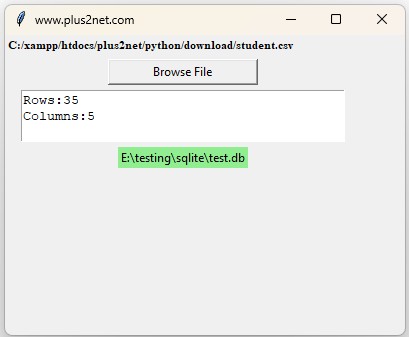
This project extends our Tkinter CSV viewer. The user selects a CSV file with the Tkinter file browser, Pandas read_csv() creates a DataFrame, and to_sql() stores the DataFrame in an SQLite table.
After the transfer, the application reads five rows back from SQLite so we can confirm that the data was stored successfully.
Browse CSV file
      |
      v
pd.read_csv()
      |
      v
Pandas DataFrame
      |
      v
df.to_sql()
      |
      v
SQLite student table
      |
      v
SELECT first 5 rows
      |
      v
Tkinter displayif_exists='replace'. If a table named student already exists, Pandas replaces that table. Do not use this option with important existing data unless replacing the table is intentional.- Import Required Libraries
- Create the SQLite Engine
- Create the Tkinter Interface
- Select and Read the CSV File
- Display DataFrame Size
- Store the DataFrame with to_sql()
- replace, append and fail
- Read Five Rows from SQLite
- Handle CSV and Database Errors
- Complete CSV to SQLite Program
- Video Tutorial
- Next Projects
- FAQs
Import Required Libraries Top ↑
import os
import tkinter as tk
from tkinter import filedialog

import pandas as pd

from sqlalchemy import create_engine,text
from sqlalchemy.exc import SQLAlchemyError- Pandas reads the CSV file and manages the DataFrame.
- Tkinter creates the GUI.
filedialoglets the user browse to a CSV file.- SQLAlchemy creates the SQLite Engine and executes the preview query.
SQLAlchemyErrorhandles database errors.
Create the SQLite Engine Top ↑
Instead of using a fixed drive such as F:\testing\sqlite\test.db, the revised example creates test.db in the same directory as the Python script.
db_path=os.path.join(
    os.path.dirname(
        os.path.abspath(__file__)
    ),
    'test.db'
)

engine=create_engine(
    'sqlite:///'+db_path
)
The Engine can be reused by Pandas and SQLAlchemy. We do not need to keep one database connection open while the Tkinter window remains open.
Create the Tkinter Interface Top ↑
The interface uses a Button to open the CSV file browser and Labels to display the selected filename, DataFrame size, database location and status.
A Text widget displays a small preview of the records read back from SQLite.
root=tk.Tk()
root.geometry(
    '650x430'
)
root.title(
    'CSV to SQLite - plus2net'
)
For more on setting the window dimensions, see Tkinter geometry().
Select and Read the CSV File Top ↑
The user selects a CSV file through askopenfilename().
file_path=filedialog.askopenfilename(
    title='Select CSV file',
    filetypes=[
        ('CSV files','*.csv'),
        ('All files','*.*')
    ]
)
If the dialog is cancelled, the function returns without attempting to read a file.
if not file_path:
    status_var.set(
        'No file selected.'
    )
    return
The selected CSV file is then read into Pandas:
df=pd.read_csv(
    file_path
)
Display the Number of Rows and Columns Top ↑
The DataFrame shape attribute gives the dimensions of the imported data.
df.shape[0] # number of rows
df.shape[1] # number of columns
We display both values after the CSV file has been read:
info_var.set(
    f'Rows: {df.shape[0]}   Columns: {df.shape[1]}'
)
Store the DataFrame in SQLite with to_sql() Top ↑
Pandas to_sql() transfers the DataFrame to the SQLite table.
df.to_sql(
    con=engine,
    name='student',
    if_exists='replace',
    index=False
)
The arguments mean:
con=engine: use the SQLAlchemy Engine.name='student': create or use a table namedstudent.if_exists='replace': replace an existing table with the newly imported DataFrame structure and rows.index=False: do not create an extra database column from the Pandas index.
Choosing replace, append or fail Top ↑
The if_exists option controls what happens when the destination table already exists.
| Option | Result |
|---|---|
replace | Delete the existing table and create it again using the DataFrame. |
append | Add the new rows to the existing table. |
fail | Raise an error if the table already exists. |
This tutorial uses replace because each selected CSV file is treated as a fresh copy of the student table.
replace to append. The CSV columns and destination table columns need to be compatible.Read Five Rows Back from SQLite Top ↑
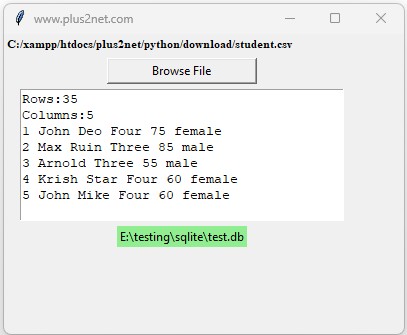
After the DataFrame is stored, we read five records back from the database.
Because the table structure is generated from the selected CSV file, its columns are not fixed in advance. In this particular example, SELECT * is useful because we want a generic preview of whatever columns the CSV created.
preview_sql=text(
    'SELECT * FROM student LIMIT 5'
)

with engine.connect() as conn:
    rows=conn.execute(
        preview_sql
    ).all()
The database connection exists only while the query is being executed.
The result rows are converted to text for the Tkinter preview:
for row in rows:
    preview_lines.append(
        ' | '.join(
            map(
                str,
                row
            )
        )
    )
Handle CSV and Database Errors Top ↑
The CSV step can fail because of an invalid file, encoding problem, malformed CSV structure or empty input.
except (
    OSError,
    UnicodeDecodeError,
    pd.errors.ParserError,
    pd.errors.EmptyDataError
) as e:
    ...
The SQLite transfer and preview query can raise SQLAlchemy errors:
except SQLAlchemyError as e:
    original=getattr(
        e,
        'orig',
        e
    )
This is preferable to accessing the internal exception dictionary with:
e.__dict__['orig']Complete Tkinter CSV to SQLite Program Top ↑
This version reads the CSV, stores it in SQLite, and then displays the column names and first five stored rows.
lambda:upload_file() because the function appears later in this beginner-friendly script. If the function definitions are moved above the widget creation, the Button can use command=upload_file directly.Video: Export CSV Data to SQLite Top ↑
Why Use the Engine Instead of a Permanent Connection? Top ↑
The older code did this:
my_conn=create_engine(...)
my_conn=my_conn.connect()
and kept that connection open while Tkinter was running.
The revised structure keeps the Engine:
engine=create_engine(...)Pandas uses the Engine when to_sql() runs, while our preview query uses a short connection:
with engine.connect() as conn:
    ...
The connection is automatically returned when the with block finishes.
Why SELECT * Is Used on This Page Top ↑
Normally, selecting explicit database columns is clearer:
SELECT id,name,class,mark
FROM student
However, this application accepts arbitrary CSV files. The column names are not known before the user selects the file, and to_sql() creates the SQLite table from those DataFrame columns.
Therefore the generic preview deliberately uses:
SELECT * FROM student LIMIT 5The returned column headings are obtained from:
result.keys()Next Tkinter and Pandas Projects Top ↑
The current project performs:
CSV
 |
 v
DataFrame
 |
 v
SQLite
The next project reverses the flow:
SQLite
 |
 v
DataFrame
 |
 v
CSVFor large CSV imports, continue with the progress-bar version:
CSV to SQLite Transfer with Progress BarFrequently Asked Questions Top ↑
The selected CSV is loaded with pd.read_csv() to create a DataFrame. Pandas to_sql() then writes the DataFrame rows and columns to an SQLite table.
It removes the existing destination table and creates a new table from the DataFrame. Existing data in that table is lost.
Use append when new DataFrame rows should be added to an existing compatible table instead of replacing it.
It prevents Pandas from adding the DataFrame index as another column in the SQLite table.
The preview confirms that the SQLite table was created and that records can be read back from the database.
The application accepts arbitrary CSV files, so the destination column names are not known until the selected DataFrame creates the SQLite table.
The revised example creates test.db in the same directory as the Python script.
CSV to DataFrame SQLite to CSV Large CSV Import
Tkinter Projects Tkinter Pandas Projects

Subhendu Mohapatra
Author & Instructor at plus2net
I write and maintain practical tutorials on Python, PHP, SQL, JavaScript, HTML, jQuery, and web development at plus2net. The tutorials focus on clear explanations, working examples, and code that readers can test and adapt while learning.


Subscribe to our YouTube Channel here

 Python Video Tutorials