Create SQLite Table Dynamically from CSV using Tkinter and Pandas
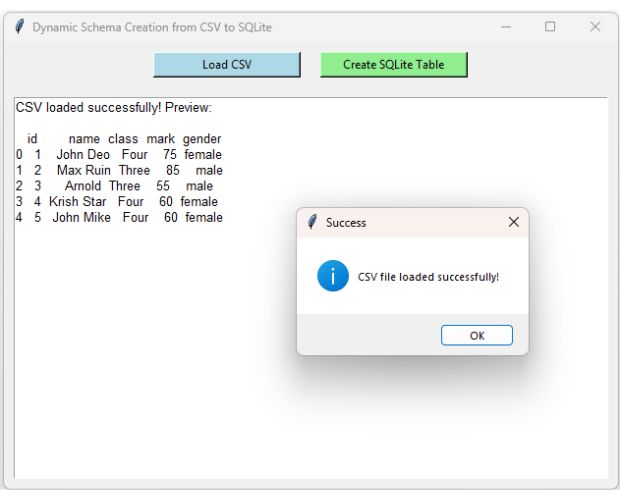
This project uses Tkinter, Pandas and SQLite to create a database table dynamically from a CSV file.
The user selects a CSV file with the Tkinter file browser. Pandas read_csv() creates a DataFrame, and to_sql() creates an SQLite table using the DataFrame column names and inferred data types.
After the import, SQLAlchemy inspects the generated table so we can see the actual SQLite schema.
CSV file
    |
    v
pd.read_csv()
    |
    v
DataFrame
columns + dtypes
    |
    v
df.to_sql()
    |
    v
SQLite table
    |
    v
inspect(table)
    |
    v
Generated schemato_sql() creates columns and database types. It does not automatically turn a column named id into a primary key or create unique constraints, foreign keys or indexes.- Dynamic Schema Workflow
- Import Required Libraries
- Load the CSV File
- Preview Data and Data Types
- Choose an SQLite Table Name
- Select the SQLite Database
- Handle an Existing Table Safely
- Create the Table with to_sql()
- Inspect the Created SQLite Schema
- How Data Types Are Inferred
- What to_sql() Does Not Create
- Complete Program
- Continue the Project
- FAQs
Dynamic CSV to SQLite Schema Workflow Top ↑
Unlike an application where the SQLite table structure is written manually in advance, this project lets Pandas build the table from the selected CSV.
For example, consider this CSV:
id,name,class,mark
1,John Deo,Four,75
2,Max Ruin,Three,85
3,Arnold,Three,55
Pandas creates columns such as:
id
name
class
mark
and assigns a dtype to each DataFrame column. to_sql() uses this information when generating the SQLite table.

Import Required Libraries Top ↑
import re
import tkinter as tk
from tkinter import filedialog,messagebox,ttk

import pandas as pd

from sqlalchemy import create_engine,inspect
from sqlalchemy.exc import SQLAlchemyError- Tkinter creates the interface and file dialogs.
- Pandas reads CSV data and creates the SQLite table.
- SQLAlchemy creates the SQLite Engine and inspects the generated schema.
revalidates the table name used by this tutorial.
Load a CSV File into Pandas Top ↑
The file browser lets the user select the CSV file while the program is running.
file_path=filedialog.askopenfilename(
    title='Select CSV file',
    filetypes=[
        ('CSV files','*.csv'),
        ('All files','*.*')
    ]
)
If no file is selected, the function returns without changing the current DataFrame.
The CSV is loaded using:
new_df=pd.read_csv(
    file_path
)
Common CSV errors are handled:
except (
    OSError,
    UnicodeDecodeError,
    pd.errors.ParserError,
    pd.errors.EmptyDataError
) as e:
    ...
Preview CSV Data and Pandas dtypes Top ↑
Before creating the database table, the application displays the first five rows:
df.head(
    5
).to_string(
    index=False
)
It also displays the DataFrame dtypes:
df.dtypes.to_string()A typical preview might look like:
CSV PREVIEW

 id       name class  mark
  1   John Deo  Four    75
  2   Max Ruin Three    85
  3     Arnold Three    55

PANDAS DTYPES

id        int64
name     object
class    object
mark      int64
This lets the user inspect what Pandas inferred before those values are passed to SQLite.
Choose the SQLite Table Name Top ↑
The table name is entered through a Tkinter Entry.
For this beginner project, the table name must:
- start with a letter or underscore;
- contain only letters, digits and underscores.
The validation function is:
def valid_table_name(table_name):
    return bool(
        re.fullmatch(
            r'[A-Za-z_][A-Za-z0-9_]*',
            table_name
        )
    )
Examples of accepted names:
students
student_marks
data_2026
_import_data
Select or Create the SQLite Database Top ↑
The user selects the destination database after the CSV has been loaded.
db_path=filedialog.asksaveasfilename(
    title='Select or create SQLite database',
    defaultextension='.db',
    filetypes=[
        ('SQLite database','*.db'),
        ('All files','*.*')
    ]
)
A SQLAlchemy Engine is then created:
engine=create_engine(
    'sqlite:///'+db_path
)
Handle an Existing Table Safely Top ↑
The old version always used:
if_exists='replace'This can remove an existing table immediately.
The revised application first checks:
inspector=inspect(
    engine
)

table_exists=inspector.has_table(
    table_name
)
If the table exists, the application asks the user to confirm replacement.
replace=messagebox.askyesno(
    'Replace existing table?',
    f'Table "{table_name}" already exists.\n\nReplace it?'
)
If the user selects No, no database changes are made.
Create the SQLite Table with to_sql() Top ↑
For a new table:
mode='fail'If replacement has been explicitly confirmed:
mode='replace'The DataFrame is written using:
df.to_sql(
    name=table_name,
    con=engine,
    if_exists=mode,
    index=False
)
index=False prevents the Pandas index from becoming another SQLite column.
Inspect the Created SQLite Schema Top ↑
After to_sql() finishes, SQLAlchemy can inspect the actual database table:
inspector=inspect(
    engine
)

columns=inspector.get_columns(
    table_name
)
Each result contains information such as:
name
type
nullable
The application displays the generated schema:
for column in columns:
    schema_lines.append(
        f"{column['name']} | "
        f"{column['type']} | "
        f"nullable={column['nullable']}"
    )
This is more useful than assuming which SQLite types Pandas created.
How Pandas Data Types Become Database Types Top ↑
to_sql() uses the DataFrame dtypes together with SQLAlchemy's SQLite dialect to choose database column types.
For example, numeric DataFrame columns are normally mapped to numeric database types, while object/string columns are normally mapped to text-compatible types.
The important point is that the schema comes from the DataFrame representation, not directly from the original CSV text.
CSV Dates Need Special Attention Top ↑
A value such as:
2026-09-07may initially be read as text unless Pandas is told to parse that column as a date.
Therefore a CSV column that visually contains dates does not automatically guarantee a date-oriented database type.
Always check:
df.dtypesbefore relying on automatically inferred database types.
What Dynamic to_sql() Schema Creation Does Not Do Top ↑
This distinction is important.
Suppose the CSV contains:
id,name,email
1,John,john@example.com
2,Max,max@example.com
Pandas can dynamically create database columns named:
id
name
email
However, it does not automatically know that:
idshould be the primary key;emailshould be unique;- a column should reference another table;
- a specific index should be created;
- a business rule requires
NOT NULL.
For a quick import or data-processing project, dynamically generated tables are convenient. For a structured application database, create the required schema and constraints explicitly and then load compatible DataFrame data into it.
Complete CSV to SQLite Dynamic Schema Application Top ↑
Why Inspect the Schema after to_sql()? Top ↑
Before the import, we know the Pandas columns and dtypes:
df.columns
df.dtypes
After the import, we can inspect what was actually created:
inspect(engine).get_columns(
    table_name
)
This gives the tutorial a useful comparison:
Pandas representation
        |
        v
df.to_sql()
        |
        v
SQLite representation
This is particularly useful when teaching why CSV files themselves do not contain a formal relational database schema.
Dynamic Schema vs Explicit Application Schema Top ↑
Dynamic creation is useful when the objective is:
- CSV import;
- temporary analysis;
- data conversion;
- quick SQLite storage;
- unknown input-column structures.
An explicit schema is preferable when an application requires rules such as:
PRIMARY KEY
UNIQUE
NOT NULL
FOREIGN KEY
CHECK
INDEX
In that situation, create the intended SQLite table first and then append validated DataFrame rows to the existing schema.
Continue the Tkinter Pandas Import Workflow Top ↑
For large CSV or Excel imports with progress tracking:
CSV to SQLite with ProgressbarThe next logical step is to clean and validate the CSV before storing it:
Clean CSV Data before SQLite ImportFor the basic CSV-to-database workflow:
CSV to SQLite using PandasFrequently Asked Questions Top ↑
DataFrame.to_sql() uses the DataFrame column names and dtypes with SQLAlchemy to create corresponding database columns.
No. A DataFrame column named id does not automatically become an SQLite primary key.
The revised application detects the existing table and asks the user for confirmation before using if_exists='replace'.
SQLAlchemy inspect(engine).get_columns(table_name) returns details about the columns in the generated SQLite table.
No. Pandas interprets the CSV values and assigns DataFrame dtypes. Those dtypes are then used when the database table is created.
Not necessarily. CSV dates may initially be read as strings unless Pandas is instructed to parse them as date or datetime values.
Create it explicitly when the application requires primary keys, unique constraints, foreign keys, indexes, NOT NULL rules or other database-specific constraints.
Import with Progressbar Data Cleaning
Tkinter Projects Tkinter Pandas Projects

Subhendu Mohapatra
Author & Instructor at plus2net
I write and maintain practical tutorials on Python, PHP, SQL, JavaScript, HTML, jQuery, and web development at plus2net. The tutorials focus on clear explanations, working examples, and code that readers can test and adapt while learning.


Subscribe to our YouTube Channel here

 Python Video Tutorials