Tkinter Combobox for Restaurant Billing with MySQL
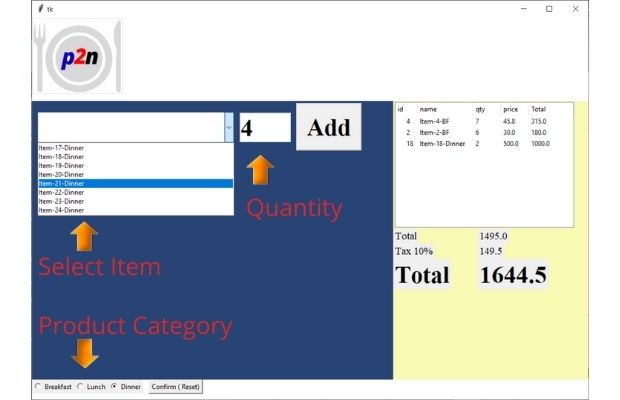
This variation of the Restaurant Management project uses a Tkinter Combobox to select a menu item and an Entry widget to enter its quantity. Product names and prices are loaded from MySQL through SQLAlchemy.
The available products are stored in a Python dictionary. Radiobuttons filter Breakfast, Lunch and Dinner products, while selected items are added to a Treeview to build the current bill.
MySQL products
      |
      v
Select category
      |
      v
Combobox
      |
      +--> Product
      |
Entry +--> Quantity
      |
      v
Add Item
      |
      v
Treeview bill
      |
      +--> Subtotal
      +--> Tax
+--> Final Total- Video Demonstration
- Why Use Combobox for Restaurant Items?
- Load Products from MySQL
- Store Products in a Dictionary
- Filter Products by Category
- Enter the Quantity
- Add the Selected Product
- Adding the Same Product Again
- Calculate Bill Totals
- Remove an Item
- Reset the Bill
- Complete Program
- my_connect.py
- Saving the Final Bill
- FAQs
Why Use Combobox for Restaurant Items? Top
Earlier versions of the Restaurant Management project displayed several products at the same time. When the product list becomes larger, displaying every item as a separate widget can use a lot of screen space.
A Tkinter Combobox provides another interface:
Select one product
        +
Enter quantity
        +
Click Add
This works well when there are many database products but the user only needs to add one product at a time.
The Combobox is configured as read-only:
product_cb=ttk.Combobox(
    selection_frame,
    textvariable=product_var,
    state='readonly'
)
This prevents the user from entering text that does not correspond to a database product.
Load Available Products from MySQL Top
The menu comes from the plus2_products table created in the Restaurant Management installation utility.
The SQL query loads only available products belonging to the selected category.
product_sql=text('''SELECT
    p_id,
    p_name,
    unit,
    price
FROM plus2_products
WHERE available=:available
AND p_cat=:category
ORDER BY p_name,p_id''')
The values are supplied separately:
rows=conn.execute(
    product_sql,
    {
        'available':1,
        'category':category
    }
).mappings().all()
This is better than constructing SQL like:
"... p_cat="+str(cat)Store Combobox Products in a Dictionary Top
A Python dictionary connects each Combobox label to its database record.
product_choices={}For each row:
display_text=f"{row['p_id']} - {row['p_name']} ({price:.2f})"

product_choices[display_text]={
    'p_id':row['p_id'],
    'name':row['p_name'],
    'unit':row['unit'],
    'price':price
}
A Combobox option may therefore look like:
3 - Item-3-BF (30.40)Why Include the Product ID?
Two database products can have the same or very similar names. Product ID is unique, so including it in the selection label prevents ambiguity.
The user still sees the readable name while Python retains the exact database ID.
Filter Breakfast, Lunch and Dinner Top
Our sample product table uses:
1 = Breakfast
2 = Lunch
3 = Dinner
The Radiobutton values use exactly the same IDs.
category_var=tk.IntVar(value=1)When the selected category changes:
def category_changed():
    load_products(
        category_var.get()
    )
The Combobox receives a fresh product list. Products already added to the current bill remain in the Treeview, so a single bill can contain products from different categories.
Enter the Product Quantity Top
A Tkinter Entry is used for quantity.
quantity_var=tk.StringVar(
    value='1'
)

quantity_entry=ttk.Entry(
    selection_frame,
    textvariable=quantity_var,
    width=8
)
Before adding the item, the program converts the entered text to an integer.
try:
    quantity=int(
        quantity_var.get().strip()
    )
except ValueError:
    status_var.set(
        'Enter a valid whole-number quantity.'
    )
    return
A quantity of zero or less is also rejected.
Add the Selected Product to the Bill Top
The product price must come from MySQL. The quantity must come from Entry.
The revised logic is:
product=product_choices.get(
    product_var.get()
)

quantity=int(
    quantity_var.get()
)

price=product['price']

line_total=(
    price*quantity
).quantize(
    MONEY,
    rounding=ROUND_HALF_UP
)
The row is then inserted into Treeview:
tree.insert(
    '',
    tk.END,
    iid=str(product['p_id']),
    values=(
        product['p_id'],
        product['name'],
        f"{price:.2f}",
        quantity,
        f"{line_total:.2f}"
    )
)
Adding the Same Product Again Top
Because the database product ID is used as the Treeview iid, the program can check whether the product is already present.
if tree.exists(iid):
    existing_quantity=int(
        tree.set(
            iid,
            'quantity'
        )
    )

    quantity+=existing_quantity
Instead of adding:
Item 3 | 2
Item 3 | 3
the bill becomes:
Item 3 | 5This creates a cleaner bill and avoids duplicate product rows.
Calculate Subtotal, Tax and Final Total Top
A for loop reads every Treeview child row.
for iid in tree.get_children():
    subtotal+=Decimal(
        tree.set(
            iid,
            'total'
        )
    )
The sample tax is then calculated:
tax=(
    subtotal*TAX_RATE
).quantize(
    MONEY,
    rounding=ROUND_HALF_UP
)

final_total=(
    subtotal+tax
).quantize(
    MONEY,
    rounding=ROUND_HALF_UP
)
The values are displayed using Tkinter Labels.
Remove a Selected Product Top
A useful billing feature is removing an item before the order is finalized.
def remove_selected():
    selected=tree.selection()

    if not selected:
        status_var.set(
            'Select a bill row to remove.'
        )
        return

    for iid in selected:
        tree.delete(iid)

    calculate_totals()
The subtotal, tax and final total are recalculated immediately.
Reset the Current Bill Top
This page builds an in-memory bill. The Reset button only clears the current selection and Treeview rows.
def reset_bill():
    for iid in tree.get_children():
        tree.delete(iid)

    product_var.set('')
    quantity_var.set('1')

    calculate_totals()
Saving a confirmed bill to the database is handled separately in Restaurant Management V-3.
Complete Tkinter Combobox Restaurant Billing Program Top
import tkinter as tk
from tkinter import ttk
from decimal import Decimal, ROUND_HALF_UP
from sqlalchemy import text
from sqlalchemy.exc import SQLAlchemyError
from my_connect import engine

MONEY=Decimal('0.01')
TAX_RATE=Decimal('0.10')

product_choices={}

product_sql=text('''SELECT
    p_id,
    p_name,
    unit,
    price
FROM plus2_products
WHERE available=:available
AND p_cat=:category
ORDER BY p_name,p_id''')

root=tk.Tk()
root.geometry('1000x620')
root.minsize(850,520)
root.title(
    'Restaurant Combobox Billing - plus2net'
)

root.columnconfigure(
    0,
    weight=2
)
root.columnconfigure(
    1,
    weight=3
)
root.rowconfigure(
    0,
    weight=1
)

selection_frame=ttk.Frame(
    root,
    padding=15
)
selection_frame.grid(
    row=0,
    column=0,
    sticky='nsew'
)

bill_frame=ttk.Frame(
    root,
    padding=15
)
bill_frame.grid(
    row=0,
    column=1,
    sticky='nsew'
)

bill_frame.columnconfigure(
    0,
    weight=1
)
bill_frame.rowconfigure(
    1,
    weight=1
)

ttk.Label(
    selection_frame,
    text='Add Menu Item',
    font=('Times',20,'bold')
).grid(
    row=0,
    column=0,
    columnspan=3,
    sticky='w',
    pady=(0,15)
)

category_var=tk.IntVar(
    value=1
)

category_frame=ttk.LabelFrame(
    selection_frame,
    text='Category',
    padding=8
)
category_frame.grid(
    row=1,
    column=0,
    columnspan=3,
    sticky='ew',
    pady=8
)

product_var=tk.StringVar()
quantity_var=tk.StringVar(
    value='1'
)

status_var=tk.StringVar()

ttk.Label(
    selection_frame,
    text='Product:'
).grid(
    row=2,
    column=0,
    sticky='w',
    pady=8
)

product_cb=ttk.Combobox(
    selection_frame,
    textvariable=product_var,
    state='readonly',
    width=38
)
product_cb.grid(
    row=2,
    column=1,
    columnspan=2,
    sticky='ew',
    pady=8
)

ttk.Label(
    selection_frame,
    text='Quantity:'
).grid(
    row=3,
    column=0,
    sticky='w',
    pady=8
)

quantity_entry=ttk.Entry(
    selection_frame,
    textvariable=quantity_var,
    width=8
)
quantity_entry.grid(
    row=3,
    column=1,
    sticky='w',
    pady=8
)

ttk.Label(
    bill_frame,
    text='Current Bill',
    font=('Times',20,'bold')
).grid(
    row=0,
    column=0,
    sticky='w',
    pady=(0,10)
)

tree=ttk.Treeview(
    bill_frame,
    columns=(
        'p_id',
        'product',
        'price',
        'quantity',
        'total'
    ),
    show='headings',
    selectmode='browse',
    height=15
)

tree.grid(
    row=1,
    column=0,
    sticky='nsew'
)

scrollbar=ttk.Scrollbar(
    bill_frame,
    orient='vertical',
    command=tree.yview
)
scrollbar.grid(
    row=1,
    column=1,
    sticky='ns'
)

tree.configure(
    yscrollcommand=scrollbar.set
)

tree.heading(
    'p_id',
    text='ID'
)
tree.heading(
    'product',
    text='Product'
)
tree.heading(
    'price',
    text='Price'
)
tree.heading(
    'quantity',
    text='Qty'
)
tree.heading(
    'total',
    text='Total'
)

tree.column(
    'p_id',
    width=50,
    anchor='center'
)
tree.column(
    'product',
    width=180,
    anchor='w'
)
tree.column(
    'price',
    width=80,
    anchor='e'
)
tree.column(
    'quantity',
    width=60,
    anchor='center'
)
tree.column(
    'total',
    width=90,
    anchor='e'
)

subtotal_var=tk.StringVar(
    value='0.00'
)
tax_var=tk.StringVar(
    value='0.00'
)
final_var=tk.StringVar(
    value='0.00'
)

totals_frame=ttk.Frame(
    bill_frame,
    padding=(0,12)
)
totals_frame.grid(
    row=2,
    column=0,
    sticky='e'
)

ttk.Label(
    totals_frame,
    text='Subtotal:'
).grid(
    row=0,
    column=0,
    padx=5
)

ttk.Label(
    totals_frame,
    textvariable=subtotal_var
).grid(
    row=0,
    column=1,
    sticky='e'
)

ttk.Label(
    totals_frame,
    text='Tax 10%:'
).grid(
    row=1,
    column=0,
    padx=5
)

ttk.Label(
    totals_frame,
    textvariable=tax_var
).grid(
    row=1,
    column=1,
    sticky='e'
)

ttk.Label(
    totals_frame,
    text='Final Total:',
    font=('Times',16,'bold')
).grid(
    row=2,
    column=0,
    padx=5,
    pady=5
)

ttk.Label(
    totals_frame,
    textvariable=final_var,
    font=('Times',16,'bold')
).grid(
    row=2,
    column=1,
    sticky='e'
)

def calculate_totals():
    subtotal=Decimal('0.00')

    for iid in tree.get_children():
        subtotal+=Decimal(
            str(
                tree.set(
                    iid,
                    'total'
                )
            )
        )

    subtotal=subtotal.quantize(
        MONEY,
        rounding=ROUND_HALF_UP
    )

    tax=(
        subtotal*TAX_RATE
    ).quantize(
        MONEY,
        rounding=ROUND_HALF_UP
    )

    final_total=(
        subtotal+tax
    ).quantize(
        MONEY,
        rounding=ROUND_HALF_UP
    )

    subtotal_var.set(
        f'{subtotal:.2f}'
    )
    tax_var.set(
        f'{tax:.2f}'
    )
    final_var.set(
        f'{final_total:.2f}'
    )

def load_products(category):
    product_choices.clear()
    product_var.set('')
    quantity_var.set('1')

    try:
        with engine.connect() as conn:
            rows=conn.execute(
                product_sql,
                {
                    'available':1,
                    'category':category
                }
            ).mappings().all()

    except SQLAlchemyError as e:
        print(e)
        product_cb['values']=[]
        status_var.set(
            'Unable to load products.'
        )
        return

    for row in rows:
        price=Decimal(
            str(row['price'])
        ).quantize(
            MONEY,
            rounding=ROUND_HALF_UP
        )

        display_text=f"{row['p_id']} - {row['p_name']} ({price:.2f})"

        product_choices[display_text]={
            'p_id':row['p_id'],
            'name':row['p_name'],
            'unit':row['unit'],
            'price':price
        }

    product_cb['values']=list(
        product_choices.keys()
    )

    if product_choices:
        status_var.set(
            f'Products available: {len(product_choices)}'
        )
    else:
        status_var.set(
            'No available products in this category.'
        )

def category_changed():
    load_products(
        category_var.get()
    )

def add_item():
    selected_text=product_var.get()

    product=product_choices.get(
        selected_text
    )

    if product is None:
        status_var.set(
            'Select a product.'
        )
        return

    try:
        quantity=int(
            quantity_var.get().strip()
        )
    except ValueError:
        status_var.set(
            'Enter a valid whole-number quantity.'
        )
        quantity_entry.focus_set()
        return

    if quantity<=0:
        status_var.set(
            'Quantity must be greater than zero.'
        )
        quantity_entry.focus_set()
        return

    p_id=product['p_id']
    price=product['price']
    iid=str(p_id)

    if tree.exists(iid):
        existing_quantity=int(
            tree.set(
                iid,
                'quantity'
            )
        )
        quantity+=existing_quantity

    line_total=(
        price*quantity
    ).quantize(
        MONEY,
        rounding=ROUND_HALF_UP
    )

    values=(
        p_id,
        product['name'],
        f'{price:.2f}',
        quantity,
        f'{line_total:.2f}'
    )

    if tree.exists(iid):
        tree.item(
            iid,
            values=values
        )
    else:
        tree.insert(
            '',
            tk.END,
            iid=iid,
            values=values
        )

    calculate_totals()

    product_var.set('')
    quantity_var.set('1')

    status_var.set(
        f"{product['name']} added to the bill."
    )

def remove_selected():
    selected=tree.selection()

    if not selected:
        status_var.set(
            'Select a bill row to remove.'
        )
        return

    for iid in selected:
        tree.delete(iid)

    calculate_totals()

    status_var.set(
        'Selected item removed.'
    )

def reset_bill():
    for iid in tree.get_children():
        tree.delete(iid)

    product_var.set('')
    quantity_var.set('1')

    calculate_totals()

    status_var.set(
        'Current bill cleared.'
    )

ttk.Radiobutton(
    category_frame,
    text='Breakfast',
    variable=category_var,
    value=1,
    command=category_changed
).grid(
    row=0,
    column=0,
    padx=5
)

ttk.Radiobutton(
    category_frame,
    text='Lunch',
    variable=category_var,
    value=2,
    command=category_changed
).grid(
    row=0,
    column=1,
    padx=5
)

ttk.Radiobutton(
    category_frame,
    text='Dinner',
    variable=category_var,
    value=3,
    command=category_changed
).grid(
    row=0,
    column=2,
    padx=5
)

button_frame=ttk.Frame(
    selection_frame
)
button_frame.grid(
    row=4,
    column=0,
    columnspan=3,
    sticky='w',
    pady=15
)

ttk.Button(
    button_frame,
    text='Add Item',
    command=add_item
).grid(
    row=0,
    column=0,
    padx=(0,8)
)

ttk.Button(
    button_frame,
    text='Remove Selected',
    command=remove_selected
).grid(
    row=0,
    column=1,
    padx=8
)

ttk.Button(
    button_frame,
    text='Reset Bill',
    command=reset_bill
).grid(
    row=0,
    column=2,
    padx=8
)

ttk.Label(
    selection_frame,
    textvariable=status_var,
    wraplength=360
).grid(
    row=5,
    column=0,
    columnspan=3,
    sticky='w',
    pady=10
)

selection_frame.columnconfigure(
    1,
    weight=1
)

load_products(1)

root.mainloop()
my_connect.py Top
Keep the database Engine in a separate file. See our MySQL connection string tutorial and MySQL with SQLAlchemy for more details.
from sqlalchemy import create_engine

engine=create_engine(
    'mysql+mysqldb://root:pw@localhost/db_name'
)
As with the other revised Restaurant Management pages, my_connect.py imports only create_engine. The main program imports text because that is where SQL statements are defined.
Saving the Final Restaurant Bill Top
This page focuses on an alternative product-selection interface:
Combobox
   +
Entry quantity
   |
   v
Treeview bill
The resulting Treeview contains the information needed for a sale:
Product ID
Product Name
Unit Price
Quantity
Line Total
The next application step is to store the completed order in plus2_bill and plus2_sell. That transaction and invoice workflow is explained in Restaurant Management V-3 invoice generation.
Frequently Asked Questions Top
A Combobox uses less screen space and works well when the database contains many menu items.
The price comes from the plus2_products MySQL table. The user enters only the required quantity.
The product ID is unique and helps distinguish products that may have identical or similar names.
The revised program increases the quantity of the existing Treeview row rather than inserting a duplicate product row.
Yes. Changing Breakfast, Lunch or Dinner reloads only the Combobox options. Products already added to the bill remain in Treeview.
Decimal provides fixed decimal arithmetic and is more appropriate for currency-style calculations than binary floating-point arithmetic.
No. Reset Bill only clears the current in-memory bill. The database transaction and invoice-saving process are covered in Restaurant Management Version 3.
More Projects using Tkinter

Subhendu Mohapatra
Author & Instructor at plus2net
I write and maintain practical tutorials on Python, PHP, SQL, JavaScript, HTML, jQuery, and web development at plus2net. The tutorials focus on clear explanations, working examples, and code that readers can test and adapt while learning.


Subscribe to our YouTube Channel here

 Python Video Tutorials