Gemini Image Description App with Python Tkinter
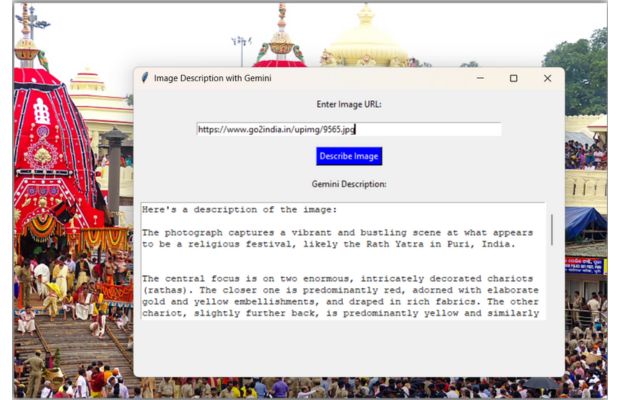
This project combines Python Tkinter, Pillow, the requests library and the Gemini API. The user enters an image URL, Python downloads the image, displays a preview and sends the image with a prompt to Gemini for analysis.
The generated description is then displayed inside the desktop Tkinter application.
Step 1: Install Required Packages 🔝
Tkinter is normally included with standard Python installations. Install the Gemini SDK, Pillow, Requests and python-dotenv:
pip install --upgrade google-genai pillow requests python-dotenvThe current Gemini Python SDK is imported with:
from google import genaiimport google.generativeai as genai. New projects should use the current google-genai SDK.Step 2: Store the Gemini API Key in .env 🔝
Create a file named .env in the same project directory:
GEMINI_API_KEY=your_actual_api_key_hereDo not place the API key directly inside the Python source.
If the project uses Git, add:
.envto the project's .gitignore file.
Step 3: Create the Gemini Client 🔝
import os
from dotenv import load_dotenv
from google import genai

load_dotenv()
api_key=os.getenv('GEMINI_API_KEY')

if not api_key:
    raise ValueError('GEMINI_API_KEY was not found')

client=genai.Client(api_key=api_key)
See the Gemini API with Python tutorial for more about API setup and models.
Step 4: Download the Image from a URL 🔝
Use requests.get() with a timeout and check the HTTP response before opening the downloaded data.
import io
import requests
from PIL import Image

response=requests.get(image_url, timeout=20)
response.raise_for_status()

image=Image.open(io.BytesIO(response.content)).convert('RGB')
raise_for_status() detects HTTP errors such as a missing image or inaccessible server.
Step 5: Send the Pillow Image Directly to Gemini 🔝
The current Gemini Python SDK can accept a Pillow image directly with the text prompt.
response=client.models.generate_content(model='gemini-3.7-flash', contents=['Describe the important visible details in this image.', image])

print(response.text)
There is no need to convert the Pillow image into a JPEG byte dictionary first.
Old Approach
gemini_image={
    'mime_type': 'image/jpeg',
    'data': img_bytes
}
Current Simpler Approach
contents=[prompt, image]Gemini 3.7 Flash is a multimodal model and accepts image input, so a separate "Vision model" is not required.
Step 6: Keep the Tkinter Window Responsive 🔝
Downloading an image and requesting a Gemini response are network operations. If both operations run directly inside the Tkinter button callback, the GUI event loop cannot process clicks, redraws or window movement until the operations finish.
The application can appear frozen.
We avoid this by performing the network work in a Python worker thread:
threading.Thread(target=analyze_image, args=(image_url,), daemon=True).start()The worker places its result in a queue:
result_queue.put(('ok', response.text, image))Tkinter's main thread checks that queue and updates the widgets.
Step 7: Display the Downloaded Image 🔝
Pillow's ImageTk.PhotoImage converts a Pillow image into an object Tkinter can display.
from PIL import ImageTk

preview=image.copy()
preview.thumbnail((320, 220))

photo=ImageTk.PhotoImage(preview)
preview_label.config(image=photo)
preview_label.image=photo
The final line keeps a Python reference to the PhotoImage. Without a retained reference, the Tkinter image can disappear.
Complete Gemini Image Description Tkinter App 🔝
This version includes URL validation, timeout handling, an image preview, a responsive GUI, status messages and a read-only output area.
import io
import os
import queue
import threading
import tkinter as tk
from tkinter import messagebox, scrolledtext
import requests
from PIL import Image, ImageTk
from dotenv import load_dotenv
from google import genai

load_dotenv()
api_key=os.getenv('GEMINI_API_KEY')

if not api_key:
    raise ValueError('GEMINI_API_KEY was not found')

client=genai.Client(api_key=api_key)
result_queue=queue.Queue()

def set_output(text):
    output_box.config(state=tk.NORMAL)
    output_box.delete('1.0', tk.END)
    output_box.insert(tk.END, text)
    output_box.config(state=tk.DISABLED)

def set_busy(busy):
    state=tk.DISABLED if busy else tk.NORMAL
    url_entry.config(state=state)
    describe_btn.config(state=state)
    status_var.set('Downloading and analyzing image...' if busy else 'Ready')

def analyze_image(image_url):
    try:
        response=requests.get(image_url, timeout=20)
        response.raise_for_status()
        image=Image.open(io.BytesIO(response.content)).convert('RGB')

        prompt='Describe the important visible details in this image. Mention the main objects, setting and activity. Do not guess details that are not supported by the image.'
        ai_response=client.models.generate_content(model='gemini-3.7-flash', contents=[prompt, image])

        result_queue.put(('ok', ai_response.text, image))
    except Exception as e:
        result_queue.put(('error', str(e), None))

def describe_image():
    image_url=url_entry.get().strip()

    if not image_url:
        messagebox.showwarning('Input Error', 'Enter an image URL.')
        return

    if not image_url.lower().startswith(('http://', 'https://')):
        messagebox.showwarning('Input Error', 'Enter a complete http:// or https:// URL.')
        return

    set_output('')
    set_busy(True)
    threading.Thread(target=analyze_image, args=(image_url,), daemon=True).start()

def check_results():
    try:
        status, text, image=result_queue.get_nowait()
    except queue.Empty:
        pass
    else:
        set_busy(False)

        if status=='ok':
            set_output(text)
            preview=image.copy()
            preview.thumbnail((320, 220))
            photo=ImageTk.PhotoImage(preview)
            preview_label.config(image=photo, text='')
            preview_label.image=photo
            status_var.set('Analysis complete')
        else:
            messagebox.showerror('Error', f'Unable to analyze the image:\n{text}')

    root.after(100, check_results)

def clear_all():
    url_entry.delete(0, tk.END)
    set_output('')
    preview_label.config(image='', text='Image preview')
    preview_label.image=None
    status_var.set('Ready')
    url_entry.focus_set()

root=tk.Tk()
root.title('Gemini Image Description')
root.geometry('680x700')

tk.Label(root, text='Enter Image URL:').pack(pady=(12, 5))

url_entry=tk.Entry(root, width=80)
url_entry.pack(padx=12, pady=5, fill=tk.X)
url_entry.bind('<Return>', lambda event: describe_image())

button_frame=tk.Frame(root)
button_frame.pack(pady=8)

describe_btn=tk.Button(button_frame, text='Describe Image', command=describe_image)
describe_btn.pack(side=tk.LEFT, padx=5)

clear_btn=tk.Button(button_frame, text='Clear', command=clear_all)
clear_btn.pack(side=tk.LEFT, padx=5)

preview_label=tk.Label(root, text='Image preview', width=45, height=14, relief='groove')
preview_label.pack(padx=10, pady=10)

tk.Label(root, text='Gemini Description:').pack(pady=(5, 0))

output_box=scrolledtext.ScrolledText(root, wrap=tk.WORD, height=12, state=tk.DISABLED)
output_box.pack(padx=10, pady=8, fill=tk.BOTH, expand=True)

status_var=tk.StringVar(value='Ready')
tk.Label(root, textvariable=status_var, anchor='w').pack(padx=10, pady=(0, 8), fill=tk.X)

url_entry.focus_set()
root.after(100, check_results)
root.mainloop()
Try Different Image Analysis Prompts 🔝
The same application can perform different tasks by changing the prompt.
General Image Description
Describe the important visible details in this image.Short Caption
Write a factual two-sentence caption for this image. Do not guess details that are not visually supported.Read Visible Text
Transcribe all clearly readable text in this image. If a word is unclear, mark it as [unclear] instead of guessing.Structured Description
Analyze this image and return:
1. Main objects
2. Setting
3. Visible activity
4. Readable text
5. Uncertain details
Accessibility Description
Write a concise accessibility description of the important visual content in this image.For more image-prompt examples, see Gemini image analysis with Python and Google Colab.
Extend the App to Analyze a Local Image 🔝
The main project uses an image URL. A local-file option can be added with Tkinter's filedialog.
from tkinter import filedialog

file_path=filedialog.askopenfilename(
    title='Select Image',
    filetypes=[('Image files', '*.jpg *.jpeg *.png *.webp'), ('All files', '*.*')]
)

if file_path:
    image=Image.open(file_path).convert('RGB')
    response=client.models.generate_content(model='gemini-3.7-flash', contents=['Describe this image.', image])
    print(response.text)
The Gemini request is the same because both downloaded and local images become Pillow Image objects.
Common Gemini Tkinter Image Errors 🔝
ModuleNotFoundError: google.genai
pip install --upgrade google-genaiGEMINI_API_KEY was not found
Check that the .env file contains:
GEMINI_API_KEY=your_actual_api_key_here404 or HTTP Error
The supplied image URL may be incorrect or the remote server may not allow access.
Pillow Cannot Identify the Image
The URL may return an HTML page rather than actual image data. The URL does not need a particular extension, but the response must contain a valid image.
The Tkinter Window Freezes
Do not perform the download and Gemini API request directly in the Tkinter event thread. The complete example uses a worker thread and queue.
The Image Preview Disappears
Keep a reference to the Tkinter image:
preview_label.image=photoModel Not Found
Model availability can change. Check available models:
for model in client.models.list():
    print(model.name)
Incorrect Image Description
Use a more specific prompt and verify important details manually. Generative image understanding is not guaranteed to be factually correct.
Frequently Asked Questions 🔝
The app downloads the image using requests, opens it as a Pillow Image object and sends the image with a text instruction to the Gemini API. The returned text is displayed in Tkinter.
For new projects use google-genai and import it with from google import genai.
No. The URL needs to return valid image content that Pillow can open. The filename extension itself is not what determines whether the image can be analyzed.
No. Current multimodal Gemini models can accept image and text inputs together.
Yes. Pillow can open common formats such as PNG and JPEG. The application converts the loaded image to RGB before sending it to Gemini.
Yes. Use filedialog.askopenfilename() to select the file, open it with Pillow and send the resulting Image object to Gemini.
A network request running in Tkinter's event thread prevents the GUI from processing normal interface events until the request completes. A worker thread keeps the window responsive.
Gemini can be prompted to transcribe visible text, including some handwritten content, but important extracted text should be checked against the source image.
Gemini Tkinter Image App Summary 🔝
- Tkinter provides the desktop user interface.
requestsdownloads an image from a URL.- Pillow converts the downloaded data into a Python Image object.
- The current Gemini Python package is
google-genai. genai.Client()creates the Gemini API client.- A Pillow Image can be passed directly to Gemini.
- A separate Gemini Vision model is not required.
response.raise_for_status()detects failed image downloads.- A URL does not need to end in
.jpg. - A worker thread prevents network requests from freezing the Tkinter GUI.
- A queue safely returns the response to Tkinter's main thread.
ImageTk.PhotoImagedisplays the downloaded image in Tkinter.- A reference to the PhotoImage must be retained.
- The prompt determines whether Gemini describes, captions or transcribes the image.
- AI-generated visual descriptions and extracted text should be verified.

Subhendu Mohapatra
Author & Instructor at plus2net
I write and maintain practical tutorials on Python, PHP, SQL, JavaScript, HTML, jQuery, and web development at plus2net. The tutorials focus on clear explanations, working examples, and code that readers can test and adapt while learning.


Subscribe to our YouTube Channel here

 Python Video Tutorials