Build a Gemini AI Chatbot with Python Tkinter

In this project we will combine Python Tkinter with the Gemini API to build a desktop AI chat application. The user enters a message in the Tkinter window, Python sends it to Gemini, and the generated response is displayed inside the same GUI.
We will also maintain multi-turn conversation history, keep the interface responsive while waiting for the API, save the chat to a text file, and add optional Gemini model settings.
.env file.Step 1: Install Required Packages 🔝
Tkinter is normally included with standard Python installations. Install the Gemini SDK and python-dotenv:
pip install --upgrade google-genai python-dotenvThe Gemini package is imported with:
from google import genaigoogle.generativeai. For new applications we use the current google-genai SDK.Step 2: Create the .env File 🔝
Create a file named .env in the same project directory as the Python script.
GEMINI_API_KEY=your_actual_api_key_hereDo not add the API key directly to the Python file.
If the project uses Git, add this line to .gitignore:
.envStep 3: Create the Gemini Client and Chat Session 🔝
import os
from dotenv import load_dotenv
from google import genai

load_dotenv()
api_key=os.getenv('GEMINI_API_KEY')

if not api_key:
    raise ValueError('GEMINI_API_KEY was not found')

client=genai.Client(api_key=api_key)
chat=client.chats.create(model='gemini-3.7-flash')
The chat object maintains the conversation history while the application is running.
Step 4: Build the Tkinter Chat Interface 🔝
The application needs three main GUI areas:
- a
ScrolledTextwidget to display the conversation, - an
Entrywidget for user input, - buttons for sending and saving the chat.
root=tk.Tk()
root.title('Gemini AI Chat')
root.geometry('650x520')

chat_window=scrolledtext.ScrolledText(root, wrap=tk.WORD, font=('Courier', 11))
chat_window.pack(padx=10, pady=10, fill=tk.BOTH, expand=True)

entry=tk.Entry(root, font=('Courier', 12))
entry.pack(padx=10, pady=5, fill=tk.X)Why the Gemini API Call Should Not Run on Tkinter's Main Thread 🔝
Tkinter processes button clicks, keyboard events, drawing and window updates through its main event loop. A Gemini API request can take time to complete. If the request runs directly inside the button callback, Tkinter cannot process other events until the request finishes.
The window may therefore appear frozen.
In the complete example below, a worker thread performs the API request. A Python queue passes the result back to the Tkinter event loop, which safely updates the GUI.
Complete Responsive Gemini Tkinter Chat App 🔝
This version includes multi-turn chat, Enter-key submission, responsive API calls, status display and Save Chat.
import os
import queue
import threading
import tkinter as tk
from tkinter import scrolledtext, filedialog
from dotenv import load_dotenv
from google import genai

load_dotenv()
api_key=os.getenv('GEMINI_API_KEY')

if not api_key:
    raise ValueError('GEMINI_API_KEY was not found')

client=genai.Client(api_key=api_key)
chat=client.chats.create(model='gemini-3.7-flash')
result_queue=queue.Queue()

def append_chat(text, tag):
    chat_window.config(state=tk.NORMAL)
    chat_window.insert(tk.END, text, tag)
    chat_window.config(state=tk.DISABLED)
    chat_window.see(tk.END)

def set_busy(busy):
    state=tk.DISABLED if busy else tk.NORMAL
    entry.config(state=state)
    send_btn.config(state=state)
    status_var.set('Waiting for Gemini...' if busy else 'Ready')
    if not busy:
        entry.focus_set()

def ask_gemini(prompt):
    try:
        response=chat.send_message(prompt)
        result_queue.put(('ok', response.text))
    except Exception as e:
        result_queue.put(('error', str(e)))

def send_message():
    user_input=entry.get().strip()
    if not user_input:
        return

    if user_input.lower() in ('exit', 'quit'):
        root.destroy()
        return

    append_chat(f'You: {user_input}\n', 'user')
    entry.delete(0, tk.END)
    set_busy(True)
    threading.Thread(target=ask_gemini, args=(user_input,), daemon=True).start()

def check_results():
    try:
        status, text=result_queue.get_nowait()
    except queue.Empty:
        pass
    else:
        if status=='ok':
            append_chat(f'Gemini: {text}\n\n', 'bot')
        else:
            append_chat(f'Error: {text}\n\n', 'error')
        set_busy(False)
    root.after(100, check_results)

def save_chat():
    content=chat_window.get('1.0', tk.END).strip()
    if not content:
        return

    file_path=filedialog.asksaveasfilename(defaultextension='.txt', filetypes=[('Text files', '*.txt'), ('All files', '*.*')])
    if file_path:
        with open(file_path, 'w', encoding='utf-8') as file:
            file.write(content)
        status_var.set('Chat saved')

root=tk.Tk()
root.title('Gemini AI Chat')
root.geometry('650x520')

chat_window=scrolledtext.ScrolledText(root, wrap=tk.WORD, font=('Courier', 11), state=tk.DISABLED)
chat_window.pack(padx=10, pady=(10, 5), fill=tk.BOTH, expand=True)
chat_window.tag_config('user', foreground='blue')
chat_window.tag_config('bot', foreground='green')
chat_window.tag_config('error', foreground='red')
append_chat("Gemini AI Chat - type 'exit' to close\n\n", 'bot')

entry=tk.Entry(root, font=('Courier', 12))
entry.pack(padx=10, pady=5, fill=tk.X)
entry.bind('<Return>', lambda event: send_message())

button_frame=tk.Frame(root)
button_frame.pack(pady=5)

send_btn=tk.Button(button_frame, text='Send', command=send_message)
send_btn.pack(side=tk.LEFT, padx=5)

save_btn=tk.Button(button_frame, text='Save Chat', command=save_chat)
save_btn.pack(side=tk.LEFT, padx=5)

status_var=tk.StringVar(value='Ready')
tk.Label(root, textvariable=status_var, anchor='w').pack(padx=10, pady=(0, 5), fill=tk.X)

entry.focus_set()
root.after(100, check_results)
root.mainloop()
Run the Desktop Chat Application 🔝
Save the Python script as:
gemini_chat.pyThen run:
python gemini_chat.pyEnter a prompt and press the Send button or the Enter key.
How Gemini Chat History Works 🔝
The chat session is created once:
chat=client.chats.create(model='gemini-3.7-flash')Each new message is then sent through the same object:
response=chat.send_message(user_input)This lets later messages use earlier turns from the same conversation.
For example:
You: I am learning Python Tkinter.
Gemini: ...
You: Which GUI library did I say I was learning?
The second message can use the earlier conversation because both messages belong to the same chat session.
Save the Chat Conversation 🔝

The complete application already includes the Save Chat button. The important code is:
def save_chat():
    content=chat_window.get('1.0', tk.END).strip()
    file_path=filedialog.asksaveasfilename(defaultextension='.txt')

    if file_path:
        with open(file_path, 'w', encoding='utf-8') as file:
            file.write(content)
This saves the text displayed in the Tkinter chat window. It does not expose the API key.
Add Gemini Model Settings 🔝
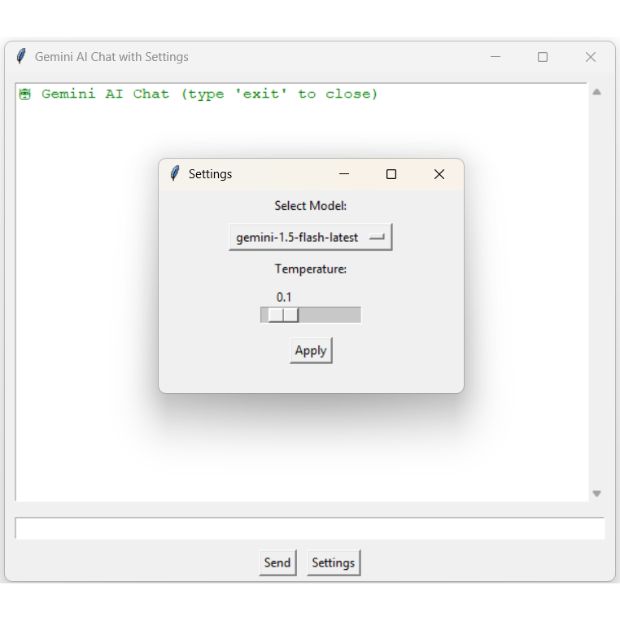
A Settings window can let the user change the Gemini model and thinking level.
For Gemini 3.7 Flash, useful thinking levels are:
low
medium
high
low can reduce latency for simple chat tasks, medium is the balanced default, and high gives the model more reasoning effort for difficult prompts.
Import the Configuration Types
from google.genai import typesAdd Tkinter Settings Variables
Create these after creating the main Tkinter window:
model_var=tk.StringVar(value='gemini-3.7-flash')
thinking_var=tk.StringVar(value='medium')
Open the Settings Window
def open_settings():
    settings=tk.Toplevel(root)
    settings.title('Gemini Settings')
    settings.geometry('340x220')

    tk.Label(settings, text='Model ID').pack(pady=(15, 5))
    tk.Entry(settings, textvariable=model_var, width=28).pack()

    tk.Label(settings, text='Thinking Level').pack(pady=(15, 5))
    tk.OptionMenu(settings, thinking_var, 'low', 'medium', 'high').pack()

    tk.Button(settings, text='Apply', command=lambda: apply_settings(settings)).pack(pady=15)
Apply the Settings
def apply_settings(settings):
    global chat

    model_name=model_var.get().strip()
    level=thinking_var.get()

    config=types.GenerateContentConfig(
        thinking_config=types.ThinkingConfig(thinking_level=level)
    )

    chat=client.chats.create(model=model_name, config=config)
    append_chat(f'New chat started - Model: {model_name}, Thinking: {level}\n\n', 'bot')
    settings.destroy()
Add the Settings Button
settings_btn=tk.Button(button_frame, text='Settings', command=open_settings)
settings_btn.pack(side=tk.LEFT, padx=5)Why Use a Model Entry Instead of Hard-Coded Model Choices?
Gemini model availability changes over time. Allowing the model ID to be entered makes the desktop tool easier to update without rewriting the GUI.
You can check currently available models in Python:
for model in client.models.list():
    print(model.name)
Common Gemini Tkinter Chat Errors 🔝
GEMINI_API_KEY was not found
Check that the .env file is in the project directory and contains:
GEMINI_API_KEY=your_actual_api_key_hereModuleNotFoundError: google.genai
Install the current SDK:
pip install --upgrade google-genaiThe Tkinter Window Freezes after Clicking Send
This happens when the network/API call runs directly in Tkinter's event thread. The complete example on this page performs the Gemini request in a worker thread.
Model Not Found
The model ID may no longer be available or may not be available for the account. Check:
for model in client.models.list():
    print(model.name)
Chat Stops Remembering Previous Messages
Make sure all related messages are sent through the same chat object. Creating a new chat starts a new conversation unless history is supplied explicitly.
Send Button Is Temporarily Disabled
This is intentional in the example. Only one request is sent through the chat at a time. The button is enabled again when Gemini returns a response or an error.
Frequently Asked Questions 🔝
Create a Gemini client using google-genai, create a chat session, then send text from the Tkinter Entry widget through chat.send_message().
For new Python projects, use the google-genai package and import it with from google import genai.
Yes. Messages sent through the same chat session can use earlier turns in that conversation. Starting a new chat creates a new conversation unless history is supplied.
A network request made from the Tkinter event thread prevents the GUI from processing events until the request completes. Running the API request in a worker thread keeps the interface responsive.
Yes. The visible conversation can be read from the ScrolledText widget and saved to a text file using filedialog.asksaveasfilename().
No. Saving the displayed text creates a local record of the conversation but does not automatically restore it as Gemini chat history later.
Yes. A Settings window can collect a model ID and create a new Gemini chat session using that model.
Yes. The desktop GUI runs locally, but Gemini API requests are sent to Google's online service.
Gemini Tkinter Chatbot Summary 🔝
- Tkinter provides the desktop GUI.
google-genaiprovides Gemini API access.- The API key is stored securely in a
.envfile. genai.Client()creates the Gemini API client.client.chats.create()starts a multi-turn conversation.chat.send_message()sends each user message.- The same chat object maintains conversation history.
- A worker thread prevents the Gemini request from blocking the Tkinter GUI.
- GUI widget updates remain in Tkinter's main thread.
ScrolledTextdisplays the conversation.filedialogcan save the visible chat to a text file.- Saving the visible chat does not automatically save Gemini conversation state.
- A Settings window can change the model and thinking level.
- Creating a new chat for changed settings starts a new conversation.

Subhendu Mohapatra
Author & Instructor at plus2net
I write and maintain practical tutorials on Python, PHP, SQL, JavaScript, HTML, jQuery, and web development at plus2net. The tutorials focus on clear explanations, working examples, and code that readers can test and adapt while learning.


Subscribe to our YouTube Channel here

 Python Video Tutorials