Gemini API with Python in Google Colab
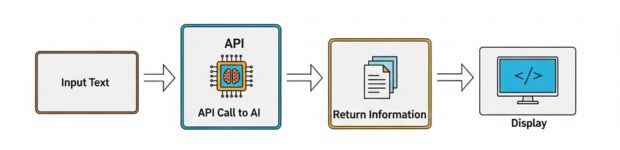
Google's Gemini API allows Python programs to send prompts to Gemini models and receive generated responses. In Google Colab, we can store the Gemini API key securely using Colab Secrets and use the google-genai Python package to interact with the API.
This tutorial covers API-key setup, model discovery, text generation, user prompts, streaming responses, multi-turn chat, local Python scripts and Colab's separate google.colab.ai interface.
- Google GenAI SDK
- Create a Gemini API Key
- Store the Key in Colab Secrets
- Install google-genai
- Connect to Gemini
- List Available Models
- Generate Text
- Generate from User Input
- Stream a Response
- Gemini API Notebook
- Run Gemini from Local Python
- Multi-Turn Chat
- Gemini without Your Own API Key in Colab
- List Colab AI Models
- Stream with google.colab.ai
- Use Excel Data as AI Context
- Use a Python List in a Prompt
- Important Limitations
- Common Errors
- FAQs
- Summary
Use the Current Google GenAI SDK 🔝
Older Gemini tutorials may use:
import google.generativeai as genaiThe current Python SDK is installed as:
google-genaiand imported with:
from google import genaiThe newer SDK uses a central Client object for model generation, chats, files and other API operations.
google.generativeai and older Gemini model names may no longer run unchanged. Use the examples on this page for new projects.Create a Gemini API Key 🔝
Open Google AI Studio, sign in and create an API key for Gemini API access.
We will store the key in Google Colab under this name:
GEMINI_API_KEYStore GEMINI_API_KEY in Google Colab Secrets 🔝
In Google Colab:
- Open the Secrets panel from the left sidebar.
- Create a secret named
GEMINI_API_KEY. - Paste your Gemini API key as the value.
- Allow notebook access to the secret.
Read the secret in Python:
from google.colab import userdata

api_key=userdata.get('GEMINI_API_KEY')
The actual key is not written into the notebook source.
Install google-genai in Colab 🔝
!pip install -q --upgrade google-genaiAfter installation, import the package:
from google import genaiConnect to the Gemini API 🔝
from google import genai
from google.colab import userdata

api_key=userdata.get('GEMINI_API_KEY')
client=genai.Client(api_key=api_key)
The client object becomes the main entry point for Gemini API operations.
List Available Gemini Models 🔝
Model availability changes over time, so listing the models is useful when updating an existing notebook.
from google import genai
from google.colab import userdata

client=genai.Client(api_key=userdata.get('GEMINI_API_KEY'))

for model in client.models.list():
print(model.name)Generate Text with Gemini 🔝
The generate_content() method sends content to a model and returns a response.
from google import genai
from google.colab import userdata

client=genai.Client(api_key=userdata.get('GEMINI_API_KEY'))

response=client.models.generate_content(
    model='gemini-3.7-flash',
    contents='Write a short poem about the stars.'
)

print(response.text)
The exact generated text can vary between requests, so treat any displayed response as a sample rather than a fixed output.
Generate Content from User Input 🔝
from google import genai
from google.colab import userdata

client=genai.Client(api_key=userdata.get('GEMINI_API_KEY'))

user_prompt=input('Enter your prompt: ')

response=client.models.generate_content(model='gemini-3.7-flash', contents=user_prompt)
print(response.text)
Example input:
Why do long-distance flight paths look curved on a flat map?The model's answer is generated dynamically and may differ each time.
Stream the Gemini Response 🔝
Streaming allows text to be displayed as response chunks arrive rather than waiting for the complete response.
from google import genai
from google.colab import userdata

client=genai.Client(api_key=userdata.get('GEMINI_API_KEY'))

for chunk in client.models.generate_content_stream(model='gemini-3.7-flash', contents='Explain Python lists to a beginner.'):
    print(chunk.text, end='', flush=True)
Run the Gemini API Notebook 🔝
Run the Plus2net Gemini API notebook in Google Colab or inspect/download the notebook from GitHub.
Open in Google Colab View on GitHubUse Gemini from a Local Python Script 🔝
The same Gemini API can be used from VS Code or another local Python environment.
Install Packages
pip install --upgrade google-genai python-dotenvCreate a .env File
GEMINI_API_KEY=your_actual_api_key_hereDo not place quotes around the key unless they are genuinely part of its value.
If the project uses Git, add:
.envto the project's .gitignore file so credentials are not committed.
Read the Key and Send a Prompt
import os
from dotenv import load_dotenv
from google import genai

load_dotenv()

api_key=os.getenv('GEMINI_API_KEY')

if not api_key:
    raise ValueError('GEMINI_API_KEY was not found')

client=genai.Client(api_key=api_key)
user_prompt=input('Enter your prompt: ')

response=client.models.generate_content(model='gemini-3.7-flash', contents=user_prompt)
print(response.text)
Multi-Turn Gemini Chat 🔝
A single generate_content() request is normally independent of earlier requests. When conversation history should be retained across turns, create a chat session.
import os
from dotenv import load_dotenv
from google import genai

load_dotenv()
client=genai.Client(api_key=os.getenv('GEMINI_API_KEY'))
chat=client.chats.create(model='gemini-3.7-flash')

print("Gemini Chat - type 'exit' to stop")

while True:
    user_input=input('You: ').strip()

    if user_input.lower() in ('exit', 'quit'):
        break

    if not user_input:
        continue

    response=chat.send_message(user_input)
    print('Gemini:', response.text)
Why Chat Is Different
Suppose the first message is:
My favorite programming language is Python.A later message can ask:
Which programming language did I say I liked?Because both messages belong to the same chat object, the earlier conversation can be part of the chat history.
Use AI in Google Colab without Your Own Gemini API Key 🔝
Google Colab also provides its own google.colab.ai interface. This is separate from directly calling the Gemini API through google-genai.
It is intended for use inside Google Colab.
from google.colab import ai

response=ai.generate_text('What is the capital of India?')
print(response)google-genai - your Gemini API credentials and Gemini API.google.colab.ai - Colab-managed AI access inside the Colab environment.List Models Available through google.colab.ai 🔝
from google.colab import ai

ai.list_models()
Use this list instead of assuming that a particular model will always be available to every Colab account.
Use a Model Returned by list_models()
from google.colab import ai

models=ai.list_models()
print(models)
After checking the result, a supported model can be passed through model_name=.
Stream Text with google.colab.ai 🔝
from google.colab import ai

stream=ai.generate_text('Tell me a short story.', stream=True)

for text in stream:
    print(text, end='')
Use Excel Table Data as AI Context 🔝
Structured data can be converted to text and included in the model prompt. Here we use the sample student.xlsx file.
Download the Sample Excel File
!wget -q https://www.plus2net.com/python/download/student.xlsxCreate a Pandas DataFrame
import pandas as pd

df=pd.read_excel('student.xlsx')
df.head()
Convert the Required Data to Text
df_string=df.to_string(index=False)
print(df_string)
See Pandas to_string() for more options.
Ask a Question about the Data
from google.colab import ai

question="From the student data below, which student has the highest mark? Return only the student's name.\n\n"+df_string

response=ai.generate_text(question)
print(response)
Ask for More Details
question='Give the name, class and mark of the student with the highest mark.\n\n'+df_string
response=ai.generate_text(question)
print(response)
Why Must the Data Be Included Again?
Separate ai.generate_text() calls should be treated as independent requests. If a later prompt depends on earlier data, include that data again unless you are using an interface that explicitly maintains conversation history.
Use a Python List as Data in an AI Prompt 🔝
ai.generate_text() expects textual prompt content. A Python List can therefore be serialized into text before adding it to the prompt.
from google.colab import ai

countries=['India', 'USA', 'Japan']
countries_text=', '.join(countries)

question='Create a Python dictionary using these country names as keys and their capitals as values: '+countries_text

response=ai.generate_text(question)
print(response)
See the Python List tutorial for list operations.
Important Limitations 🔝
- Generated output is not guaranteed to be correct: Verify important factual, numerical and code-related responses.
- Model availability changes: Avoid assuming that an old model identifier will remain available indefinitely.
- Context is finite: Sending very large tables, files or histories can exceed model or service limits.
- Stateless calls do not automatically remember previous prompts: Use a chat session when conversation history is required.
- AI text is not automatically structured Python data: Validate generated dictionaries, JSON or code before parsing or executing it.
- API and Colab access are different:
google-genaiandgoogle.colab.aishould not be treated as the same service interface. - Chart rendering requires Python plotting tools: A model may suggest or generate plotting code, but actual charts are rendered by libraries such as Matplotlib or other visualization tools.
- Credentials must remain private: Never expose API keys in notebooks, screenshots or Git repositories.
Practice google.colab.ai in Colab 🔝
The Plus2net notebook for the Colab-managed AI examples can be opened directly in Colab or viewed on GitHub.
Open in Google Colab View on GitHubCommon Gemini Python Errors 🔝
ModuleNotFoundError for google.genai
Install or upgrade the current SDK:
!pip install -q --upgrade google-genaiAPI Key Is Missing
Check that the Colab secret uses exactly:
GEMINI_API_KEYTest whether it can be retrieved without printing the secret itself:
from google.colab import userdata

api_key=userdata.get('GEMINI_API_KEY')
print('Key loaded:', bool(api_key))
Model Not Found
The model may have been renamed, deprecated or retired. Check:
for model in client.models.list():
    print(model.name)
google.colab.ai Does Not Work Locally
google.colab.ai is a Colab-specific interface. For local Python applications, use google-genai with the Gemini API.
Previous Information Is Missing
Independent generation requests do not automatically create a conversation. Use:
chat=client.chats.create(model='gemini-3.7-flash')when later messages should use earlier chat history.
Frequently Asked Questions 🔝
For new Python projects, use the google-genai package and import it with from google import genai.
Use pip install --upgrade google-genai. In Google Colab, the same command can be prefixed with !.
Store it in Colab Secrets using a name such as GEMINI_API_KEY and retrieve it with userdata.get().
Yes. Store the key in an environment variable or .env file and create a genai.Client with the key.
Create a chat using client.chats.create() and send follow-up messages with chat.send_message().
Gemini model availability changes over time. List available models and update applications when a model is deprecated or retired.
Yes. The Google GenAI SDK provides streaming generation, allowing response chunks to be processed as they arrive.
Google Colab also provides a separate google.colab.ai interface. Its model availability and usage are managed by Colab and can be checked with ai.list_models().
Gemini API Python Summary 🔝
- Use
google-genaifor new Gemini API Python projects. - Import the SDK with
from google import genai. - Store the Gemini API key securely instead of writing it into source code.
- Colab Secrets can store
GEMINI_API_KEY. genai.Client()provides the main API client.client.models.list()helps discover available models.client.models.generate_content()generates a complete response.generate_content_stream()streams response chunks.client.chats.create()starts a multi-turn conversation.- Do not depend indefinitely on old model identifiers.
google.colab.aiis a separate Colab-specific AI interface.ai.list_models()shows models currently available through that Colab interface.- Independent generation calls should be treated as stateless unless conversation history is explicitly maintained.
- Pandas data can be converted to selected text and supplied as model context.
- Generated answers, code and structured data should be validated before being trusted or executed.
Continue with Gemini and Python
Gemini AI with Images Build a Tkinter Gemini Chatbot
Subhendu Mohapatra
Author & Instructor at plus2net
I write and maintain practical tutorials on Python, PHP, SQL, JavaScript, HTML, jQuery, and web development at plus2net. The tutorials focus on clear explanations, working examples, and code that readers can test and adapt while learning.


Subscribe to our YouTube Channel here

 Python Video Tutorials