Tkinter OptionMenu: Dropdown Selection with StringVar and command
Tkinter OptionMenu displays one selected value and opens a menu containing predefined choices. It is useful when the user must choose exactly one option and the choices do not need to remain visible all the time.

- Create an OptionMenu
- Options from a Python List
- Read Selected Value
- Run Function on Selection
- Track StringVar with trace_add()
- Set Selection Programmatically
- Use Dictionary Values and Keys
- Sort OptionMenu Values
- Change Button and Menu Fonts
- Access the Underlying Menu
- Add a Separator
- Add or Remove Options
- Enable or Disable OptionMenu
- List Configuration Options
- OptionMenu vs Combobox vs Listbox
- OptionMenu Projects
- Common Mistakes
- Summary
Create a Tkinter OptionMenu 🔝
An OptionMenu is connected to a Tkinter variable such as StringVar. The variable stores the currently selected value.
import tkinter as tk

root=tk.Tk()
root.geometry('350x200')
root.title('Tkinter OptionMenu - plus2net')

selected=tk.StringVar(value='HTML')

tk.Label(root, text='Select Language').grid(row=0, column=0, padx=10, pady=20)

option_menu=tk.OptionMenu(root, selected, 'HTML', 'PHP', 'MySQL', 'Python')
option_menu.grid(row=0, column=1, padx=10, pady=20)

root.mainloop()
The general form is:
tk.OptionMenu(parent, variable, value1, value2, ...)The connected variable should usually contain an initial value before the widget is displayed.
Use a Placeholder
The variable can initially contain text that is not one of the selectable menu entries.
selected=tk.StringVar(value='Select a language')
option_menu=tk.OptionMenu(root, selected, 'HTML', 'PHP', 'Python')
The placeholder is displayed initially, but it is not itself a menu choice unless it is included among the OptionMenu values.
Create OptionMenu from a Python List 🔝
Use the unpacking operator * to pass elements of a Python list as individual OptionMenu values.
languages=['PHP', 'MySQL', 'Python', 'HTML']

selected=tk.StringVar(value=languages[0])
option_menu=tk.OptionMenu(root, selected, *languages)
This:
*languagespasses each list element separately to the constructor.
tk.OptionMenu needs at least one menu value when it is created. If your data source can return an empty list, check it before constructing the widget.Read the Selected Option with get() 🔝
Read the connected StringVar:
value=selected.get()
print(value)
Read Selection on Button Click

import tkinter as tk

def show_value():
    output_var.set(selected.get())

root=tk.Tk()
root.geometry('420x180')

selected=tk.StringVar(value='HTML')
output_var=tk.StringVar(value='Output')

option_menu=tk.OptionMenu(root, selected, 'HTML', 'PHP', 'MySQL', 'Python')
option_menu.grid(row=0, column=0, padx=10, pady=20)

tk.Button(root, text='Show Value', command=show_value).grid(row=0, column=1, padx=10)
tk.Label(root, textvariable=output_var).grid(row=0, column=2, padx=10)

root.mainloop()
Run a Function When an Option Is Selected 🔝
OptionMenu supports a command callback. The selected value is passed to the callback.
import tkinter as tk

def option_selected(value):
    output_var.set(value)

root=tk.Tk()

selected=tk.StringVar(value='HTML')
output_var=tk.StringVar()

option_menu=tk.OptionMenu(
    root,
    selected,
    'HTML',
    'PHP',
    'MySQL',
    'Python',
    command=option_selected
)
option_menu.pack(pady=10)

tk.Label(root, textvariable=output_var).pack(pady=10)

root.mainloop()
If the user chooses Python, the callback receives:
'Python'This is usually the simplest approach when the program needs to respond specifically to a user's menu selection.
Monitor StringVar with trace_add() 🔝

trace_add() monitors writes to the connected variable.
def value_changed(*args):
    output_var.set(selected.get())

selected.trace_add('write', value_changed)
Complete Example
import tkinter as tk

def value_changed(*args):
    output_var.set(selected.get())

root=tk.Tk()

values=['PHP', 'MySQL', 'Python', 'HTML']
selected=tk.StringVar(value=values[0])
output_var=tk.StringVar()

option_menu=tk.OptionMenu(root, selected, *values)
option_menu.pack(pady=10)

tk.Label(root, textvariable=output_var).pack(pady=10)

selected.trace_add('write', value_changed)

root.mainloop()
command vs trace_add()
| Approach | Use |
|---|---|
command=callback | Respond when the user chooses an OptionMenu item. |
StringVar.trace_add('write', ...) | Respond whenever the variable is written, including programmatic changes. |
For example:
selected.set('Python')updates the OptionMenu and triggers a write trace. A programmatic set() is different from the user selecting a menu command.
Set or Change the OptionMenu Value 🔝
Because OptionMenu is linked to a Tkinter variable, change the displayed selection with set().
selected.set('Python')Read it again with:
print(selected.get())Reset Selection
selected.set('HTML')Display a Placeholder Again
selected.set('Select a language')Use Dictionary Values and Collect Keys 🔝
A dictionary is useful when the user should see readable text but the application needs an ID or code.
For example:
languages={
    'en': 'English',
    'es': 'Spanish',
    'fr': 'French',
    'de': 'German',
    'it': 'Italian'
}
The menu can display the dictionary values:
selected=tk.StringVar(value=languages['es'])
option_menu=tk.OptionMenu(root, selected, *languages.values())
Get the Dictionary Key Efficiently
Create a reverse lookup once instead of looping through the entire dictionary every time the user changes the selection.
name_to_code={name: code for code, name in languages.items()}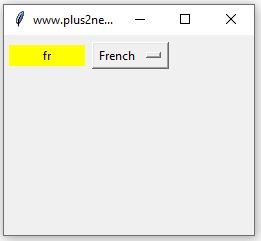
import tkinter as tk

languages={
    'en': 'English',
    'es': 'Spanish',
    'fr': 'French',
    'de': 'German',
    'it': 'Italian'
}

name_to_code={name: code for code, name in languages.items()}

def language_selected(name):
    code_label.config(text=name_to_code[name])

root=tk.Tk()

selected=tk.StringVar(value=languages['es'])

tk.Label(root, text='Language').grid(row=0, column=0, padx=5, pady=10)

option_menu=tk.OptionMenu(root, selected, *languages.values(), command=language_selected)
option_menu.grid(row=0, column=1)

code_label=tk.Label(root, text='es', bg='yellow', width=6)
code_label.grid(row=0, column=2, padx=5)

root.mainloop()
The user sees:
Spanishwhile the application can obtain:
esSort OptionMenu Values 🔝
Use Python's sorted() when you want a sorted copy without modifying the original list.
languages=['PHP', 'MySQL', 'Python', 'HTML', 'jQuery']

sorted_languages=sorted(languages, key=str.casefold)

selected=tk.StringVar(value=sorted_languages[0])
option_menu=tk.OptionMenu(root, selected, *sorted_languages)
list.sort() is also valid, but it changes the original list in place.
Change OptionMenu and Dropdown Fonts 🔝

The visible OptionMenu button and its dropdown Menu can use different fonts.
import tkinter as tk

root=tk.Tk()

selected=tk.StringVar(value='HTML')
option_menu=tk.OptionMenu(root, selected, 'HTML', 'PHP', 'MySQL', 'Python')
option_menu.pack(padx=20, pady=20)

option_menu.config(font=('Arial', 20))
option_menu['menu'].config(font=('Arial', 14))

root.mainloop()
This controls the visible button:
option_menu.config(font=('Arial', 20))This controls the dropdown choices:
option_menu['menu'].config(font=('Arial', 14))Access the Underlying Menu 🔝
Classic tk.OptionMenu is built from a Menubutton and an associated Menu.
Access the Menu with:
menu=option_menu['menu']You can then use normal Tkinter Menu methods.
print(menu.index('end'))Add a Separator to OptionMenu 🔝
menu=option_menu['menu']
menu.insert_separator(2)
This inserts a separator at menu index 2, so it appears after the first two existing menu entries.
Add or Remove OptionMenu Choices 🔝
Because OptionMenu uses an ordinary Tkinter Menu, its choices can be rebuilt dynamically.
Replace All Options
new_values=['Java', 'Python', 'PHP']

menu=option_menu['menu']
menu.delete(0, 'end')

for value in new_values:
    menu.add_command(label=value, command=lambda v=value: selected.set(v))

selected.set(new_values[0])v=value? It stores the current loop value in each lambda. Without it, all commands could refer to the final value after the loop ends.If your interface depends on a trace_add() callback, changing selected with set() will continue to trigger that trace.
Clear All Options
option_menu['menu'].delete(0, 'end')
selected.set('')
Disable or Enable OptionMenu 🔝
Disable
option_menu.config(state=tk.DISABLED)Enable
option_menu.config(state=tk.NORMAL)This is useful when another selection must be made before the OptionMenu becomes available.
List Available Configuration Options 🔝
Display OptionMenu configuration names with:
print(option_menu.keys())For detailed configuration information:
print(option_menu.config())The underlying dropdown Menu has its own options:
print(option_menu['menu'].keys())OptionMenu vs Combobox vs Listbox 🔝
| Widget | Best Use | User Can Type? | Multiple Selection? |
|---|---|---|---|
| OptionMenu | Simple compact fixed-choice dropdown. | No | No |
| ttk.Combobox | Themed compact dropdown with editable or readonly modes. | Yes in normal state | No |
| Listbox | Choices should remain visible or several items may be selected. | No | Yes |
Use OptionMenu When
- only one value can be selected,
- the available choices are predefined,
- a compact dropdown is enough,
- you want straightforward integration with a Tkinter variable.
Use Combobox When
You want a themed ttk control, or you need the choice between editable normal mode and restricted readonly mode.
Typing into a normal Combobox changes its Entry text. It should not be described as automatically opening the dropdown simply because the user starts typing.
Use Listbox When
The user benefits from seeing several choices simultaneously, needs scrolling through a visible list, or must select multiple items.
Classic OptionMenu and ttk.OptionMenu 🔝
This tutorial primarily uses the classic:
tk.OptionMenu()Tkinter also provides a themed OptionMenu:
from tkinter import ttk

selected=tk.StringVar()
option_menu=ttk.OptionMenu(root, selected, 'HTML', 'HTML', 'PHP', 'Python')
The ttk version follows the platform's themed widget system and has a somewhat different constructor and styling model. Python documents it separately from the classic Tk OptionMenu. :contentReference[oaicite:2]{index=2}
OptionMenu Projects 🔝
Add or Remove Choices
Practice modifying the options available in an existing OptionMenu.
Add or Remove OptionMenu ChoicesAdd User-Entered Text
Take input from the user and add the new text as an OptionMenu choice.
Add User Input to OptionMenuPopulate OptionMenu from MySQL
Collect unique class values from the student table and use the records as dropdown choices.
OptionMenu Values from MySQLPopulate OptionMenu from SQLite
OptionMenu Values from SQLiteCommon Tkinter OptionMenu Mistakes 🔝
1. Forgetting the Tkinter Variable
OptionMenu selection is tied to a Tkinter variable such as:
selected=tk.StringVar(value='Python')Read and change the current value through this variable.
2. Using an Empty Choices List
This will fail when values is empty:
option_menu=tk.OptionMenu(root, selected, *values)Check the list before construction when options come from a file or database.
3. Using trace_add() When command Is Simpler
For a function that should run only when the user chooses a menu item:
option_menu=tk.OptionMenu(root, selected, *values, command=option_selected)is often clearer.
4. Expecting command to Track Every StringVar Change
Use:
selected.trace_add('write', callback)when programmatic set() changes must also be observed.
5. Searching a Dictionary on Every Selection
Instead of repeatedly looping through all key-value pairs, create a reverse lookup when display values are unique.
6. Sorting the Original List Accidentally
This mutates the list:
values.sort()This creates a sorted copy:
sorted_values=sorted(values)7. Assuming set() Adds a Menu Item
This changes the displayed variable:
selected.set('Java')but does not automatically add Java to the dropdown Menu.
8. Styling Only the Visible Button
The OptionMenu and its dropdown Menu are separate widgets for styling purposes.
option_menu.config(font=('Arial', 18))
option_menu['menu'].config(font=('Arial', 14))
9. Saying Combobox Always Accepts Custom Text
A Combobox accepts typed values in normal state. In readonly state, users are restricted to configured choices.
10. Using OptionMenu When Multiple Selection Is Required
OptionMenu selects one value. Use Listbox with an appropriate multiple-selection mode when several choices are required.
Summary of Tkinter OptionMenu 🔝
tk.OptionMenuprovides a compact menu of mutually exclusive choices.- It is implemented as a Menubutton with an associated Menu.
- A Tkinter variable keeps the current selection synchronized with the widget.
- Use
StringVar.get()to read the current value. - Use
StringVar.set()to change the displayed value. - Use
*my_listto unpack a Python list into menu options. - The classic OptionMenu needs at least one menu value when constructed.
- A placeholder can be displayed even if it is not a selectable menu item.
- Use
command=callbackto react to a user's selection. - The command callback receives the selected value.
- Use
trace_add('write', ...)when all changes to the connected variable must be monitored. trace_add()also reacts to programmaticset()calls.- Dictionaries can display readable names while the application works with IDs or codes.
- A reverse dictionary can avoid repeated searches when display values are unique.
- Use
sorted()to create sorted options without modifying the original list. - Access the dropdown Menu through
option_menu['menu']. - The visible OptionMenu and its dropdown Menu can use different fonts.
- Normal Menu methods can add, remove or separate OptionMenu entries.
- Changing the StringVar does not automatically add a new menu choice.
- OptionMenu can be enabled or disabled through its state.
- Use OptionMenu for simple fixed single-choice dropdowns.
- Use Combobox when editable or themed dropdown behaviour is useful.
- Use Listbox when choices should stay visible or multiple selection is needed.

Subhendu Mohapatra
Author & Instructor at plus2net
I write and maintain practical tutorials on Python, PHP, SQL, JavaScript, HTML, jQuery, and web development at plus2net. The tutorials focus on clear explanations, working examples, and code that readers can test and adapt while learning.


Subscribe to our YouTube Channel here

 Python Video Tutorials