Building a GUI-Based JSON data Viewer Using Tkinter Treeview
Introduction
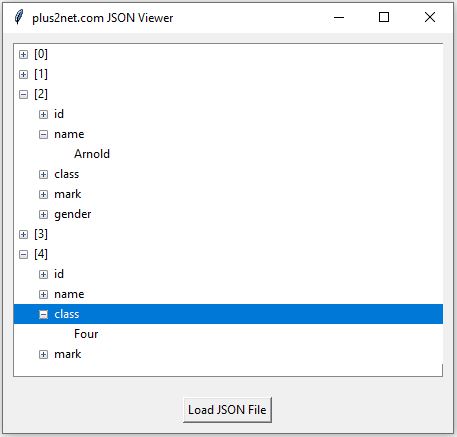
In this tutorial, we'll explore how to create a simple yet powerful GUI-based JSON Viewer using Python's Tkinter library. This application will allow users to load and explore JSON files in a structured and hierarchical format using Tkinter's Treeview widget.
Code Breakdown
1: Import Libraries
# Import required modules
import json
import tkinter as tk
from tkinter import ttk, filedialog, messagebox
- json: To parse and handle JSON files.
- tkinter: For GUI creation.
- ttk: For the Treeview widget and styling.
- filedialog: To allow users to select JSON files.
- messagebox: For displaying error or information dialogs.
2: Loading JSON Files
# Function to load and parse JSON file
def load_json_file():
    file_path = filedialog.askopenfilename(
        title="Select a JSON File",
        filetypes=[("JSON Files", "*.json"), ("All Files", "*.*")]
    )
    if file_path:
        try:
            with open(file_path, "r") as file:
                data = json.load(file)
                tree.delete(*tree.get_children())  # Clear the treeview
                display_json(data, "")
        except Exception as e:
            messagebox.showerror("Error", f"Failed to load JSON file.\n{e}")
- Allows users to select a JSON file using a file dialog.
- Reads the file, parses it with json.load(), and calls the display_json function to populate the Treeview.
- Error handling is included to display an error dialog if loading or parsing fails.
3: Displaying JSON in the Treeview
# Function to recursively display JSON data
def display_json(data, parent=""):
    if isinstance(data, dict):
        for key, value in data.items():
            node = tree.insert(parent, "end", text=key)
            display_json(value, node)
    elif isinstance(data, list):
        for index, value in enumerate(data):
            node = tree.insert(parent, "end", text=f"[{index}]")
            display_json(value, node)
    else:
        tree.insert(parent, "end", text=data)
- Dictionaries: Each key becomes a node, and the value is recursively processed.
- Lists: Each index becomes a node, and the value is recursively processed.
- Scalars: Values like strings or numbers are added directly as leaf nodes.
4: The Main Application Window
# Create the main window
root = tk.Tk()
root.title("JSON Viewer")
root.geometry("600x400")

# Add a Frame for the Treeview
frame = tk.Frame(root)
frame.pack(fill="both", expand=True, padx=10, pady=10)

# Add a Treeview widget
tree = ttk.Treeview(frame, columns=("Values",), show="tree")
tree.heading("#0", text="Key / Index")
tree.pack(fill="both", expand=True, side="left")

# Add a Button to load JSON files
btn_load = tk.Button(root, text="Load JSON File", command=load_json_file)
btn_load.pack(pady=10)

# Run the application
root.mainloop()
- Creates the main application window with a Treeview widget for displaying the JSON.
- Adds a button to load JSON files.
- Manages layout using Tkinter's geometry and packing options.
Here is the sample JSON file.
import json
import tkinter as tk
from tkinter import ttk, filedialog, messagebox

def load_json_file():
    """Open a file dialog to select a JSON file and display its contents."""
    file_path = filedialog.askopenfilename(
        title="Select a JSON File",
        filetypes=[("JSON Files", "*.json"), ("All Files", "*.*")]
    )
    if file_path:
        try:
            with open(file_path, "r") as file:
                data = json.load(file)
                tree.delete(*tree.get_children())  # Clear the treeview
                display_json(data, "")
        except Exception as e:
            messagebox.showerror("Error", f"Failed to load JSON file.\n{e}")

def display_json(data, parent=""):
    """
    Recursively display JSON data in the Treeview.
    :param data: The JSON data to display.
    :param parent: The parent node in the Treeview.
    """
    if isinstance(data, dict):
        for key, value in data.items():
            node = tree.insert(parent, "end", text=key, values=("",))
            display_json(value, node)
    elif isinstance(data, list):
        for index, value in enumerate(data):
            node = tree.insert(parent, "end", text=f"[{index}]", values=("",))
            display_json(value, node)
    else:
        tree.insert(parent, "end", text=data, values=(""))

# Create the main window
root = tk.Tk()
root.title("plus2net.com JSON Viewer")
root.geometry("450x400")

# Add a Frame for the Treeview
frame = tk.Frame(root)
frame.pack(fill="both", expand=True, padx=10, pady=10)

# Add a Treeview widget
tree = ttk.Treeview(frame, columns=("Values",), show="tree")
tree.heading("#0", text="Key / Index")
tree.heading("#1", text="Values")
tree.column("#0", width=300, stretch=True)
tree.column("#1", width=200, stretch=True)
tree.pack(fill="both", expand=True, side="left")

# Add a scrollbar
scrollbar = ttk.Scrollbar(frame, orient="vertical", command=tree.yview)
tree.configure(yscroll=scrollbar.set)
scrollbar.pack(side="right", fill="y")

# Add a Button to load JSON files
btn_load = tk.Button(root, text="Load JSON File", command=load_json_file)
btn_load.pack(pady=10)

# Run the application
root.mainloop()
Conclusion
Here we have learned how to build a JSON viewer application using Tkinter. This application provides a user-friendly way to load and explore JSON files. You can further enhance it by adding features like search, edit, or save functionality.
Back: Tkinter Treeview Basics Tkinter parent child node Application to convert CSV data to JsonApp settings using Tkinter to store data in Json file

Subhendu Mohapatra
Author & Instructor at plus2net
I write and maintain practical tutorials on Python, PHP, SQL, JavaScript, HTML, jQuery, and web development at plus2net. The tutorials focus on clear explanations, working examples, and code that readers can test and adapt while learning.


Subscribe to our YouTube Channel here

 Python Video Tutorials