Tkinter tkcalendar: Calendar, Date Selection and Events
tkcalendar is a third-party Python package that adds graphical calendar widgets to Tkinter applications. Its Calendar widget displays a full calendar for selecting dates, navigating months, restricting date ranges and marking events.
Calendar when the full calendar should remain visible. Use DateEntry when you need a compact Entry field with a drop-down calendar.- Install tkcalendar
- Create a Calendar
- Initial Date
- get_date()
- selection_get()
- CalendarSelected Event
- selection_set()
- Format the Selected Date
- date_pattern
- Track Displayed Month and Year
- mindate and maxdate
- Locale and Week Display
- Calendar Colors and Style
- Highlight Dates with Calendar Events
- Calendar Event Methods
- Important Calendar Methods
- Important Calendar Options
- Common Mistakes
- Summary
Install tkcalendar 🔝
tkcalendar does not come with Python's standard Tkinter installation. Install it separately:
python -m pip install tkcalendar
Import the Calendar class with:
from tkcalendar import CalendarCreate a Tkinter Calendar 🔝
import tkinter as tk
from tkcalendar import Calendar

root=tk.Tk()
root.geometry('380x300')
root.title('tkcalendar - plus2net')

cal=Calendar(root, selectmode='day', year=2026, month=9, day=6)
cal.pack(padx=20, pady=20)

root.mainloop()
The important initial options are:
selectmode='day'
year=2026
month=9
day=6
Default and Initial Selected Date 🔝
If no year, month or day is supplied, the Calendar opens on the current date.
cal=Calendar(root, selectmode='day')There is an important detail when only some date components are supplied. If a year or month is explicitly supplied without a day, the calendar can open on that month without initially selecting a day.
If an exact default date is required, provide all three values:
cal=Calendar(root, year=2026, month=9, day=6)or use selection_set() after creating the widget.
Read the Selected Date with get_date() 🔝
get_date() returns the selected date as a string formatted according to the Calendar's locale and date_pattern.
print(cal.get_date())For example, depending on the configured pattern:
9/6/26or:
06-09-2026Read the Date on Button Click

import tkinter as tk
from tkcalendar import Calendar

def show_date():
    label.config(text=cal.get_date())

root=tk.Tk()
root.geometry('380x320')

cal=Calendar(root, selectmode='day')
cal.pack(pady=15)

tk.Button(root, text='Read Date', command=show_date).pack(pady=5)

label=tk.Label(root, text='', bg='yellow')
label.pack(pady=10)

root.mainloop()
Get a datetime.date with selection_get() 🔝
selection_get() returns the selected date as a Python datetime.date object.
selected=cal.selection_get()
print(selected)
print(type(selected))2026-09-06
<class 'datetime.date'>This form is useful when the application needs date arithmetic, database storage or custom formatting.
| Method | Returns | Best For |
|---|---|---|
get_date() | Formatted string | Displaying the selected date |
selection_get() | datetime.date | Date calculations and custom formatting |
Detect Date Selection with <<CalendarSelected>> 🔝
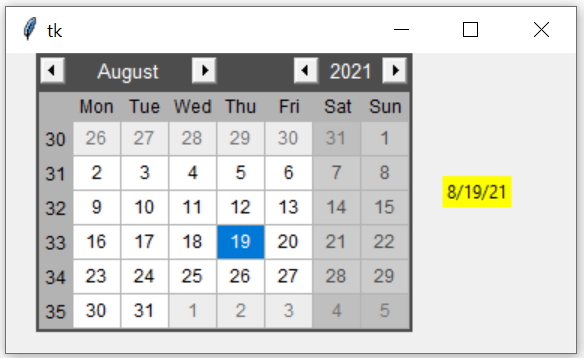
The Calendar generates <<CalendarSelected>> when the user selects a day with the mouse.
import tkinter as tk
from tkcalendar import Calendar

def date_selected(event):
    label.config(text=cal.get_date())

root=tk.Tk()

cal=Calendar(root, selectmode='day')
cal.pack(padx=20, pady=20)
cal.bind('<<CalendarSelected>>', date_selected)

label=tk.Label(root, text='Select a date')
label.pack(pady=10)

root.mainloop()<<CalendarSelected>> when you specifically want to react after the user selects a date. A linked StringVar is useful when the variable itself must also be monitored.Using textvariable
A StringVar can still be connected to the Calendar:
selected_text=tk.StringVar()

cal=Calendar(root, textvariable=selected_text)
Then:
print(selected_text.get())returns the formatted selected date string.
Set a Date with selection_set() 🔝
selection_set() changes the currently selected date.
Use datetime.date
from datetime import date

cal.selection_set(date(2026, 9, 6))
This is usually preferable to a string because it does not depend on the current locale's date format.
Use a String
A date string is also accepted when it matches the Calendar's locale/date format.
cal.selection_set('09/06/2026')09/06/2026 can mean different dates under different date conventions. Prefer a datetime.date object when the application already knows the year, month and day.Clear the Selection
cal.selection_clear()Format selection_get() with strftime() 🔝
Because selection_get() returns a datetime.date, standard Python strftime() formatting can be used.
def show_date():
    selected=cal.selection_get()

    if selected:
        formatted=selected.strftime('%d-%m-%Y')
        label.config(text=formatted)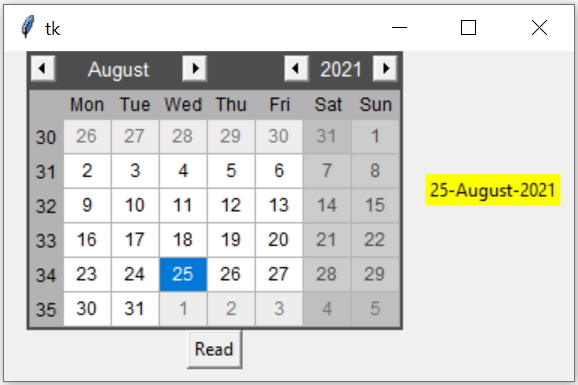
For a month name:
formatted=selected.strftime('%d-%B-%Y')06-September-2026Format get_date() with date_pattern 🔝
You do not have to use selection_get() merely to change the string returned by get_date(). The Calendar itself supports date_pattern.
cal=Calendar(root, date_pattern='dd-mm-yyyy')Now:
print(cal.get_date())can return:
06-09-2026Common tkcalendar Pattern Symbols
| Pattern | Meaning |
|---|---|
d | Day without leading zero |
dd | Two-digit day |
m | Month without leading zero |
mm | Two-digit month |
yy | Two-digit year |
yyyy | Full year |
tkcalendar date_pattern uses patterns such as dd-mm-yyyy, while Python strftime() uses codes such as %d-%m-%Y.Track the Displayed Month and Year 🔝
The selected date and the currently displayed month are separate concepts. A user can navigate to another month without selecting a new day.
get_displayed_month() returns:
(month, year)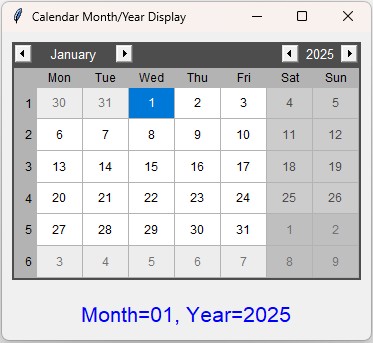
import tkinter as tk
from tkcalendar import Calendar

def month_changed(event=None):
    month, year=cal.get_displayed_month()
    label.config(text=f'Month={month:02d}, Year={year}')

root=tk.Tk()
root.title('Calendar Month and Year')

cal=Calendar(root)
cal.grid(row=0, column=0, padx=10, pady=10)

label=tk.Label(root, text='', font=('Arial', 14))
label.grid(row=1, column=0, pady=10)

cal.bind('<<CalendarMonthChanged>>', month_changed)
month_changed()

root.mainloop()
<<CalendarMonthChanged>> runs when the displayed month changes, while <<CalendarSelected>> runs when the user selects a date.
Restrict Selection with mindate and maxdate 🔝
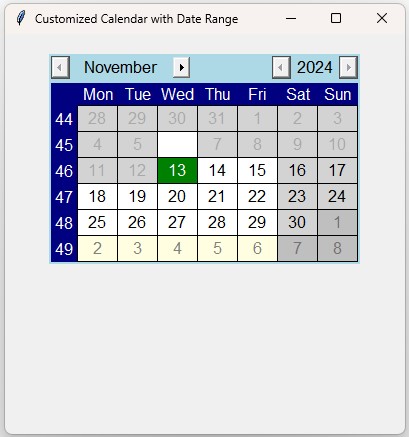
mindate and maxdate limit which dates can be selected.
import tkinter as tk
from tkcalendar import Calendar
from datetime import date

root=tk.Tk()
root.title('Calendar Date Range')

min_date=date(2026, 9, 10)
max_date=date(2026, 10, 25)

cal=Calendar(root, selectmode='day', year=2026, month=9, day=10, mindate=min_date, maxdate=max_date)
cal.pack(padx=20, pady=20)

root.mainloop()
Dates outside the permitted range cannot be selected.
More mindate and maxdate ExamplesLocale, First Weekday and Week Numbers 🔝
Set a Locale
cal=Calendar(root, locale='en_US')The locale affects displayed month/day names and default string date formatting.
Start the Week on Sunday
cal=Calendar(root, firstweekday='sunday')The other supported value is:
firstweekday='monday'Hide Week Numbers
cal=Calendar(root, showweeknumbers=False)Hide Days from Adjacent Months
cal=Calendar(root, showothermonthdays=False)Customize Calendar Colors and Fonts 🔝
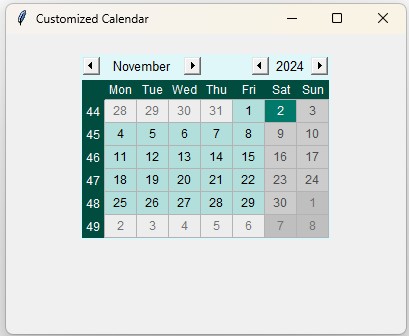
import tkinter as tk
from tkcalendar import Calendar

root=tk.Tk()
root.title('Customized Calendar')

cal=Calendar(
    root,
    selectmode='day',
    background='#e0f7fa',
    foreground='#000000',
    headersbackground='#004d40',
    headersforeground='#ffffff',
    selectbackground='#00796b',
    selectforeground='#ffffff',
    normalbackground='#b2dfdb',
    normalforeground='#000000',
    font=('Arial', 11)
)
cal.pack(padx=20, pady=20)

root.mainloop()
Useful appearance options include:
| Option | Controls |
|---|---|
background | Calendar navigation/header background |
foreground | Calendar foreground |
headersbackground | Weekday header background |
headersforeground | Weekday header text |
selectbackground | Selected date background |
selectforeground | Selected date text |
normalbackground | Normal weekday background |
normalforeground | Normal weekday text |
weekendbackground | Weekend background |
weekendforeground | Weekend text |
Highlight Specific Dates with Calendar Events 🔝
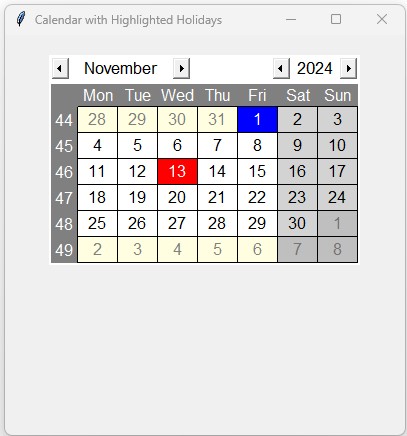
calevent_create() attaches an event to a date. Tags control how event dates are displayed.
import tkinter as tk
from tkcalendar import Calendar
from datetime import date

root=tk.Tk()

cal=Calendar(root, year=2026, month=9, day=6)
cal.pack(padx=20, pady=20)

cal.calevent_create(date(2026, 9, 10), 'Project deadline', 'important')
cal.calevent_create(date(2026, 9, 18), 'Team meeting', 'meeting')

cal.tag_config('important', background='red', foreground='white')
cal.tag_config('meeting', background='lightblue', foreground='black')

root.mainloop()
The text attached to the event can appear in the event tooltip, while the tag controls the date's foreground and background colors.
Tkinter SQLite Holiday Calendar Project
Calendar Event and Tag Methods 🔝
| Method | Purpose |
|---|---|
calevent_create(date, text, tags) | Create an event and return its event ID. |
calevent_configure(id, ...) | Change an existing event. |
calevent_cget(id, option) | Read an event option. |
calevent_remove(...) | Remove calendar events. |
get_calevents() | Return event IDs, optionally filtered by date or tag. |
tag_config(tag, ...) | Configure a tag's foreground/background. |
tag_cget(tag, option) | Read a tag option. |
tag_delete(tag) | Delete a tag and remove it from events. |
tag_names() | Return the existing tag names. |
Store the Event ID
event_id=cal.calevent_create(date(2026, 9, 10), 'Deadline', 'important')
print(event_id)
The returned ID can later be used to edit or remove that specific event.
Important tkcalendar Calendar Methods 🔝
| Method | Purpose |
|---|---|
get_date() | Return selected date as a formatted string. |
selection_get() | Return selected date as datetime.date, or None when there is no selection. |
selection_set(date) | Set the selected date. |
selection_clear() | Clear the current date selection. |
get_displayed_month() | Return (month, year) for the month currently displayed. |
see(date) | Navigate the Calendar to the month containing a given date. |
format_date(date) | Format a datetime.date using the Calendar's locale and date pattern. |
keys() | Return the available widget option names. |
configure(...) | Change Calendar options after creation. |
Navigate to a Particular Month with see()
from datetime import date

cal.see(date(2027, 1, 15))
This displays January 2027. It does not by itself mean that January 15 must become the selected date.
Important Calendar Options 🔝
| Option | Purpose |
|---|---|
year, month, day | Initial displayed/selected date components. |
selectmode | 'day' enables date selection; 'none' disables day selection. |
textvariable | Links the formatted selected date to a Tkinter variable. |
date_pattern | Controls the string format returned by get_date(). |
locale | Controls localized names and default date representation. |
mindate, maxdate | Restrict selectable date range. |
firstweekday | Choose Monday or Sunday as the first weekday. |
showweeknumbers | Show or hide week numbers. |
showothermonthdays | Show or hide adjacent-month days. |
state | normal or disabled. |
font | Calendar font. |
background, foreground | Main color settings. |
selectbackground, selectforeground | Selected date colors. |
tooltipbackground, tooltipforeground | Calendar-event tooltip colors. |
tooltipdelay | Delay before an event tooltip is displayed. |
List Available Options at Runtime
print(cal.keys())Common tkcalendar Mistakes 🔝
1. Assuming tkcalendar Is Built into Tkinter
It is a separate package and must normally be installed:
python -m pip install tkcalendar2. Saying get_date() Cannot Be Formatted
get_date() uses date_pattern, so this is valid:
cal=Calendar(root, date_pattern='dd-mm-yyyy')
print(cal.get_date())
3. Confusing get_date() and selection_get()
cal.get_date()       # formatted string
cal.selection_get()  # datetime.date
4. Using a Locale-Sensitive String When a date Object Is Available
Prefer:
cal.selection_set(date(2026, 9, 6))over an ambiguous string such as:
'09/06/2026'5. Using StringVar trace_add() Only to Detect Mouse Selection
For a user choosing a date from the Calendar, use:
cal.bind('<<CalendarSelected>>', callback)6. Confusing Selected Date with Displayed Month
Use selection_get() for the selected date and get_displayed_month() for the month currently shown while navigating.
7. Setting an Initial Date Outside mindate/maxdate
Keep the initial selected date within the permitted selection range.
8. Using strftime Syntax in date_pattern
This is a tkcalendar pattern:
date_pattern='dd-mm-yyyy'This is Python strftime() syntax:
selected.strftime('%d-%m-%Y')9. Using Calendar When a Compact Field Is Better
If the interface only needs one date-entry field, consider:
Tkinter tkcalendar DateEntrySummary of Tkinter tkcalendar 🔝
tkcalendaris a third-party package that adds Calendar and DateEntry widgets to Tkinter.- Install it with
python -m pip install tkcalendar. - Create a full calendar with
Calendar(). get_date()returns the selected date as a formatted string.date_patterncontrols the string returned byget_date().selection_get()returns the selected date as adatetime.date.- Use
selection_set()to change the selected date. - Prefer a
datetime.dateobject when setting known dates programmatically. - Use
selection_clear()to clear the selected date. - Use
<<CalendarSelected>>when the user selects a date. - Use
<<CalendarMonthChanged>>when the displayed month changes. get_displayed_month()returns the displayed(month, year).- Use
mindateandmaxdateto restrict selectable dates. - Use
localeanddate_patternto control date presentation. - Use
firstweekday,showweeknumbersandshowothermonthdaysto adjust calendar layout. - Use
calevent_create()to mark dates with events. - Use tags to control event-date colors.
- Use
see(date)to navigate to the month containing a date. - Use
DateEntrywhen a compact date-entry field is more suitable than a permanently visible Calendar.

Subhendu Mohapatra
Author & Instructor at plus2net
I write and maintain practical tutorials on Python, PHP, SQL, JavaScript, HTML, jQuery, and web development at plus2net. The tutorials focus on clear explanations, working examples, and code that readers can test and adapt while learning.


Subscribe to our YouTube Channel here

 Python Video Tutorials