Tkinter Scrollbar
#Python #Tkinter Scrollbars in #PythonGUI Applications: Mastering Tkinter Scrollbar Widget
Scrollbar helps user to scroll and view the entire content.
Scrollbar(parent window, options .. )
Tkinter Scrollbar and integrating it with text & Spinbox using different layouts with all options
import tkinter as tk
from tkinter import *
my_w=tk.Tk()
my_w.geometry("350x200")
sb = tk.Scrollbar(my_w,cursor='hand1')
sb.pack(side=RIGHT,fill=Y)
l1 = tk.Listbox(my_w,height=8,width=90,
	bg='yellow', yscrollcommand = sb.set )
l1.pack(side=LEFT,padx=15)
for i in range(1, 40): # multiple lines added to Listbox
    l1.insert(END, "Line No : " + str(i))
sb.config( command = l1.yview )

my_w.mainloop()
Options
In above code we usedcursor='hand' to change the cursor shape when it is over the scrollbar. You can get a list of curshor shapes in our button widget.
orient

By default the option orient is 'vertical' , we can set it to horizontal to display the Scrollbar in horizontal direction.
sb = tk.Scrollbar(my_w,orient='horizontal')Using Scrollbar with Listbox
We will use grid layout to place the widgets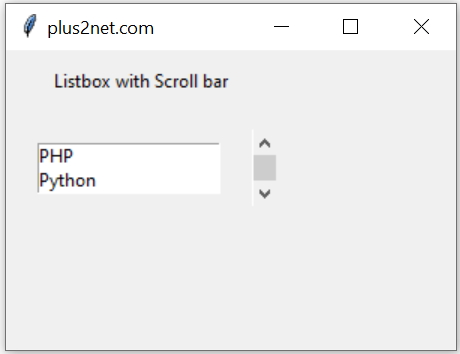
import tkinter as tk
my_w = tk.Tk()
my_w.geometry("300x200")  # Size of the window
my_w.title("plus2net.com")
l1=tk.Label(my_w,text='Listbox with Scroll bar')
l1.grid(row=1,column=1,columnspan=2,pady=10)
sb = tk.Scrollbar(my_w)
sb.grid(row=2, column=2,  sticky='e')
my_list=['PHP','Python','MySQL','HTML','Jquery','Java','CSS','Perl']
l1 = tk.Listbox(my_w,height=2, yscrollcommand = sb.set)
l1.grid(row=2,column=1,padx=20,pady=20)

for element in my_list: # adding elements to Listbox
    l1.insert(tk.END,element)
sb.config( command = l1.yview )
my_w.mainloop()  # Keep the window open
Using Scrollbar with Text
We will use grid to place the widgets and one text box is used for inputs
import tkinter  as tk
my_w = tk.Tk()
my_w.geometry("400x200")

sb = tk.Scrollbar(my_w)
sb.grid(row=1, column=2,  sticky='w')

t1 = tk.Text(my_w, height=3, width=35)
t1.grid(row=1,column=1,padx=20,pady=20)

my_str1='1\n2\n3\n4\n5\n6\n7\n8\n9\n10\n11\n12\n13\n14'
t1.insert(tk.END, my_str1)

sb.config( command = t1.yview )
my_w.mainloop()
Scrollbar Options
We can get list of options with values by using Tkinter config().for options in scroll_x.config():
print(options + ": " + str(scroll_x[options]))- activebackground: Color of the scrollbar when actively clicked.
- activerelief: Relief style when the scrollbar is active (e.g., raised).
- background / bg: Background color of the scrollbar.
- bd / borderwidth: Width of the scrollbar border.
- command: Function to link scrolling actions, such as `.yview` or `.xview` for text and canvas widgets.
- cursor: Mouse cursor appearance when hovering over the scrollbar.
- elementborderwidth: Width of the element's internal border.
- highlightbackground: Color outside the focus ring.
- highlightcolor: Color when the scrollbar is in focus.
- highlightthickness: Thickness of the highlight border.
- jump: Jumps to the exact location when clicked if set to `1`.
- orient: Orientation of the scrollbar (horizontal or vertical).
- relief: Border style, like "sunken" or "flat".
- repeatdelay: Time in milliseconds before repeating a scroll action when holding the button.
- repeatinterval: Interval for repeating scroll actions when the button is held down.
- takefocus: Defines if the scrollbar can receive focus.
- troughcolor: Color of the trough (scrollbar background track).
- width: Width of the scrollbar.
Adding style to Scrollbal by using ttk
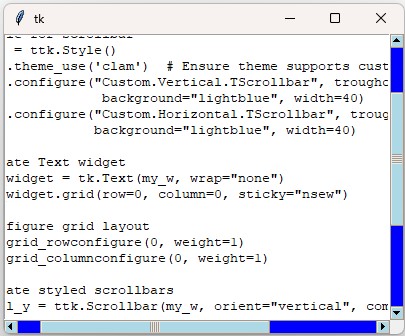
Tkinter text widget with custom-styled vertical and horizontal scrollbars using the ttk.Style class.
import tkinter as tk
from tkinter import ttk

my_w = tk.Tk()
my_w.geometry("400x300")

# Style for scrollbar
style = ttk.Style()
style.theme_use('clam')  # Ensure theme supports customization
style.configure("Custom.Vertical.TScrollbar", troughcolor="blue",
                 background="lightblue", width=40)
style.configure("Custom.Horizontal.TScrollbar", troughcolor="blue",
                background="lightblue", width=40)

# Create Text widget
text_widget = tk.Text(my_w, wrap="none")
text_widget.grid(row=0, column=0, sticky="nsew")

# Configure grid layout
my_w.grid_rowconfigure(0, weight=1)
my_w.grid_columnconfigure(0, weight=1)

# Create styled scrollbars
scroll_y = ttk.Scrollbar(my_w, orient="vertical", command=text_widget.yview,
                          style="Custom.Vertical.TScrollbar")
scroll_y.grid(row=0, column=1, sticky="ns")

scroll_x = ttk.Scrollbar(my_w, orient="horizontal", command=text_widget.xview,
                         style="Custom.Horizontal.TScrollbar")
scroll_x.grid(row=1, column=0, sticky="ew")

# Link scrollbars to text widget
text_widget.config(yscrollcommand=scroll_y.set, xscrollcommand=scroll_x.set)

my_w.mainloop()
Adding scrollbar to Treeview
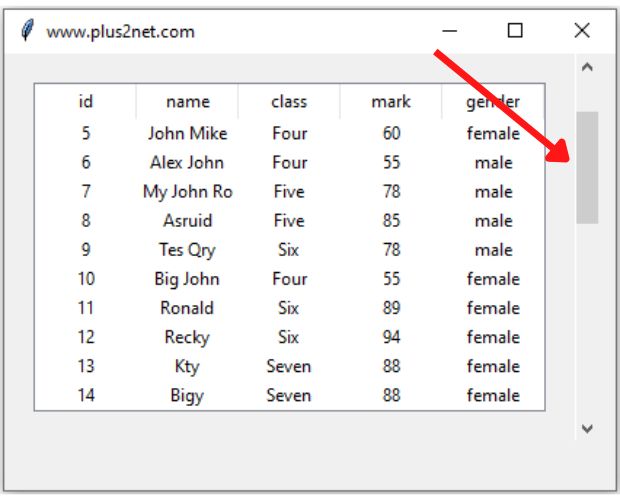
Since Treeview is used to show tabular data, we may have to show more rows by allowing the user to scroll up or down by using scrollbar.
How Vertical scrollbar is added to Treeview while displaying MySQL records
OptionMenu Projects in Tkinter

Subhendu Mohapatra
Author & Instructor at plus2net
I write and maintain practical tutorials on Python, PHP, SQL, JavaScript, HTML, jQuery, and web development at plus2net. The tutorials focus on clear explanations, working examples, and code that readers can test and adapt while learning.
Connect:


Subscribe to our YouTube Channel here
This article is written by plus2net.com team.
https://www.plus2net.com

 Python Video Tutorials