Display MySQL Records in Tkinter Treeview
";require "templates/body_start.php";?>
We can retrieve records from a MySQL table and display them as rows inside a Tkinter Treeview. In this tutorial we use SQLAlchemy for the database connection and the sample student table containing ID, name, class, mark and gender.
- SQLAlchemy and MySQL Setup
- Create the Database Engine
- Test MySQL Record Retrieval
- Create the Treeview
- Insert MySQL Rows
- Use Database ID as Treeview iid
- Complete Example
- Conditional Row Colors
- Colors Based on Grade
- Alternate Row Colors
- Treeview Background Style
- Dynamic MySQL Columns
- Vertical and Horizontal Scrollbars
- Large MySQL Tables
- Common Mistakes
- FAQs
- Summary
SQLAlchemy and MySQL Setup 🔝
This tutorial uses SQLAlchemy Core to execute the MySQL query.
Install SQLAlchemy and a suitable MySQL driver for your connection setup.
pip install sqlalchemy mysqlclientImport:
from sqlalchemy import create_engine, textfrom sqlalchemy.exc import SQLAlchemyErrorCreate the SQLAlchemy Engine 🔝
engine=create_engine('mysql+mysqldb://userid:password@localhost/my_db')Replace the username, password and database name with the values used by your MySQL installation.
The SQLAlchemy Engine manages database connections. We do not need to keep one connection open for the entire life of the Tkinter window.
Test MySQL Record Retrieval before Adding Tkinter 🔝
Before building the GUI, confirm that Python can retrieve the required rows.
from sqlalchemy import create_engine, textengine=create_engine('mysql+mysqldb://userid:password@localhost/my_db')with engine.connect() as conn: result=conn.execute(text('SELECT id,name,class,mark,gender FROM student ORDER BY id LIMIT 10')) rows=result.mappings().all()for row in rows: print(row)mappings() lets us access returned values by column name:
row['id']row['name']row['mark']Create the Tkinter Treeview 🔝
import tkinter as tkfrom tkinter import ttkroot=tk.Tk()root.geometry('620x360')root.title('MySQL Records in Treeview - plus2net')tree=ttk.Treeview( root, columns=('id','name','class','mark','gender'), show='headings', selectmode='browse', height=10)show='headings' hides Treeview's special #0 column because we are displaying flat tabular data.
selectmode='browse' normally allows one row to be selected at a time. It does not control scrolling.
Configure the Columns
tree.column('id', width=60, anchor='center')tree.column('name', width=140, anchor='w')tree.column('class', width=100, anchor='center')tree.column('mark', width=80, anchor='center')tree.column('gender', width=100, anchor='center')Add the Headings
tree.heading('id', text='ID')tree.heading('name', text='Name')tree.heading('class', text='Class')tree.heading('mark', text='Mark')tree.heading('gender', text='Gender')Insert MySQL Rows into Treeview 🔝
Loop through the result and add one Treeview item for every database row.
for row in rows: tree.insert( '', tk.END, iid=str(row['id']), values=(row['id'],row['name'],row['class'],row['mark'],row['gender']) )Use the MySQL Primary Key as Treeview iid 🔝
The MySQL student.id primary key is unique, so it can be used as Treeview's item identifier:
iid=str(row['id'])This creates a direct relationship:
MySQL id = 17Treeview iid = '17'That becomes useful in the related update and delete tutorials because the selected Treeview item immediately identifies the corresponding database row.
id is the database primary key.Complete MySQL to Treeview Example 🔝
This example also adds horizontal and vertical scrollbars and colors rows according to the student's mark.
import tkinter as tkfrom tkinter import ttk, messageboxfrom sqlalchemy import create_engine, textfrom sqlalchemy.exc import SQLAlchemyErrorengine=create_engine('mysql+mysqldb://userid:password@localhost/my_db')root=tk.Tk()root.geometry('650x360')root.title('MySQL Records in Treeview - plus2net')root.rowconfigure(0, weight=1)root.columnconfigure(0, weight=1)frame=ttk.Frame(root)frame.grid(row=0, column=0, sticky='nsew', padx=10, pady=10)frame.rowconfigure(0, weight=1)frame.columnconfigure(0, weight=1)style=ttk.Style(root)if 'clam' in style.theme_names(): style.theme_use('clam')style.configure('MySQL.Treeview', rowheight=26)tree=ttk.Treeview( frame, columns=('id','name','class','mark','gender'), show='headings', selectmode='browse', height=10, style='MySQL.Treeview')tree.grid(row=0, column=0, sticky='nsew')ys=ttk.Scrollbar(frame, orient='vertical', command=tree.yview)ys.grid(row=0, column=1, sticky='ns')xs=ttk.Scrollbar(frame, orient='horizontal', command=tree.xview)xs.grid(row=1, column=0, sticky='ew')tree.configure(yscrollcommand=ys.set, xscrollcommand=xs.set)tree.column('id', width=60, anchor='center')tree.column('name', width=160, anchor='w')tree.column('class', width=100, anchor='center')tree.column('mark', width=80, anchor='center')tree.column('gender', width=100, anchor='center')tree.heading('id', text='ID')tree.heading('name', text='Name')tree.heading('class', text='Class')tree.heading('mark', text='Mark')tree.heading('gender', text='Gender')tree.tag_configure('A', background='lightgreen')tree.tag_configure('B', background='lightblue')tree.tag_configure('C', background='lightyellow')tree.tag_configure('D', background='white')def load_records(): for item in tree.get_children(): tree.delete(item) try: with engine.connect() as conn: result=conn.execute(text('SELECT id,name,class,mark,gender FROM student ORDER BY id LIMIT 30')) rows=result.mappings().all() except SQLAlchemyError as e: messagebox.showerror('Database Error', str(e)) return for row in rows: mark=row['mark'] if row['mark'] is not None else 0 if mark>=80: tag='A' elif mark>=70: tag='B' elif mark>=60: tag='C' else: tag='D' tree.insert( '', tk.END, iid=str(row['id']), values=(row['id'],row['name'],row['class'],row['mark'],row['gender']), tags=(tag,) )load_records()root.mainloop()Treeview Row Colors with tag_configure() 🔝

Treeview tags can style individual records or groups of records.
tree.tag_configure('pass', background='lightgreen')tree.tag_configure('fail', background='yellow')Choose the tag according to the database value:
for row in rows: my_tag='pass' if row['mark']>=75 else 'fail' tree.insert('', tk.END, iid=str(row['id']), values=(row['id'],row['name'],row['class'],row['mark'],row['gender']), tags=(my_tag,))Row Colors Based on Grade 🔝
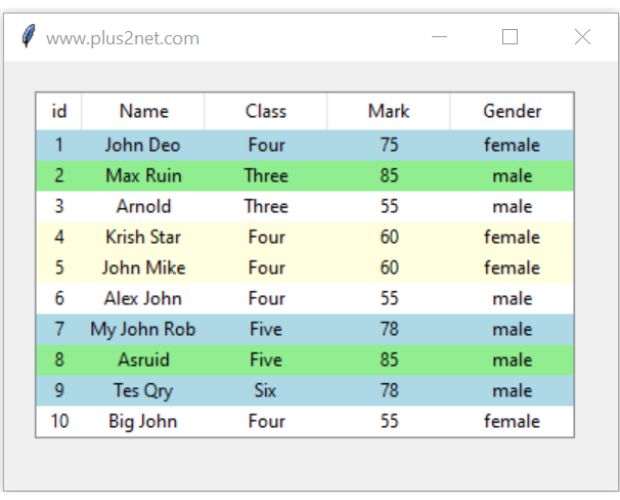
tree.tag_configure('A', background='lightgreen')tree.tag_configure('B', background='lightblue')tree.tag_configure('C', background='lightyellow')tree.tag_configure('D', background='white')Assign the grade from the mark:
if mark>=80: my_tag='A'elif mark>=70: my_tag='B'elif mark>=60: my_tag='C'else: my_tag='D'Alternate Row Colors 🔝

tree.tag_configure('even', background='lightgray')tree.tag_configure('odd', background='white')for index,row in enumerate(rows): my_tag='even' if index%2==0 else 'odd' tree.insert('', tk.END, iid=str(row['id']), values=(row['id'],row['name'],row['class'],row['mark'],row['gender']), tags=(my_tag,))Using enumerate() makes the alternating-row rule explicit.
Change the Treeview Background 🔝

Use a named style if the appearance should apply only to this Treeview.
style=ttk.Style(root)if 'clam' in style.theme_names(): style.theme_use('clam')style.configure( 'MySQL.Treeview', background='black', fieldbackground='black', foreground='white')tree=ttk.Treeview(root, style='MySQL.Treeview')See Treeview styling for headings, row height, selected-row colors and custom ttk styles.
Create Treeview Columns Dynamically from MySQL 🔝
If a query can return a different number of columns, collect the column names from the SQLAlchemy result.
with engine.connect() as conn: result=conn.execute(text('SELECT * FROM student LIMIT 5')) headers=list(result.keys()) rows=[tuple(row) for row in result]Use safe internal Treeview identifiers:
column_ids=[f'col{i}' for i in range(len(headers))]tree=ttk.Treeview(root, columns=column_ids, show='headings')for column_id,heading in zip(column_ids,headers): tree.column(column_id, width=100, anchor='center') tree.heading(column_id, text=heading)for row in rows: tree.insert('', tk.END, values=row)In a truly dynamic query, we do not automatically assume which returned column is the primary key, so Treeview can generate the item IDs itself.
For CSV, Excel, Pandas, SQLite and MySQL sources, see dynamic Treeview columns.
Vertical and Horizontal Treeview Scrollbars 🔝
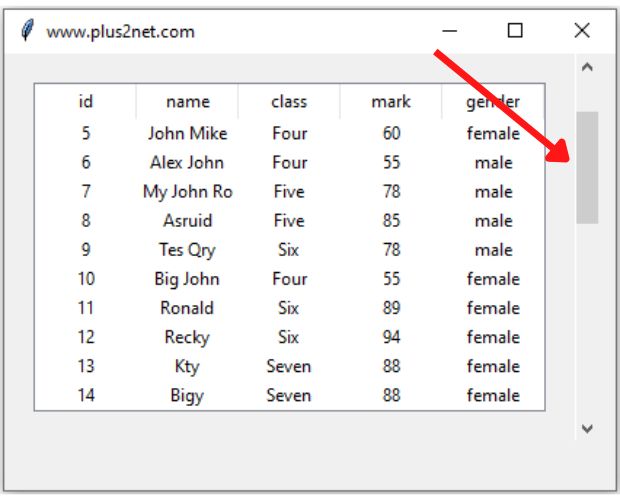
Treeview's height controls approximately how many rows are visible. It does not limit the number of inserted rows.
tree=ttk.Treeview(root, height=10)Attach a vertical scrollbar:
ys=ttk.Scrollbar(root, orient='vertical', command=tree.yview)tree.configure(yscrollcommand=ys.set)Attach a horizontal scrollbar:
xs=ttk.Scrollbar(root, orient='horizontal', command=tree.xview)tree.configure(xscrollcommand=xs.set)Displaying Large MySQL Tables 🔝
For a small table, retrieving all rows can be acceptable:
SELECT id,name,class,mark,gender FROM student ORDER BY idFor a large production table, avoid loading thousands of records into Treeview at once. Use SQL LIMIT, filters or pagination.
SELECT id,name,class,mark,genderFROM studentORDER BY idLIMIT 30For page-by-page navigation, see MySQL Treeview pagination.
height=10 controls visible rows in the widget. LIMIT 30 controls how many records MySQL returns.Common MySQL Treeview Mistakes 🔝
Using Engine.execute()
Older examples may contain:
engine.execute(...)Use a connection:
with engine.connect() as conn: result=conn.execute(text(query))Keeping a Database Connection Open for the Entire GUI Session
Create the Engine once and acquire connections only when database work is needed.
Reloading without Clearing Treeview
If database IDs are Treeview iid values, loading the same rows again can create duplicate item-ID errors.
for item in tree.get_children(): tree.delete(item)Confusing selectmode='browse' with Scrolling
browse controls row selection. Use Scrollbar widgets for navigation.
Using tags=(my_tag)
For a one-item tuple, use:
tags=(my_tag,)Using SELECT * when the GUI Expects Fixed Columns
For a fixed five-column Treeview, make the SQL explicit:
SELECT id,name,class,mark,gender FROM studentUse dynamic Treeview creation when the returned fields are intended to vary.
Loading Every Record from a Very Large Table
Use SQL limits, search filters or pagination rather than inserting an unnecessarily large result set into one widget.
Changing the Global Treeview Style Accidentally
Use a named style such as:
MySQL.Treeviewwhen only this Treeview should receive the custom formatting.
Frequently Asked Questions 🔝
Execute a SELECT query with SQLAlchemy, loop through the returned rows and pass each row's values to Treeview.insert().
Yes. A unique database primary key is a useful Treeview item identifier and helps connect selected GUI rows to later database update or delete operations.
It displays the configured data-column headings while hiding Treeview's special #0 tree column.
No. It controls selection behavior. Use vertical or horizontal Scrollbar widgets for scrolling.
Create tags with tag_configure(), choose a tag from the row's values, and pass that tag when inserting the Treeview item.
Yes. SQLAlchemy result metadata can provide the returned column names, which can then be used as visible Treeview headings.
Usually not. Use SQL LIMIT, search filters or pagination for larger datasets.
MySQL Treeview Summary 🔝
- Use SQLAlchemy to retrieve MySQL records.
- Create the Engine once and use short-lived connections.
- Use
text()when executing textual SQL. - Explicit SELECT columns are best when Treeview has a fixed layout.
result.mappings()allows readable column-name access.- Use the MySQL primary key as Treeview
iidwhen appropriate. - Clear Treeview before reloading records with the same IDs.
show='headings'works well for flat database tables.selectmode='browse'controls selection, not scrolling.tag_configure()can style rows based on database values.- One-item tag tuples use syntax such as
(my_tag,). - Alternate row colors can be assigned with
enumerate(). - A custom ttk style prevents unrelated Treeviews from being changed.
- Dynamic SQL results can generate Treeview columns automatically.
- Vertical and horizontal Scrollbars provide navigation.
- Treeview
heightcontrols visible rows; SQLLIMITcontrols returned records. - Use pagination or filtered queries for larger MySQL tables.
Treeview Invoice Projectttkbootstrap TableviewEdit MySQL Records