Tkinter rowconfigure() and columnconfigure(): Responsive Grid Layout
When widgets are arranged with Tkinter's grid() geometry manager, each row and column initially gets enough space for the widgets placed inside it.
rowconfigure() and columnconfigure() control how rows and columns behave when the parent window or Frame has additional space available.
weight controls how extra available space is distributed. It does not directly specify an exact percentage of the total window size.- Syntax
- How weight Works
- Basic Responsive Grid
- Without rowconfigure() and columnconfigure()
- Equal Row Weights
- Different Row Weights
- Using columnconfigure()
- Rows and Columns Together
- Configure Rows and Columns Inside a Frame
- Why sticky='nsew' Is Important
- Expand Widgets When the Window Resizes
- Set Minimum Size with minsize
- Equal Columns with uniform
- Common Mistakes
- Summary
Syntax of rowconfigure() and columnconfigure() 🔝
parent.rowconfigure(
    row_index,
    weight=1
)

parent.columnconfigure(
    column_index,
    weight=1
)
Here:
parentis the window or Frame containing the grid.row_indexis the grid row number.column_indexis the grid column number.weightcontrols how extra space is shared.
The default weight is 0. A row or column with weight=0 does not receive a share of additional space when the parent becomes larger.
How Tkinter Grid weight Works 🔝
Before distributing extra space, Tkinter calculates the space required by the widgets in each row and column. Padding and options such as minsize can also affect that initial size.
The remaining space is then distributed according to the configured weights.
For example:
root.rowconfigure(
    0,
    weight=1
)

root.rowconfigure(
    1,
    weight=3
)
Row 1 receives three times as much of the extra vertical space as row 0.
Basic Responsive Grid Example 🔝
This is the minimum pattern required to make one grid cell grow with its parent window.
import tkinter as tk

root=tk.Tk()
root.geometry(
    '400x250'
)

root.rowconfigure(
    0,
    weight=1
)

root.columnconfigure(
    0,
    weight=1
)

button=tk.Button(
    root,
    text='Resize the window'
)

button.grid(
    row=0,
    column=0,
    sticky='nsew',
    padx=10,
    pady=10
)

root.mainloop()
Two different settings are working together:
weight=1allows row 0 and column 0 to receive extra space.sticky='nsew'makes the Button expand to fill that enlarged grid cell.
Layout Without rowconfigure() and columnconfigure() 🔝
Without a positive weight, grid rows and columns normally remain close to the size requested by their widgets even when the main window becomes larger.
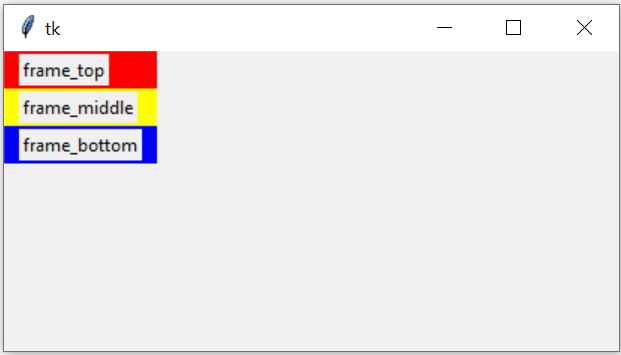
The following example creates three Frames but does not assign any grid weights.
import tkinter as tk

my_w=tk.Tk()
my_w.geometry(
    '410x200'
)

frame_top=tk.Frame(
    my_w,
    bg='red'
)

frame_middle=tk.Frame(
    my_w,
    bg='yellow'
)

frame_bottom=tk.Frame(
    my_w,
    bg='blue'
)

frame_top.grid(
    row=0,
    column=0,
    sticky='nsew'
)

frame_middle.grid(
    row=1,
    column=0,
    sticky='nsew'
)

frame_bottom.grid(
    row=2,
    column=0,
    sticky='nsew'
)

tk.Label(
    frame_top,
    text='frame_top'
).grid(
    row=0,
    column=0,
    padx=10,
    pady=2
)

tk.Label(
    frame_middle,
    text='frame_middle'
).grid(
    row=0,
    column=0,
    padx=10,
    pady=2
)

tk.Label(
    frame_bottom,
    text='frame_bottom'
).grid(
    row=0,
    column=0,
    padx=10,
    pady=2
)

my_w.mainloop()
Give Three Rows Equal Weight 🔝
Configure the only column to grow and give all three rows the same weight.
my_w.columnconfigure(
    0,
    weight=1
)

my_w.rowconfigure(
    0,
    weight=1
)

my_w.rowconfigure(
    1,
    weight=1
)

my_w.rowconfigure(
    2,
    weight=1
)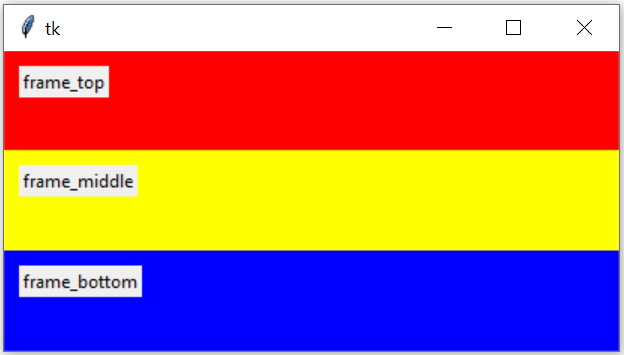
Because all three rows have the same weight, each receives an equal share of the extra vertical space. If their requested heights are also similar, the rows will appear approximately equal in height.
Give Rows Different Weights 🔝
Different weights create different growth rates.
my_w.rowconfigure(
    0,
    weight=1
)

my_w.rowconfigure(
    1,
    weight=8
)

my_w.rowconfigure(
    2,
    weight=1
)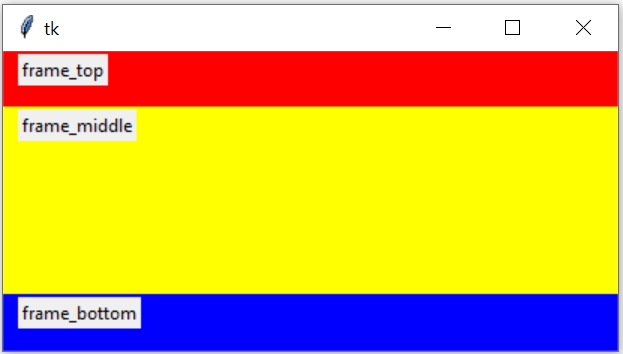
The weight ratio is 1:8:1. Therefore, for every ten units of extra vertical space, the middle row receives eight units while the top and bottom rows receive one unit each.
The final row heights can still include their original requested heights, padding and minimum sizes.
Using columnconfigure() 🔝
columnconfigure() works in the same way horizontally.
For two columns that should receive equal shares of additional width:
my_w.columnconfigure(
    0,
    weight=1
)

my_w.columnconfigure(
    1,
    weight=1
)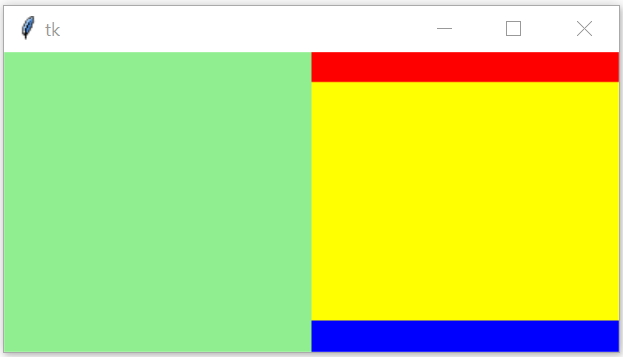
If the two columns have similar requested widths, they will appear equally sized as the window expands.
Configure Rows and Columns Together 🔝
A responsive layout usually configures both axes.
The following layout has three columns with weights 1:3:1 and three rows with weights 1:8:1.
import tkinter as tk

my_w=tk.Tk()
my_w.geometry(
    '600x350'
)

my_w.columnconfigure(
    0,
    weight=1
)

my_w.columnconfigure(
    1,
    weight=3
)

my_w.columnconfigure(
    2,
    weight=1
)

my_w.rowconfigure(
    0,
    weight=1
)

my_w.rowconfigure(
    1,
    weight=8
)

my_w.rowconfigure(
    2,
    weight=1
)

frame_top=tk.Frame(
    my_w,
    bg='red'
)

frame_middle=tk.Frame(
    my_w,
    bg='yellow'
)

frame_bottom=tk.Frame(
    my_w,
    bg='blue'
)

frame_left=tk.Frame(
    my_w,
    bg='lightgreen'
)

frame_right=tk.Frame(
    my_w,
    bg='lightblue'
)

frame_top.grid(
    row=0,
    column=1,
    sticky='nsew'
)

frame_middle.grid(
    row=1,
    column=1,
    sticky='nsew'
)

frame_bottom.grid(
    row=2,
    column=1,
    sticky='nsew'
)

frame_left.grid(
    row=0,
    column=0,
    rowspan=3,
    sticky='nsew'
)

frame_right.grid(
    row=0,
    column=2,
    rowspan=3,
    sticky='nsew'
)

my_w.mainloop()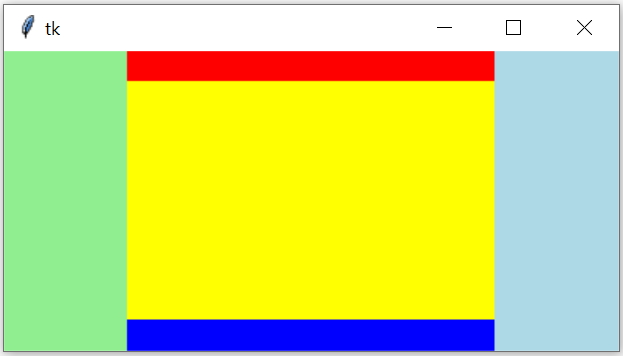
The center column receives three times as much additional horizontal space as either side column. The middle row similarly receives a larger share of additional vertical space.
Use rowconfigure() and columnconfigure() Inside a Frame 🔝
Grid configuration belongs to the parent containing the widgets.
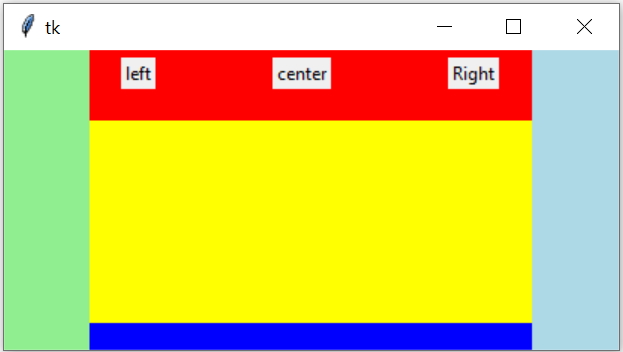
If three Labels are placed inside frame_top, configure the columns on frame_top, not only on the main window.
frame_top.columnconfigure(
    0,
    weight=1
)

frame_top.columnconfigure(
    1,
    weight=3
)

frame_top.columnconfigure(
    2,
    weight=1
)

l1=tk.Label(
    frame_top,
    text='Left'
)

l1.grid(
    row=0,
    column=0,
    sticky='nsew'
)

l2=tk.Label(
    frame_top,
    text='Center'
)

l2.grid(
    row=0,
    column=1,
    sticky='nsew'
)

l3=tk.Label(
    frame_top,
    text='Right'
)

l3.grid(
    row=0,
    column=2,
    sticky='nsew'
)
The rule is:
Why sticky='nsew' Is Important 🔝
rowconfigure() and columnconfigure() make a grid cell larger. They do not automatically make the widget inside the cell fill that space.
For example:
button.grid(
    row=0,
    column=0,
    sticky='nsew'
)
The directions mean:
| Letter | Direction |
|---|---|
n | North / top |
s | South / bottom |
e | East / right |
w | West / left |
Using all four directions makes the widget stretch to fill the grid cell horizontally and vertically.
weight on the parent row/column and use sticky='nsew' on the child widget.Expand and Contract Widgets When the Window Resizes 🔝
The following two Buttons expand and contract as the main window is resized.
import tkinter as tk

my_w=tk.Tk()
my_w.geometry(
    '250x200'
)

my_w.title(
    'plus2net.com'
)

my_w.rowconfigure(
    0,
    weight=1
)

my_w.rowconfigure(
    1,
    weight=1
)

my_w.columnconfigure(
    0,
    weight=1
)

b1=tk.Button(
    my_w,
    text='Button 1',
    bg='lightpink'
)

b1.grid(
    row=0,
    column=0,
    padx=10,
    pady=10,
    sticky='nsew'
)

b2=tk.Button(
    my_w,
    text='Button 2',
    bg='yellow'
)

b2.grid(
    row=1,
    column=0,
    padx=10,
    pady=10,
    sticky='nsew'
)

my_w.mainloop()
The grid cells resize with the window because their weights are positive. The Buttons fill the changing cells because of sticky='nsew'.
This resizes the widget areas. It does not automatically increase or decrease the Button text font size.
Set Minimum Row and Column Sizes with minsize 🔝
The minsize option prevents a grid row or column from becoming smaller than a specified size.

import tkinter as tk

root=tk.Tk()
root.geometry(
    '400x300'
)

root.rowconfigure(
    0,
    weight=1,
    minsize=50
)

root.rowconfigure(
    1,
    weight=1,
    minsize=50
)

root.columnconfigure(
    0,
    weight=1,
    minsize=100
)

root.columnconfigure(
    1,
    weight=1,
    minsize=150
)

label1=tk.Label(
    root,
    text='Row 0, Column 0',
    bg='lightblue'
)

label1.grid(
    row=0,
    column=0,
    sticky='nsew',
    padx=5,
    pady=5
)

label2=tk.Label(
    root,
    text='Row 1, Column 0',
    bg='lightgreen'
)

label2.grid(
    row=1,
    column=0,
    sticky='nsew',
    padx=5,
    pady=5
)

label3=tk.Label(
    root,
    text='Row 0, Column 1',
    bg='lightyellow'
)

label3.grid(
    row=0,
    column=1,
    sticky='nsew',
    padx=5,
    pady=5
)

label4=tk.Label(
    root,
    text='Row 1, Column 1',
    bg='lightpink'
)

label4.grid(
    row=1,
    column=1,
    sticky='nsew',
    padx=5,
    pady=5
)

root.mainloop()
Here:
- Rows 0 and 1 have a minimum height of 50 pixels.
- Column 0 has a minimum width of 100 pixels.
- Column 1 has a minimum width of 150 pixels.
- The positive weights still allow the rows and columns to grow when more space becomes available.
Create Equal-Sized Columns with uniform 🔝
The uniform option groups rows or columns so their final sizes follow a consistent weight relationship.
For two equal columns:
root.columnconfigure(
    0,
    weight=1,
    uniform='columns'
)

root.columnconfigure(
    1,
    weight=1,
    uniform='columns'
)
Because both columns belong to the same uniform group and both have weight 1, they are kept at equal widths.
Uniform Group with Different Weights
root.columnconfigure(
    0,
    weight=1,
    uniform='columns'
)

root.columnconfigure(
    1,
    weight=2,
    uniform='columns'
)
The columns remain in the configured 1:2 size relationship.
Common rowconfigure() and columnconfigure() Mistakes 🔝
1. Treating weight as an Exact Percentage
This:
root.rowconfigure(
    0,
    weight=1
)

root.rowconfigure(
    1,
    weight=8
)

root.rowconfigure(
    2,
    weight=1
)
does not guarantee that the complete rows are exactly 10%, 80% and 10% of the window. It distributes the additional available space in a 1:8:1 ratio.
2. Forgetting sticky='nsew'
A row or column may expand while its child widget remains at its requested size.
Use:
widget.grid(
    row=0,
    column=0,
    sticky='nsew'
)
when the widget should fill the available cell.
3. Configuring the Wrong Parent
If a widget is inside a Frame:
label=tk.Label(
    frame1,
    text='Hello'
)
configure frame1:
frame1.columnconfigure(
    0,
    weight=1
)
Configuring only the root window does not control the internal grid of frame1.
4. Expecting rowconfigure() to Affect pack() or place()
rowconfigure() and columnconfigure() control grid rows and columns. They do not resize widgets managed with pack() or place().
5. Expecting Widget Fonts to Resize
A larger grid cell can make a widget physically larger, but Tkinter does not automatically scale the widget's font.
6. Leaving weight at Its Default Value
The default is:
weight=0so the row or column does not receive additional space during normal grid resizing.
Summary of rowconfigure() and columnconfigure() 🔝
rowconfigure()controls grid-row resizing inside a parent.columnconfigure()controls grid-column resizing.- The default
weightis 0. - A positive weight allows a row or column to receive extra available space.
- Weights represent relative shares of extra space, not exact percentages of the entire parent.
- Equal weights give equal shares of additional space.
- A
1:3weight relationship gives the second row or column three times as much extra space as the first. - Use
sticky='nsew'to make a widget expand and fill its enlarged grid cell. - Configure the actual parent containing the grid-managed widgets.
- A Frame can have its own independent row and column configuration.
minsizesets a minimum row height or column width.uniformcan keep related rows or columns in a consistent size ratio.- Grid configuration does not automatically resize widget fonts.
rowconfigure()andcolumnconfigure()are for thegrid()geometry manager, notpack()orplace().

Subhendu Mohapatra
Author & Instructor at plus2net
I write and maintain practical tutorials on Python, PHP, SQL, JavaScript, HTML, jQuery, and web development at plus2net. The tutorials focus on clear explanations, working examples, and code that readers can test and adapt while learning.


Subscribe to our YouTube Channel here

20-01-2025 | |
| You should become the global tkinter teacher. Thanks for everything. | |
 Python Video Tutorials