Pandas DataFrame Style: Conditional Formatting & HTML Styling
When presenting data in Jupyter notebooks, automated email reports, or web applications, plain text tables can obscure critical insights. The Pandas df.style property returns a Styler object that attaches CSS rules directly to table cells. You can format numbers, highlight maximum and minimum values, apply color gradients, conditionally color rows, and export production-ready HTML tables.
Styler Basics: Value Formatting with .format() 🔝
The Styler.format() method applies string formatting functions or format specifiers to specific columns without altering the underlying data types:
import pandas as pd

df = pd.DataFrame({
    "name": ["John Deo", "Max Ruin", "Arnold", "Krish Star"],
    "class": ["Four", "Three", "Three", "Four"],
    "mark": [75, 85, 55, 60]
})

# Lowercase name strings using format dictionary
styled = df.style.format({"name": lambda x: x.lower()})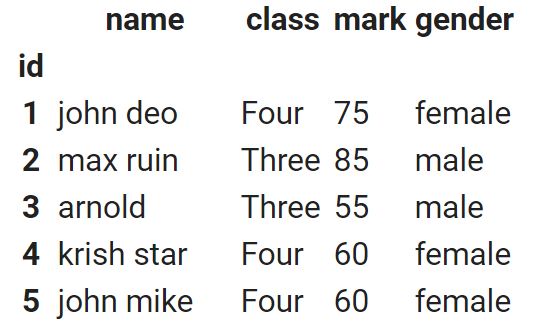
Highlighting Minimum and Maximum Values 🔝
To spotlight extreme values, chain highlight_max() and highlight_min(). You can target specific subsets of numeric columns and designate custom CSS colors:
# Highlight top scores in green and lowest scores in red
styled_max = df.style.highlight_max(color="lightgreen", subset=["mark"])
# Combine min and max highlighting in a single fluent chain
styled_min_max = (df.style
    .highlight_min(color="#f8d7da", subset=["mark"])
    .highlight_max(color="#d4edda", subset=["mark"]))
Heatmaps with background_gradient() 🔝
Transform raw numeric grids into informative heatmaps using Matplotlib colormaps (e.g. Blues, YlGn, coolwarm):
# Format strings and apply background color gradient across score column
styled_gradient = (df.style
    .format({"name": lambda x: x.lower()})
    .background_gradient(cmap="Blues", subset=["mark"]))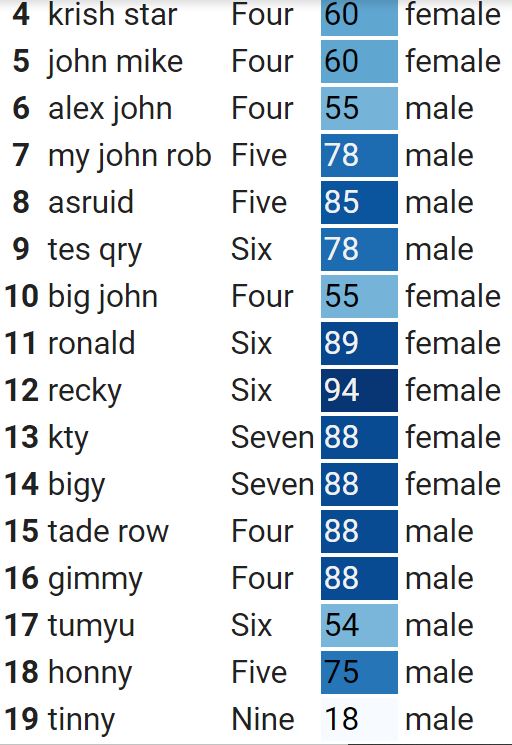
Conditional Row Highlighting with .apply() 🔝
To style an entire row based on a condition in one column, pass a row-level function to Styler.apply(..., axis=1):
def highlight_passing(row):
    # Return CSS rule list matching row width
    if row["mark"] >= 60:
        return ["background-color: #fff3cd; font-weight: bold"] * len(row)
    else:
        return ["background-color: white"] * len(row)

styled_rows = df.style.apply(highlight_passing, axis=1)
Custom CSS with set_table_styles() & HTML Export 🔝
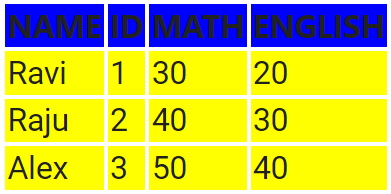
You can define custom CSS styles for table headers (th) and data cells (td), hide index numbers, and export the resulting markup to an external HTML document using to_html():
import pandas as pd

df_grades = pd.DataFrame({
    "NAME": ["Ravi", "Raju", "Alex"],
    "ID": [1, 2, 3],
    "MATH": [30, 40, 50],
    "ENGLISH": [20, 30, 40]
})

custom_css = [
    {
        "selector": "th",
        "props": [
            ("background-color", "#004085"),
            ("color", "#ffffff"),
            ("font-size", "14px"),
            ("font-family", "Segoe UI, sans-serif"),
            ("padding", "8px")
        ]
    },
    {
        "selector": "td",
        "props": [
            ("font-size", "12px"),
            ("padding", "6px")
        ]
    }
]

styled_table = (df_grades.style
    .set_table_styles(custom_css)
    .hide(axis="index"))

# Export styled markup to HTML file
html_output = styled_table.to_html()
with open("my_html.html", "w") as fp:
    fp.write(html_output)

print("Exported styled table HTML successfully!")
Hands-on Exercise: Exam Score Performance Styler 🔝
Create a DataFrame with 4 students and columns ["Student", "Physics", "Chemistry"]. Format scores as integer percentages (e.g. 85%), highlight the highest score in each subject with pale green (#c3e6cb), and highlight scores below 60 with pale red (#f5c6cb).
import pandas as pd

exam_df = pd.DataFrame({
    "Student": ["Maya", "Leo", "Nina", "Dev"],
    "Physics": [92, 54, 78, 88],
    "Chemistry": [65, 72, 58, 95]
})

exam_styled = (exam_df.style
    .format({"Physics": "{}%", "Chemistry": "{}%"})
    .highlight_max(color="#c3e6cb", subset=["Physics", "Chemistry"])
    .highlight_min(color="#f5c6cb", subset=["Physics", "Chemistry"]))

assert exam_df["Physics"].max() == 92
assert exam_df["Chemistry"].min() == 58
print("Exercise Styler verified successfully!")
Practice in Google Colab & GitHub 🔝
Open in Google Colab View on GitHub
Experiment with value formatting, min/max highlighting, heatmaps, and custom CSS table rendering interactively in Google Colab.
More Details & Related Tutorials 🔝
- Pandas Section Overview — Master guide to Pandas structures and operations.
- Sample Student DataFrame — 35-row benchmark dataset used across tutorial examples.
- to_html() — Basic and advanced HTML table generation without Styler.
- apply() — Vectorized and row-wise function mapping across DataFrames.
- String Case Methods — Changing text casing with and .
- Pandas Projects — Real-world data automation case studies.

Subhendu Mohapatra
Author & Instructor at plus2net
I write and maintain practical tutorials on Python, PHP, SQL, JavaScript, HTML, jQuery, and web development at plus2net. The tutorials focus on clear explanations, working examples, and code that readers can test and adapt while learning.


Subscribe to our YouTube Channel here

 Python Video Tutorials