Projects Using Pandas: Real-World Automation Case Studies
Take your Pandas skills beyond isolated function calls. This project guide walks through production-ready data automation workflows: cataloging file systems and storing metadata in Excel workbooks, querying temporal modification intervals, building desktop GUI dashboards with Tkinter, and auditing website links to detect unlinked orphan pages.
Show Table of Contents ↓Project 1: Directory Metadata Cataloging to Excel 🔝
When managing web applications and multi-directory codebases, administrators frequently need a searchable audit trail of file names, modification dates, and sizes. Using Python's standard os library together with Pandas, you can traverse folders, collect timestamps with os.path.getmtime(), and export the aggregated table using to_excel().
Step-by-step implementation:
- Define the target directory list to scan.
- Iterate through each directory and retrieve files matching the desired extension (e.g.,
.phpor.py). - Collect byte sizes via
os.path.getsize()and convert epoch timestamps withdatetime.fromtimestamp(). - Accumulate rows into a list of dictionaries and construct the DataFrame in a single vector operation.
- Write the structured output into an Excel file using
df.to_excel().
import os
from datetime import datetime
import pandas as pd

# Scan directory trees and generate structured Excel reports
target_dirs = ["javascript_tutorial", "php_tutorial", "html_tutorial", "sql_tutorial", "python"]

for d in target_dirs:
    dir_path = os.path.join("C:\xampp\htdocs\plus2net", d)
    output_excel = os.path.join("C:\data\reports", f"{d}.xlsx")

    if not os.path.exists(dir_path):
        continue

    records = []
    for file_name in os.listdir(dir_path):
        full_path = os.path.join(dir_path, file_name)
        if os.path.isfile(full_path):
            name, ext = os.path.splitext(file_name)
            if ext == ".php":
                mtime = os.path.getmtime(full_path)
                mod_date = datetime.fromtimestamp(mtime).strftime("%Y-%m-%d")
                records.append({
                    "f_name": file_name,
                    "dt": mod_date,
                    "size": os.path.getsize(full_path)
                })

    df = pd.DataFrame(records)
    if not df.empty:
        df["dt"] = pd.to_datetime(df["dt"])
        df.to_excel(output_excel, index=False)
        print(f"Audited {d}: {len(df)} files saved to {output_excel}")
Project 2: Temporal File Modification Reporting 🔝
Once catalog workbooks are saved, load them back with read_excel() to generate management summaries. Here we identify files updated within a specific calendar month or across an arbitrary release window:
import pandas as pd

target_dirs = ["javascript_tutorial", "php_tutorial", "sql_tutorial", "python"]

# Filter by specific calendar month (e.g. July 2023)
for d in target_dirs:
    excel_path = f"C:\data\reports\{d}.xlsx"
    try:
        df = pd.read_excel(excel_path, index_col="f_name")
        df["dt"] = pd.to_datetime(df["dt"])

        total_files = df.shape[0]
        recent_updates = len(df[df["dt"].dt.strftime("%Y-%m") == "2023-07"])
        print(f"{d:20} | Total: {total_files:4d} | Modified Jul-2023: {recent_updates:3d}")
    except FileNotFoundError:
        pass

# Querying arbitrary date range using boolean masks
start_date, end_date = "2023-07-01", "2023-08-10"
mask = (df["dt"] >= start_date) & (df["dt"] <= end_date)
window_files = df.loc[mask]
print(f"
Files modified between {start_date} and {end_date}: {len(window_files)}")
Project 3: Interactive Tkinter Desktop File Explorer 🔝
Transform your console automation into an interactive desktop tool. By connecting Tkinter and filedialog with Pandas, users can select a directory through a native OS prompt, and the GUI displays audit metrics inside formatted Labels.
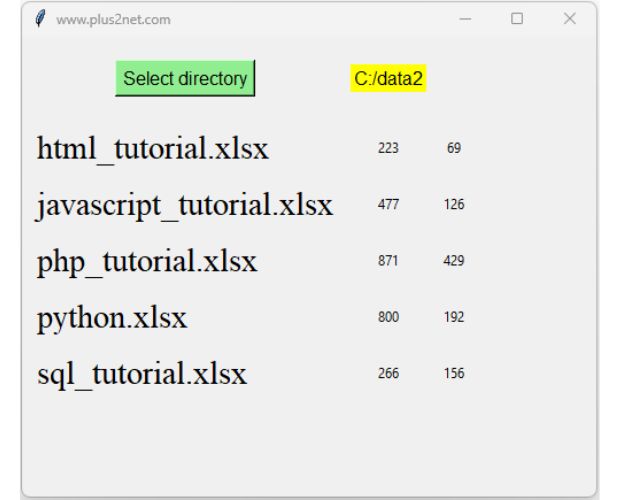
import os
import tkinter as tk
from tkinter import filedialog
import pandas as pd

root = tk.Tk()
root.geometry("520x420")
root.title("plus2net File Catalog Viewer")

lbl_status = tk.Label(root, text="Select a reports folder to audit:", font=("Arial", 12))
lbl_status.grid(row=0, column=0, columnspan=3, padx=10, pady=10)

def browse_and_load():
    folder = filedialog.askdirectory()
    if not folder:
        return
    lbl_status.config(text=folder)

    current_row = 2
    for file_name in os.listdir(folder):
        if file_name.endswith(".xlsx"):
            file_path = os.path.join(folder, file_name)
            df = pd.read_excel(file_path)
            total_records = len(df)

            tk.Label(root, text=file_name, anchor="w", font=("Arial", 10, "bold")).grid(row=current_row, column=0, sticky="w", padx=10)
            tk.Label(root, text=f"{total_records} files", font=("Arial", 10)).grid(row=current_row, column=1, padx=10)
            current_row += 1

btn_select = tk.Button(root, text="Browse Directory", bg="#d4edda", command=browse_and_load)
btn_select.grid(row=1, column=0, padx=10, pady=10)

root.mainloop()
Project 4: Website Link Integrity & Orphan Page Finder 🔝
An orphan page is a web document that exists on the server but has no incoming internal links from any other page in the section. Search engine spiders typically cannot crawl orphan pages unless they appear in XML sitemaps. Using regular expressions (re) and Pandas indexing, we can scan the entire HTML/PHP directory to identify unlinked files.
import re
import os
import pandas as pd

dir_path = "C:/xampp/htdocs/plus2net/php_tutorial/"
all_files = [f for f in os.listdir(dir_path) if f.endswith(".php")]

# Compile regex to extract all href targets
href_pattern = re.compile(r'href=["\']?([^"\' >]+)')

# Collect all internal linked URLs across the directory
linked_targets = set()
for f in all_files:
    full_path = os.path.join(dir_path, f)
    with open(full_path, "r", encoding="utf-8", errors="ignore") as fp:
        html = fp.read()
        found = href_pattern.findall(html)
        linked_targets.update(found)

# Identify files never referenced in any href link
orphan_pages = [f for f in all_files if f not in linked_targets]
orphan_df = pd.DataFrame({"orphan_file": orphan_pages})

print(f"Total PHP Files: {len(all_files)}")
print(f"Orphan Pages Found: {len(orphan_df)}")
print(orphan_df.head(10))
Practice in Google Colab & GitHub 🔝
Open in Google Colab View on GitHub
Run directory auditing scripts, date range query filters, and orphan page detection routines interactively in Google Colab.
More Details & Related Tutorials 🔝
- Pandas Section Overview — Master guide to the Pandas data manipulation toolkit.
- Pandas I/O Hub — Reading and exporting CSV, Excel, SQL, and JSON files.
- Pandas Date & Time Hub — Time-series indexing, date ranges, and period offsets.
- SEO Reports with Pandas — Real-world search console query and impression analytics.
- DataFrame Style Property — Highlight values, format tables, and export styled HTML.
- Tkinter GUI Projects — More desktop application projects using Python and GUI widgets.

Subhendu Mohapatra
Author & Instructor at plus2net
I write and maintain practical tutorials on Python, PHP, SQL, JavaScript, HTML, jQuery, and web development at plus2net. The tutorials focus on clear explanations, working examples, and code that readers can test and adapt while learning.


Subscribe to our YouTube Channel here

 Python Video Tutorials