Download Kaggle Datasets into Google Colab
Kaggle provides datasets for data analysis, machine learning and Python projects. We can download these datasets directly into Google Colab, extract the files and load them into a Pandas DataFrame without first downloading the dataset manually to our computer.
This tutorial covers two Kaggle authentication methods. The recommended approach uses a Kaggle API token stored securely in Google Colab Secrets. The older kaggle.json method is also included because it is still supported and is used by many existing notebooks.
kaggle.json to GitHub, or share either credential with other users.- Install or Update Kaggle CLI
- Method 1: Kaggle API Token with Colab Secrets
- Method 2: Upload kaggle.json
- Find the Kaggle Dataset Handle
- Download and Extract Dataset
- Check Downloaded Files
- Load Dataset with Pandas
- Run the Plus2net Notebook
- Alternative: kagglehub
- Convert CSV to Other Formats
- CSV to SQLite
- CSV to JSON
- CSV to XML
- Common Errors
- Summary
Install or Update the Kaggle CLI 🔝
Start a Google Colab notebook and install the current Kaggle command-line package.
!pip install -q --upgrade kaggleCheck the installed version:
!kaggle --versionThe kaggle command can now be used from Colab cells.
Method 1: Kaggle API Token with Google Colab Secrets 🔝
This is the preferred approach for a new notebook because the credential does not have to be written directly into the notebook code.
Step 1: Generate a Kaggle API Token
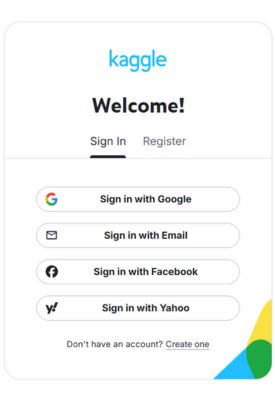
- Sign in to your Kaggle account.
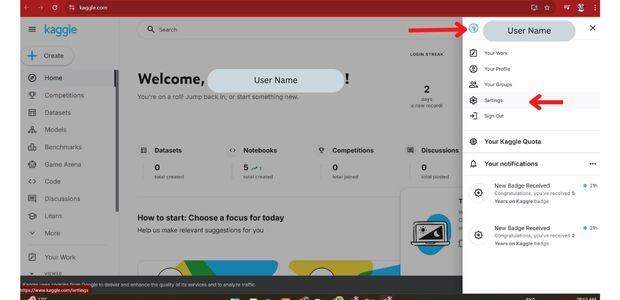
- Open your account Settings.
- Go to the API section.
- Generate a new API token.
- Copy the generated token.
Step 2: Add the Token to Colab Secrets
In Google Colab, open the Secrets section from the left sidebar and add a secret named:
KAGGLE_API_TOKENPaste the Kaggle token as its value and allow the notebook to access the secret.
Step 3: Load the Secret
from google.colab import userdata
import os

os.environ['KAGGLE_API_TOKEN']=userdata.get('KAGGLE_API_TOKEN')
Test Kaggle Access
!kaggle datasets list -s titanicIf authentication is working, Kaggle returns matching datasets.
Method 2: Upload the Legacy kaggle.json File 🔝
The older Kaggle API authentication method uses a file named kaggle.json. This method is still useful for older notebooks and tutorials.
Create the Legacy API Key
From Kaggle Settings, locate the legacy API credentials option and create the legacy API key. This downloads:
kaggle.json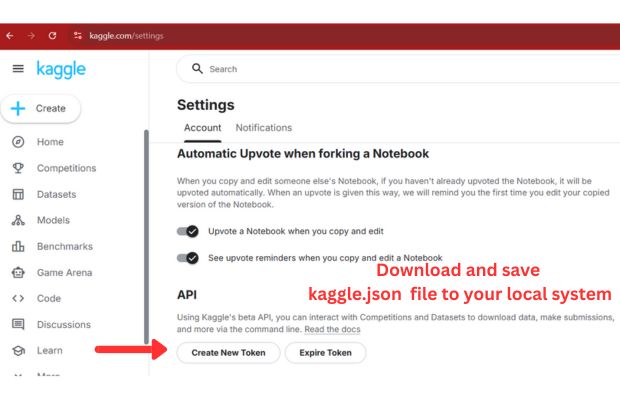
Upload kaggle.json to Colab
from google.colab import files

files.upload() # Select kaggle.json
Move the File to the Kaggle Configuration Directory
!mkdir -p ~/.kaggle
!cp kaggle.json ~/.kaggle/kaggle.json
!chmod 600 ~/.kaggle/kaggle.json
The chmod command limits access to the credential file.
Test the Configuration
!kaggle datasets list -s titanicFind the Kaggle Dataset Handle 🔝
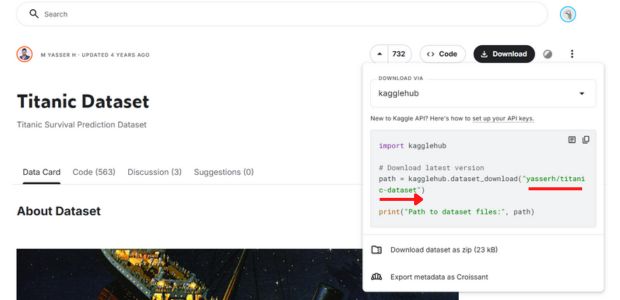
Kaggle datasets use a handle in this format:
owner/dataset-nameFor example, the dataset URL may contain:
yasserh/titanic-datasetThis is the value used by the Kaggle CLI.
Search for a Dataset from Colab
!kaggle datasets list -s titanicList Files before Downloading
!kaggle datasets files yasserh/titanic-datasetThis is useful when a dataset contains several files and you want to inspect them before downloading.
Download a Kaggle Dataset 🔝
Download as a ZIP File
!kaggle datasets download -d yasserh/titanic-datasetThe dataset is downloaded to the current Colab working directory.
Download and Extract in One Step
!kaggle datasets download -d yasserh/titanic-dataset --unzipThe --unzip option extracts the downloaded archive and removes the ZIP file after successful extraction.
Download to a Separate Folder
!mkdir -p data
!kaggle datasets download -d yasserh/titanic-dataset -p data --unzip
Keeping dataset files inside a separate directory makes larger notebooks easier to manage.
Check the Downloaded Files 🔝
For files downloaded to the current directory:
!ls -lhIf a data directory was used:
!ls -lh dataCheck Files with Python
from pathlib import Path

for file in Path('data').iterdir():
    print(file.name)
Load the Kaggle Dataset with Pandas 🔝
import pandas as pd

df=pd.read_csv('data/Titanic-Dataset.csv')
df.head()
Number of Rows and Columns
rows, columns=df.shape

print(f'Rows: {rows}')
print(f'Columns: {columns}')
Column Names
print(df.columns.tolist())Dataset Information
df.info()Run the Complete Plus2net Notebook 🔝
Practice this tutorial directly in Google Colab or view the notebook source on GitHub.
Open in Google Colab View on GitHubThe notebook can also be downloaded from GitHub as an .ipynb file.
Alternative: Download with kagglehub 🔝
Kaggle also provides the kagglehub Python library. This is separate from the kaggle command-line examples above.
Install kagglehub
!pip install -q --upgrade kagglehubDownload a Dataset
import kagglehub

path=kagglehub.dataset_download('yasserh/titanic-dataset')
print(path)
dataset_download() returns the local directory containing the downloaded dataset.
kagglehub when a Python function fits your notebook workflow better.Convert the Downloaded CSV to Other Formats 🔝
After loading the Kaggle CSV into a Pandas DataFrame, the same data can be saved in other formats such as SQLite, JSON and XML.
Convert CSV Data to SQLite 🔝
Use Pandas to_sql() to write the DataFrame to an SQLite table.
import pandas as pd
import sqlite3

df=pd.read_csv('data/Titanic-Dataset.csv')

with sqlite3.connect('titanic.db') as conn:
    df.to_sql('titanic_data', conn, if_exists='replace', index=False)
Check the SQLite Data
with sqlite3.connect('titanic.db') as conn:
    db_df=pd.read_sql_query('SELECT * FROM titanic_data LIMIT 5', conn)

db_df
Convert CSV Data to JSON 🔝
More on JSON Formatimport pandas as pd
df=pd.read_csv('data/Titanic-Dataset.csv')
df.to_json('titanic.json', orient='records', indent=4)Check the JSON File
json_df=pd.read_json('titanic.json')
json_df.head()
Convert CSV Data to XML 🔝
More on XML FormatPandas can write the DataFrame directly as XML.
import pandas as pd

df=pd.read_csv('data/Titanic-Dataset.csv')
df.to_xml('titanic.xml', root_name='TitanicData', row_name='Record', index=False)
Read the XML Back into Pandas
xml_df=pd.read_xml('titanic.xml')
xml_df.head()
See the Pandas read_xml() tutorial for more XML parsing examples.
Common Kaggle and Colab Errors 🔝
kaggle: command not found
Install or update the package:
!pip install -q --upgrade kaggle401 Unauthorized
The credential may be missing, invalid or expired. Generate a valid Kaggle token and configure it again.
Could not find kaggle.json
This occurs when using legacy authentication and the file is not available in the expected location.
!ls -l ~/.kaggle/kaggle.jsonDataset Not Found
Check that the dataset handle uses:
owner/dataset-nameand verify the available files:
!kaggle datasets files owner/dataset-namePermission or Access Error
Some Kaggle resources require account access, license acceptance or competition-rule acceptance before they can be downloaded through the API.
File Missing after Restarting Colab
Colab runtime storage is temporary. Re-run the download cells or save required output in persistent storage.
Kaggle Dataset in Google Colab: Summary 🔝
- Install or update the
kagglepackage before using the CLI. - The current recommended authentication uses a Kaggle API token.
- Google Colab Secrets can keep the token outside visible notebook code.
- The older
kaggle.jsonauthentication method is still useful for legacy notebooks. - Never publish Kaggle credentials in GitHub or a public Colab notebook.
- A Kaggle dataset handle uses the format
owner/dataset-name. kaggle datasets listcan search for datasets.kaggle datasets fileslists files inside a dataset.kaggle datasets downloaddownloads dataset files.--unzipcan download and extract a dataset in one step.- Pandas
read_csv()loads CSV data into a DataFrame. df.shapegives the number of rows and columns.kagglehub.dataset_download()provides an alternative Python-based download workflow.- Downloaded Colab runtime files are temporary unless saved to persistent storage.
- Pandas can convert the downloaded data to SQLite, JSON and XML.

Subhendu Mohapatra
Author & Instructor at plus2net
I write and maintain practical tutorials on Python, PHP, SQL, JavaScript, HTML, jQuery, and web development at plus2net. The tutorials focus on clear explanations, working examples, and code that readers can test and adapt while learning.


Subscribe to our YouTube Channel here

 Python Video Tutorials