ColorChooserDialog
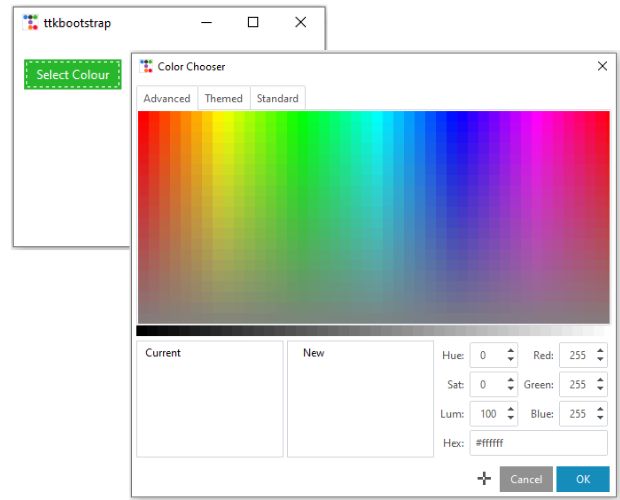
On Click of a Button, the dialog box will open and user can select colour. On Submit or selection of the color the dialog box will close and the Hex, RGB and hsl values of the selected color will be printerd to the console.
import ttkbootstrap as ttk
from ttkbootstrap.constants import *
from ttkbootstrap.dialogs.colorchooser import ColorChooserDialog

my_w = ttk.Window(themename="lumen")
my_w.geometry("300x200")  # width and height

cd = ColorChooserDialog()

def my_show():
    cd.show() # display the colour dialog or window
    colors = cd.result # collect the user selection
    print(colors.hex,colors.rgb,colors.hsl )

b1=ttk.Button(my_w,text='Select Colour',
	bootstyle=SUCCESS,command=lambda:my_show())
b1.grid(row=0,column=0,padx=10,pady=20)

my_w.mainloop()cd = ColorChooserDialog(initialcolor='#5648FF', title='my Colors')
ColorChooserDialog to Select colour by user using ttkbootstrap
Updating background colour of the window
On click of the button, user can select and udpate the colour of the parent window.import ttkbootstrap as ttk
from ttkbootstrap.constants import *
from ttkbootstrap.dialogs.colorchooser import ColorChooserDialog
my_w = ttk.Window(themename="lumen")
my_w.geometry("300x200") # width and height
cd = ColorChooserDialog()
def my_show():
cd.show() # display the colour dialog or window
colors = cd.result # collect the user selection
my_w.configure(background=colors.hex) # Update window background
b1=ttk.Button(my_w,text='Select Colour',
bootstyle=SUCCESS,command=lambda:my_show())
b1.grid(row=0,column=0,padx=10,pady=20)
my_w.mainloop()Updating Button colour based on user selection
import ttkbootstrap as ttk
from ttkbootstrap.constants import *
from ttkbootstrap.dialogs.colorchooser import ColorChooserDialog
my_w = ttk.Window(themename="lumen")
my_w.geometry("400x200")  # width and height

style = ttk.Style()
style.configure('TButton', background='green', foreground='white',
     font=('Times', 20))

cd = ColorChooserDialog()

def my_show():
    cd.show()
    colors=cd.result
    style.configure('TButton', background=colors.hex, foreground='white',
        font=('Helvetica', 20,'underline'))

b1=ttk.Button(my_w,text='Select Colour',
        style='custom.TButton',command=lambda:my_show())
b1.grid(row=0,column=0,padx=10,pady=20)

my_w.mainloop()
Updating colours of Button and Labels
Based on user selection one Label will have new background color and other Label will have new foreground colour.import ttkbootstrap as ttk
from ttkbootstrap.constants import *
from ttkbootstrap.dialogs.colorchooser import ColorChooserDialog
my_w = ttk.Window(themename="lumen")
my_w.geometry("400x200") # width and height
style = ttk.Style()
style.configure('TButton', background='green', foreground='white',
font=('Helvetica', 20))
style.configure('TLabel', background='blue', foreground='white',
font=('Helvetica', 24))
style.configure('custom1.TLabel', background='gray', foreground='green')
cd = ColorChooserDialog()
def my_show():
cd.show()
colors=cd.result
l1.configure(text=colors.hex) # display hex code
l2.configure(text=colors.rgb) # RGB values
style.configure('TButton', background=colors.hex, foreground='white',
font=('Helvetica', 20,'underline'))
style.configure('TLabel', background=colors.hex, foreground='white')
style.configure('custom1.TLabel', background='lightyellow',
foreground=colors.hex)
b1=ttk.Button(my_w,text='Select Colour',bootstyle='warning',
style='custom.TButton',command=lambda:my_show())
b1.grid(row=0,column=0,padx=10,pady=20)
l1=ttk.Label(my_w,text='Hex here',style='custom1.TLabel')
l1.grid(row=1,column=0,padx=10)
l2=ttk.Label(my_w,text='RGB here',style='TLabel')
l2.grid(row=1,column=1,padx=10)
my_w.mainloop()
Example 3: Customizing the ColorChooserDialog
The ColorChooserDialog can be customized to match the application's theme or specific requirements. For instance, we can set an initial color or modify the dialog's appearance.import ttkbootstrap as ttk
from ttkbootstrap.constants import *
from ttkbootstrap.dialogs.colorchooser import ColorChooserDialog
def show_custom_color_dialog():
initial_color = "#3498db"
cd = ColorChooserDialog(initialcolor=initial_color)
cd.show()
colors = cd.result
if colors:
print(f"Selected Color: {colors.hex}")
if __name__ == "__main__":
root = ttk.Window(themename="lumen")
root.geometry("200x150")
btn = ttk.Button(root, text="Choose Color", command=show_custom_color_dialog)
btn.pack(pady=20)
root.mainloop()
Use Cases for ColorChooserDialog
- Design Applications: Allowing users to select colors for drawing or designing elements.
- Customization Features: Enabling users to personalize the application's appearance, such as themes or backgrounds.
- Data Visualization: Letting users choose colors for charts, graphs, or other visual data representations.
Conclusion
Integrating the ColorChooserDialog from ttkbootstrap enhances user interaction by providing a flexible and intuitive color selection tool. Its ability to return color values in multiple formats and its seamless integration with Tkinter widgets make it a valuable component in Python GUI development.
ttkbootstrap FontDialog : Select font options

Subhendu Mohapatra
Author & Instructor at plus2net
I write and maintain practical tutorials on Python, PHP, SQL, JavaScript, HTML, jQuery, and web development at plus2net. The tutorials focus on clear explanations, working examples, and code that readers can test and adapt while learning.
Connect:


Subscribe to our YouTube Channel here
This article is written by plus2net.com team.
https://www.plus2net.com

 Python Video Tutorials