
What is AI text-to-speech?
AI text-to-speech (TTS) converts written text into spoken audio. Instead of recording every line yourself, you provide a script and let the model generate the voice.
Google AI Studio makes this useful even for non-programmers. You can test voices, listen to different delivery styles, create narration, and experiment with dialogue before deciding whether you need an API or a larger production workflow.
Google AI Studio text-to-speech walkthrough
This earlier walkthrough demonstrates the basic Google AI Studio text-to-speech workflow. The interface and model names have changed since the video was recorded, but the core idea remains the same: provide text, choose the speech setup, preview the result, and export the audio.
Gemini 3.8 Flash TTS vs Gemini 3.8 Flash-Lite TTS
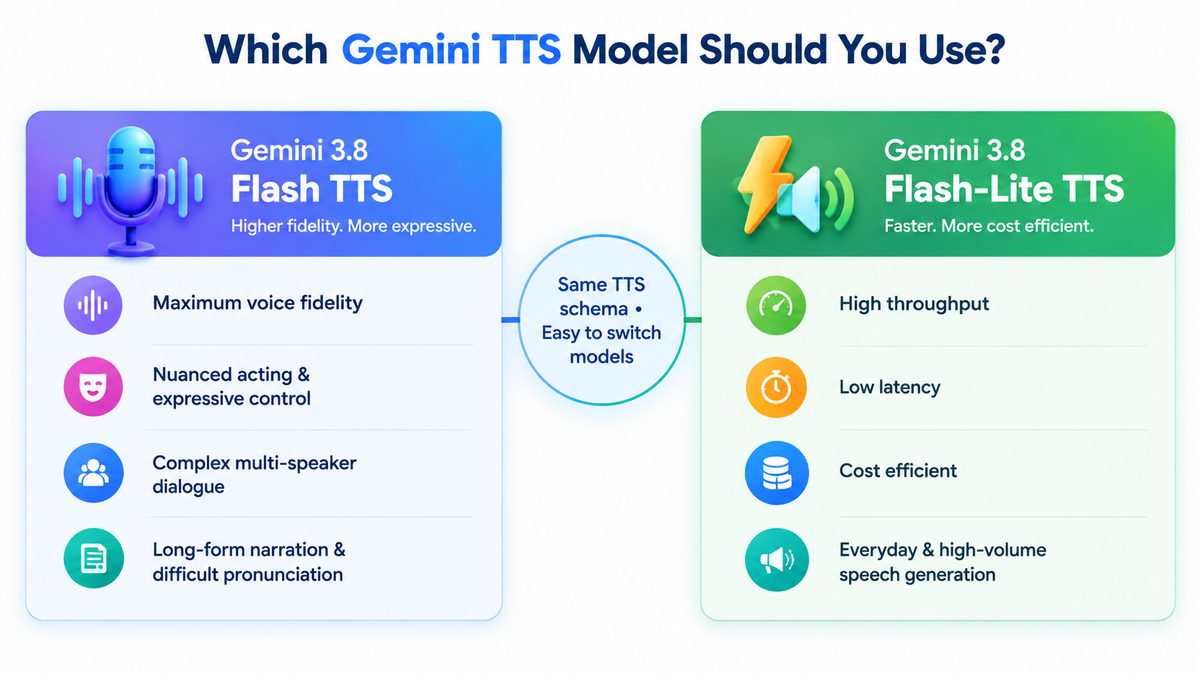
The two current Gemini 3.8 TTS models use the same general TTS schema, so the main decision is not about learning two different systems. It is about choosing the right balance of quality, expressiveness, speed and cost for your workload.
Gemini 3.8 Flash TTS
Best when quality and expressive control matter most.
- Higher voice fidelity
- Nuanced acting and emotional delivery
- Complex multi-speaker dialogue
- Long-form narration
- Difficult pronunciation and regional dialect work
Gemini 3.8 Flash-Lite TTS
Best when speed, volume and efficiency matter most.
- High throughput
- Lower latency
- Cost-efficient production
- Read-aloud features
- Everyday and high-volume speech generation
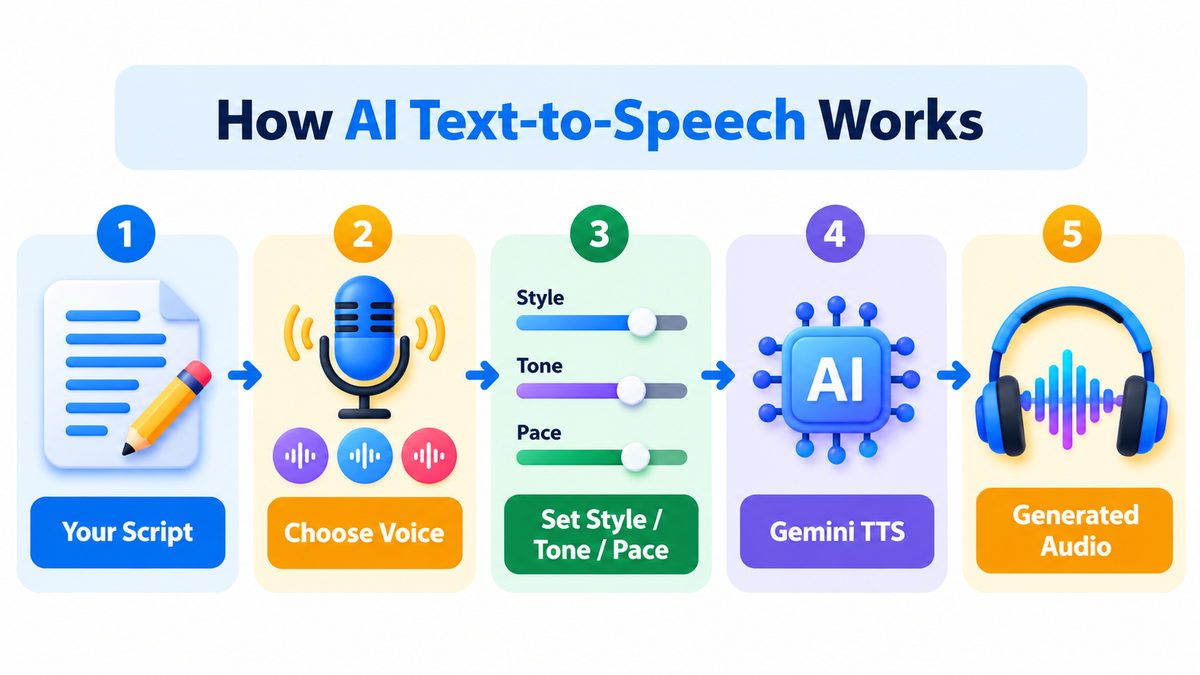
How to create speech in Google AI Studio
Open Google AI Studio
Start a speech-generation experiment and select a Gemini TTS model available in the current interface.
Enter the exact script
TTS is designed for situations where you already know what should be spoken. Write the transcript you want the model to recite.
Choose the voice
Start with a prebuilt voice or explore the wider voice library. Current Gemini TTS also supports custom Voice design and consent-based Voice replication.
Set the delivery style
Guide the style, accent, pace and tone. For example, you may want a warm tutorial voice, a calm narration, a faster product announcement, or a more dramatic character delivery.
Generate, listen and refine
Preview the result, correct pronunciation or pacing when needed, and regenerate until the audio matches your intended delivery.
The exact labels and controls in AI Studio can change over time, so focus on the workflow rather than memorizing the location of a particular button.
Create narration, tutorials and read-aloud audio
Single-speaker TTS is the simplest workflow. One voice reads your supplied script, while you control how that voice should sound.
Read this tutorial introduction in a warm, confident and friendly style. Keep the pace slightly slower than normal and emphasize the key terms.
This works well for educational videos, product explainers, accessibility features, audiobooks, announcements and narration where the wording needs to stay close to your script.
Create a two-person conversation
Gemini TTS supports multi-speaker generation, which is useful when you already have a scripted conversation and want different voices for each speaker.
Host: Welcome to our discussion on AI voice generation.
Guest: Thanks. Let us start with how text becomes natural speech.
In current Gemini TTS, each turn can be associated with its speaker and delivery style. For a single multi-speaker request using prebuilt voices, the current documentation supports up to two speakers.
This is different from asking AI to invent a podcast. TTS is most useful when you already control the script.
Control style, tone, pace and vocal delivery
Earlier Gemini TTS experiments often relied on descriptive prompting inside the text. The current Gemini 3.8 TTS workflow separates the transcript from speech instructions more clearly.
In the API, delivery instructions can be attached as structured speech metadata. In a user-facing workflow, the practical idea is simpler: keep the spoken text clean and use the available controls or instructions to describe how it should be spoken.
Useful controls
- Style
- Accent
- Pace
- Tone
- Speaker identity
- Vocal events such as short pauses or laughs where supported
What changed from the older page?
Temperature is no longer the main concept to teach beginners for controlling speech creativity. For current Gemini TTS, voice choice and explicit delivery controls are the more useful concepts.
Prebuilt voices, Voice design and Voice replication
Gemini 3.8 TTS supports several ways to choose a voice. You can use curated prebuilt voices, explore the extended voice library, design a custom vocal persona from a description, or replicate a voice from reference audio.
Voice design is useful when you want a particular character or delivery style without copying a real person. Voice replication is useful when an authorized speaker wants a consistent version of their own voice for production.
Audio output and practical editing
The current Gemini 3.8 TTS models return WAV audio by default for standard requests. This makes it easy to move the generated speech into common audio or video editing workflows.
For a finished production, you may still want to trim silence, balance volume, mix music, add background effects, or combine several generated segments in an editor.
Practical AI text-to-speech use cases
YouTube & tutorials
Generate narration for demonstrations, explainers and educational videos.
Audiobooks & long-form narration
Turn prepared text into spoken chapters or guided learning material.
Apps & read-aloud features
Add spoken output to accessibility tools, assistants or content readers.
Scripted conversations
Create two-speaker dialogue for training, demos, characters and podcast-style scripted content.
Announcements
Generate repeatable voice output for instructions, notices and product information.
Creative prototyping
Test how scripts, characters and voice directions sound before recording final audio.
Gemini TTS vs NotebookLM Audio Overviews
These tools can both create audio, but they solve different problems. The easiest way to choose is to ask whether you already have the exact script.
| Feature | Gemini TTS | NotebookLM Audio Overview |
|---|---|---|
| Starting point | Your exact script | Your uploaded sources |
| What AI creates | Spoken version of the text you provide | An AI-generated summary or discussion based on the sources |
| Speaker options | Single speaker or scripted multi-speaker speech | Deep Dive, Brief, Critique and Debate formats |
| Control | Voice, style, tone, pace and scripted wording | Choose format, language, length and focus instructions |
| Source grounding | TTS speaks the text you provide; you are responsible for the content | Overview is generated from notebook sources, although AI-generated audio can still contain inaccuracies |
| Best for | Narration, voiceovers, read-aloud, apps and controlled dialogue | Understanding documents, learning, research summaries and source-based audio discussions |
NotebookLM currently offers Audio Overviews in 80+ languages. The Brief format uses a single host, while Deep Dive, Critique and Debate use two hosts. Interactive Audio Overview mode is currently available in English.
Is Gemini TTS free?
Google currently lists free-tier access for Gemini TTS usage, subject to usage limits, model availability and Google's current pricing policies.
Because AI model pricing and quotas change, avoid designing a permanent workflow around an old price or limit. Check the current Gemini API pricing page before using TTS for large-scale production.
Limitations and good practice
- TTS models accept text input and generate audio output; they are not the same as the interactive Gemini Live API.
- Generated speech can still mispronounce names, technical terms or unusual words. Always listen before publishing.
- For factual narration, verify the script before generating the audio. TTS does not independently fact-check your text.
- Use consent and appropriate rights when working with replicated voices.
- For important productions, keep the original script and regenerate only the segments that need correction.
Which workflow should you use?
Use Gemini 3.8 Flash-Lite TTS when speed and efficiency are more important.
Use NotebookLM Audio Overview when you want AI to create a source-based discussion or summary rather than simply read your script.
For most beginners, the best approach is to start inside Google AI Studio: prepare a short script, compare a few voices, experiment with delivery instructions, and listen carefully to the result before moving to longer content.



